Commissions & Targets
Set the rules that turn sales and collections into commission on the payroll run, and the targets that slab rules measure against.
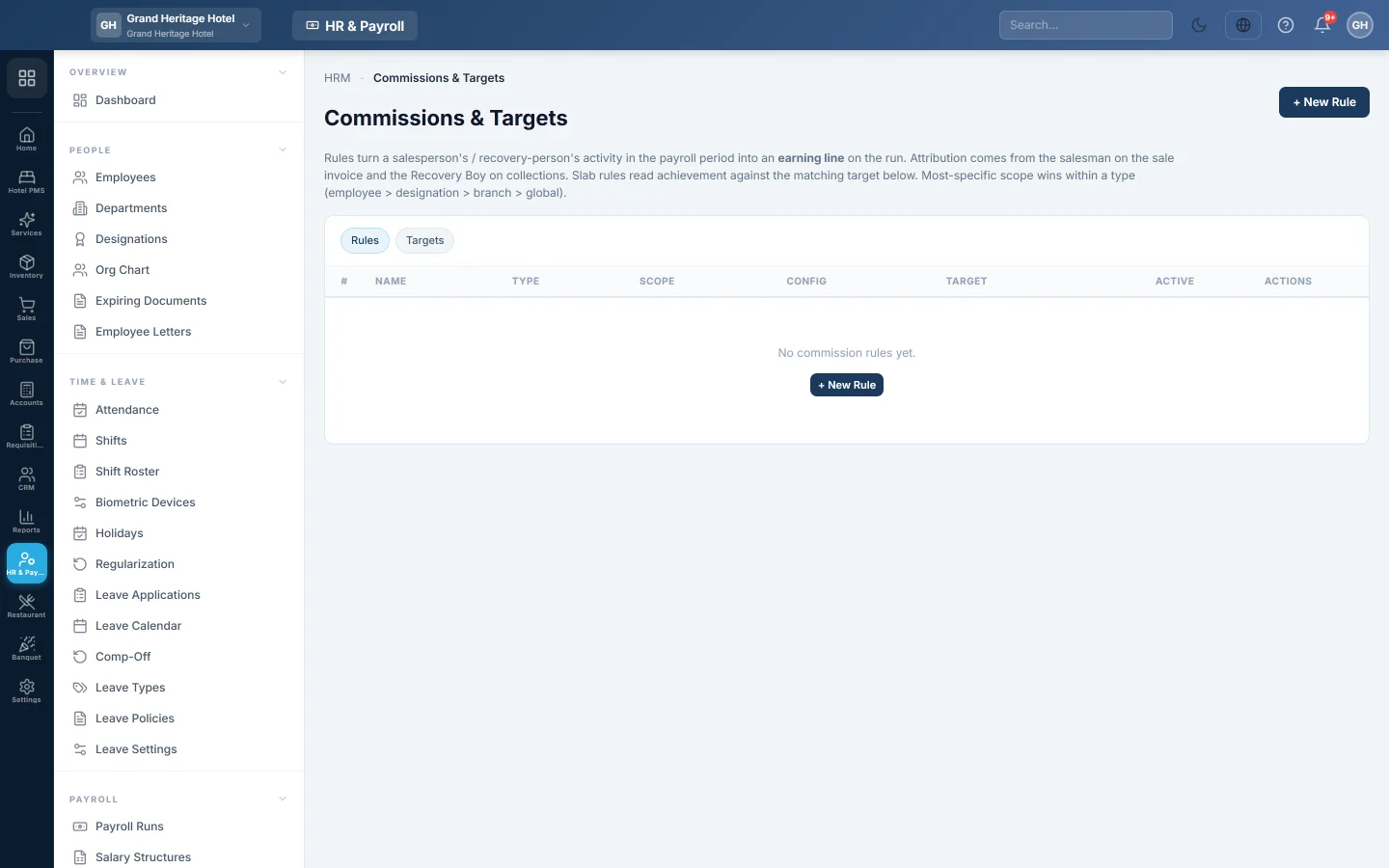
Commission rules turn what a salesperson sold, or what a recovery person collected, into an earning line on the payroll run. Targets let a slab rule pay more as achievement rises.
Before you begin
- Sales invoices name the salesman, and collections name the recovery person. Both are users.
- Each of those users is linked to their employee record, so the commission reaches the right payslip. A login made on the employee's Login & Access tab is linked already; otherwise link the user in Users & Roles.
Where to find it
Open HR & Payroll → Payroll → Commissions & Targets.
Create a rule
- On the Rules tab, click + New Rule.
- Type the Name, for example "Salesman 2% on sales".
- Pick the Type:
- Per-item (Rs / unit sold): an amount for each unit sold.
- Sale slab (% of sales by target achievement): a rate that depends on achievement against a target.
- Recovery slab (% of collections by target): the same for collections.
- Recovery flat (% of amount collected).
- Branch incentive (% of sales) or Inquiry / other (% of sales).
- Pick the Scope: global, branch, designation, employee, product or category, and choose which one.
- Fill the rate. For a slab rule, click + Add slab and type each from %, to % (∞) and pay %.
- Set Effective from and, if it ends, Effective to. Leave Active on.
- Click Create Rule.
Within one type, the most specific scope wins: employee, then designation, then branch, then global. Different types add up.
Set a target
- On the Targets tab, click + New Target.
- Pick the Employee or designation, the Target metric (Sale value, Sale quantity or Recovery amount) and the Target period (Monthly, Half-yearly or Annual).
- Type the Target amount and the Period start.
- Click Create Target.
How commission is paid
When you press Apply Tax/EOBI/OT on a draft payroll run, each rule is worked out for the run's month. The result is added as an earning line on the employee's row. See Payroll Runs.
What happens in the books
Commission is part of gross pay, so it posts to Salary Expense with the rest of the payroll. It is credited to the employee's ledger, or Salaries Payable, with their net pay.
Common questions
Why did a salesman get no commission? Their user is not linked to their employee record, the sales name another salesman, or no rule covers them for that month.
Why does a slab rule pay nothing? It needs a matching target for the same employee or designation and period.
Can two rules pay twice on the same sales? Not within one type: only the most specific rule applies. Rules of different types are added together.
Vielen Dank. Wenn Sie weitere Hilfe brauchen, schreiben Sie an info@eloerp.net.