Comp-Off
Credit compensatory days off to employees who worked on a holiday or weekend, and see how many each has earned, used and has left.
Comp-Off gives employees a day off in return for working on a holiday or a weekend. Credits are granted here, by hand or automatically, and taken later like any other leave.
Before you begin
- Create a comp-off leave type: on Leave Types, add a type and tick Comp-Off Type. Until then, the page shows a warning.
- Set the expiry and automatic credit in Leave Settings.
Where to find it
Open HR & Payroll → Time & Leave → Comp-Off.
Grant a comp-off by hand
- Click + Grant Comp-Off.
- Select the EMPLOYEE.
- Set the EARNED DATE, the day they worked.
- Type the DAYS, for example 1 or 0.5.
- Pick the SOURCE and, optionally, EXPIRES ON. Leave it blank to use the company's default expiry.
- Add NOTES and click Grant Credit.
Grant comp-offs from attendance
- Click Auto-Accrue.
- Set FROM and TO.
- Click Run Accrual.
Every employee marked present on a holiday or weekend in those dates gets one comp-off day. Running it again does not credit anyone twice.
See balances and credits
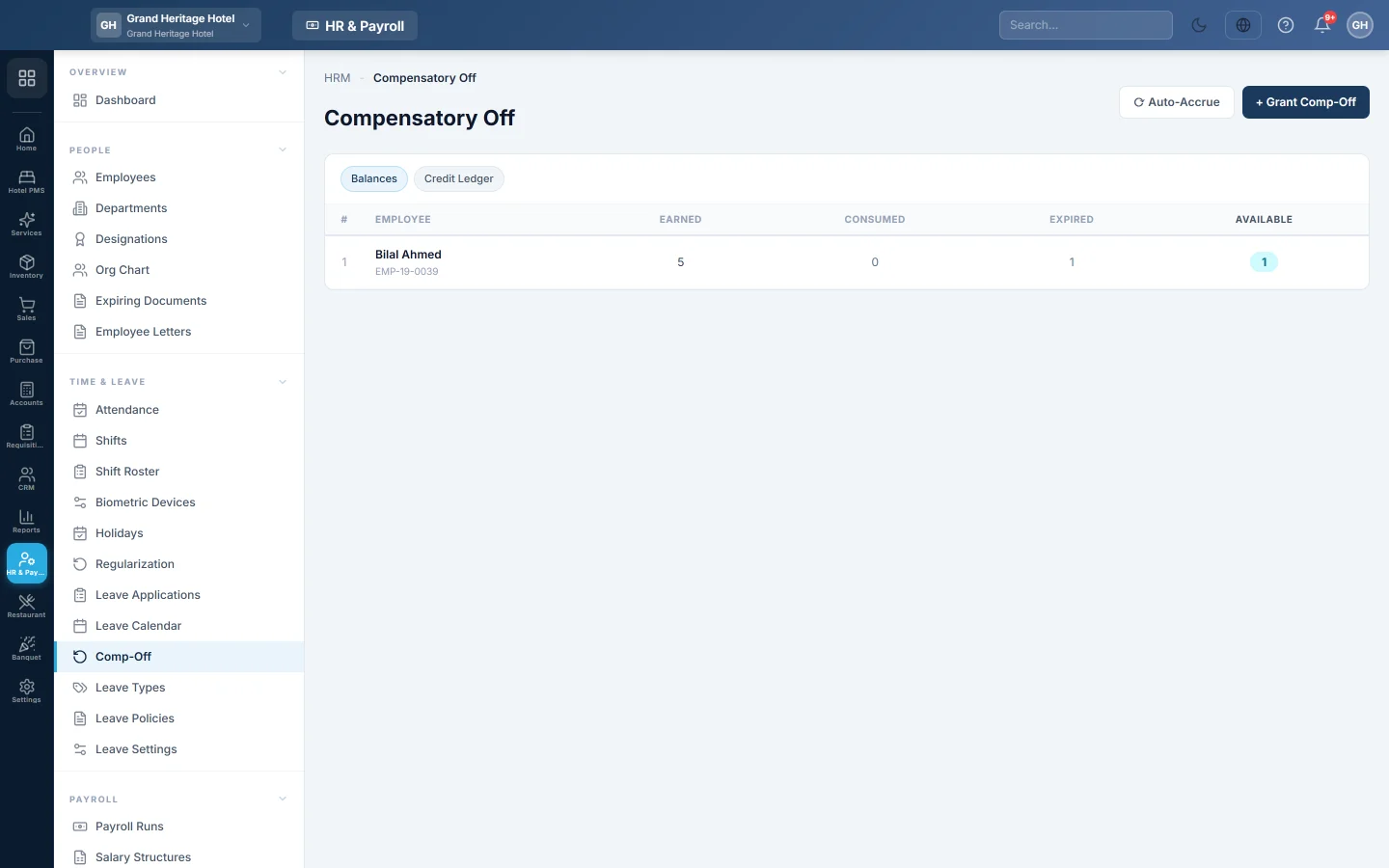
- The Balances tab shows, for each employee, what was Earned, Consumed, Expired and is Available.
- The Credit Ledger tab lists every credit with its earned date, days, used days, source, expiry and status. Click Cancel on a credit that has not been used to withdraw it.
Take a comp-off
Apply for it on Leave Applications and choose the comp-off leave type.
Common questions
Do comp-offs expire? Yes, after the number of days in CREDIT EXPIRY (DAYS) on Leave Settings. 0 means they never expire.
Can comp-offs be credited every night by themselves? Yes. Tick Auto-accrue daily on Leave Settings.
Why can I not cancel a credit? It has been used, fully or in part.
Obrigado. Se ainda precisar de ajuda, escreva para info@eloerp.net.