Shift Roster
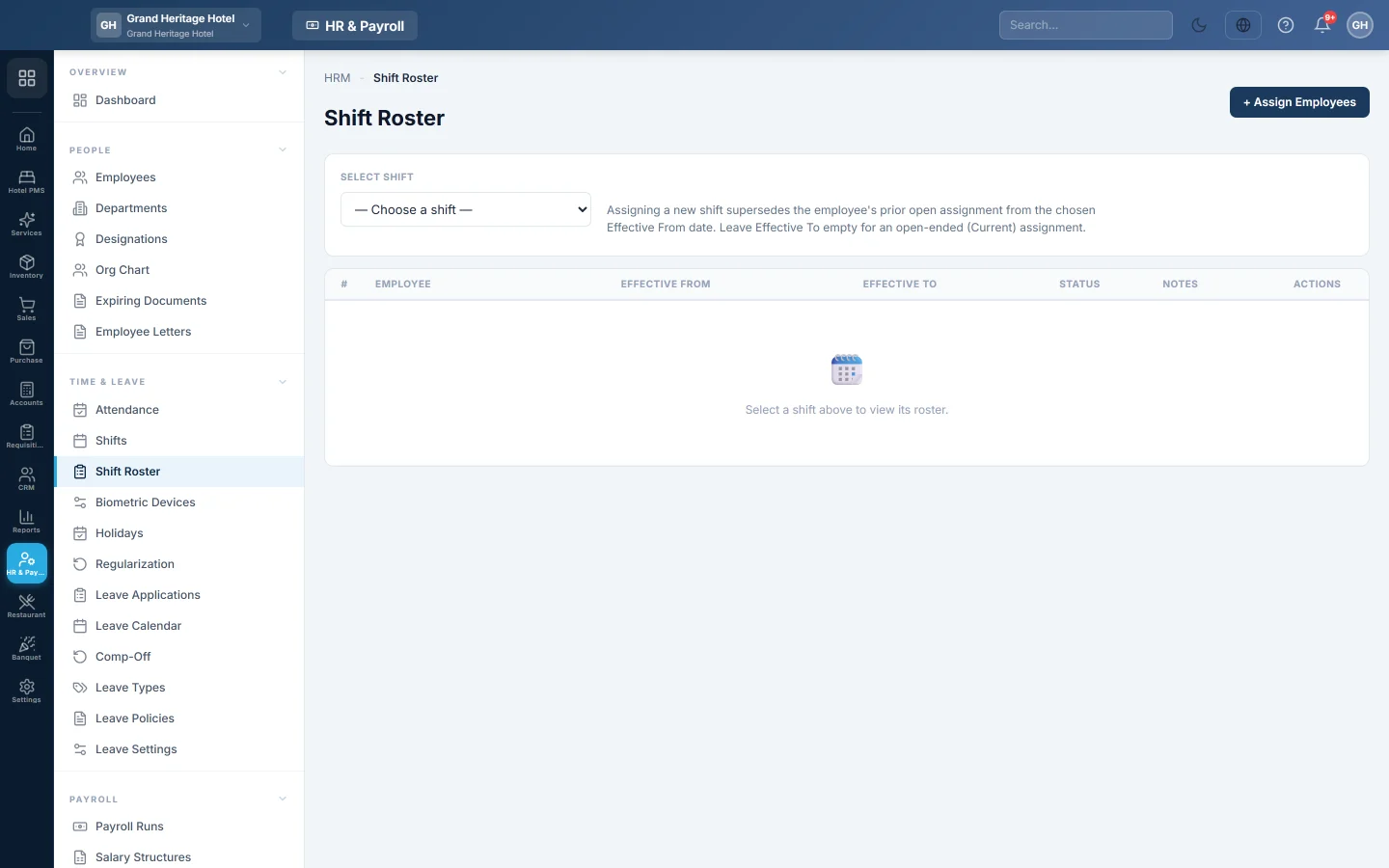
Assign employees to a shift from a date, see who is on each shift, and end or remove assignments.
The Shift Roster says which employees work which shift, and from when. Attendance uses the shift in force on each day to work out lateness, half days and overtime.
Before you begin
- Create your Shifts.
Where to find it
Open HR & Payroll → Time & Leave → Shift Roster.
See who is on a shift
- Choose a shift at the top.
- Read the list. Each row shows the Employee, Effective From, Effective To and Status: Current or Ended.
Assign employees to a shift
- Click Assign Employees.
- Under SELECT SHIFT, choose the shift.
- Under SELECT EMPLOYEES, tick the people. Search by name, number or department.
- Set EFFECTIVE FROM.
- Leave EFFECTIVE TO empty for an open-ended assignment, or set the last day.
- Optional: add NOTES, then click Assign Employees at the bottom of the window.
Remove an assignment
Click Remove on the row. Use this for a mistake. To move someone to another shift, assign them to the new shift instead, so their history stays correct.
Common questions
Can an employee be on two shifts at once? No. Assigning a new shift ends the open one from the new date.
I assigned the wrong date. What do I do? Remove the assignment and assign it again with the right Effective From.
Do I have to use the roster? No. Without a shift, attendance uses the company's working week from Statutory & Tax Slabs.
Obrigado. Se ainda precisar de ajuda, escreva para info@eloerp.net.