Leave Applications
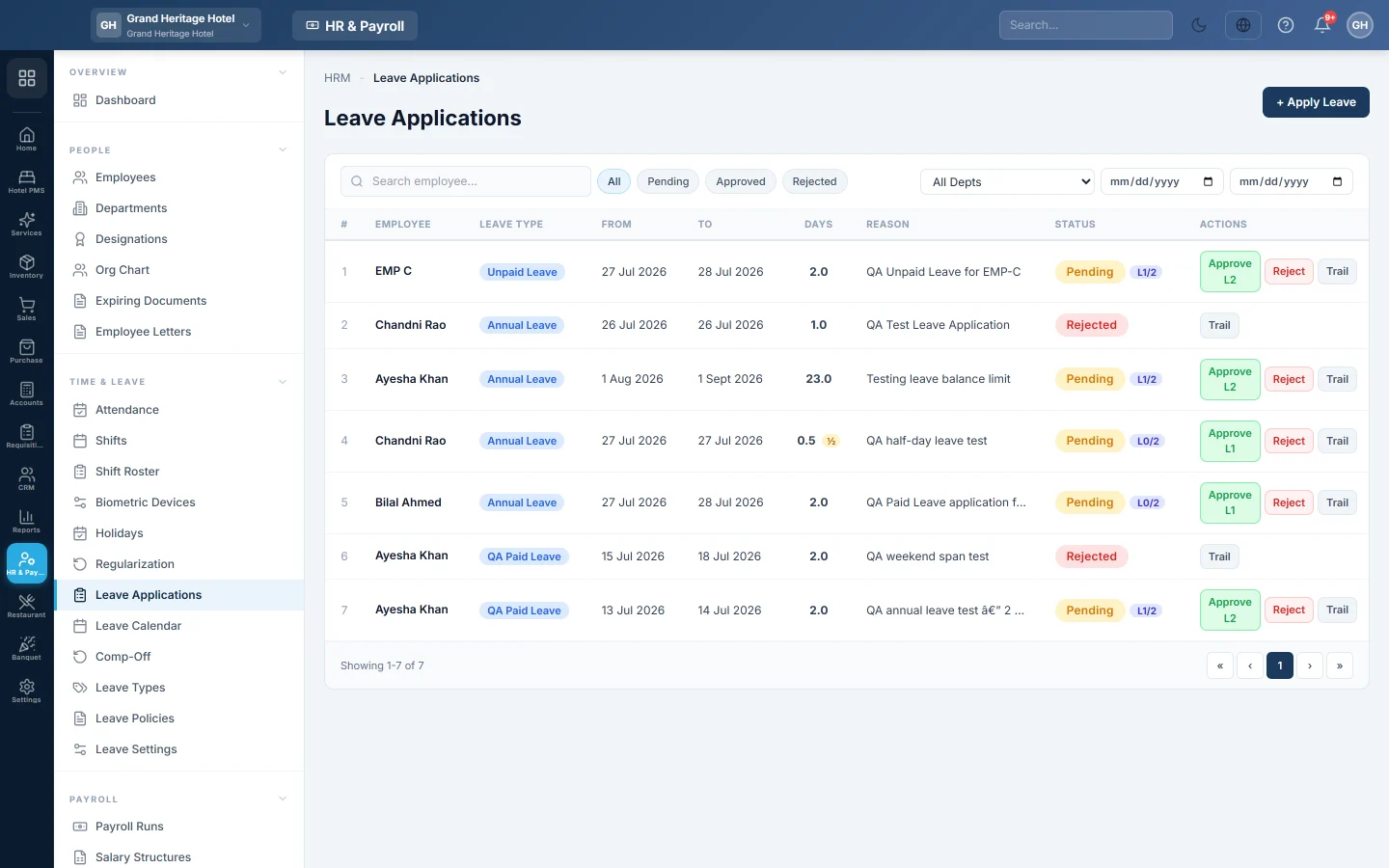
Apply for leave on an employee's behalf, and approve or reject leave applications, including multi-level approval.
Leave Applications is where leave is requested and approved. Approved leave shows on attendance as On Leave: paid leave costs nothing, and unpaid leave is deducted like an absence.
Before you begin
- Set up your Leave Types, and optionally Leave Policies for automatic balances.
- Choose how many approval levels leave needs in Leave Settings.
- Approving needs the leave approval permission for each level. See Users & Roles.
Where to find it
Open HR & Payroll → Time & Leave → Leave Applications.
Apply for leave
- Click + Apply Leave.
- Under EMPLOYEE, select the employee.
- Under LEAVE TYPE, select the type. The list shows each type's days per year.
- Set FROM DATE and TO DATE.
- For half a day, tick Half day (0.5) and choose First half or Second half under WHICH HALF.
- Type the REASON.
- Click Submit Application.
Leave days are counted on working days only. Weekends and holidays inside the dates are left out by themselves.
Approve or reject leave
- Use the status filter to show pending applications. Search by employee or pick a department to narrow the list.
- Click Approve on the row. With more than one approval level, the button shows the level, and the row shows how many levels are cleared.
- To refuse, click Reject, type the REJECTION REASON and confirm.
Click Trail to see who approved or rejected at each level, and when.
Common questions
Why can I not approve the second level? Each level must be cleared by a different person holding that level's approval permission.
Does leave reduce pay? Only for leave types not marked Paid Leave. Paid leave days are paid in full.
An employee applied for the wrong dates. What do I do? Reject the application with a reason, and apply again with the right dates.
Where can I see who is away this month? On Leave Calendar.
Can employees apply themselves? Yes, from their self-service login, if they have one. See Employees.
Спасибо. Если помощь всё ещё нужна, напишите на info@eloerp.net.