Leave Policies
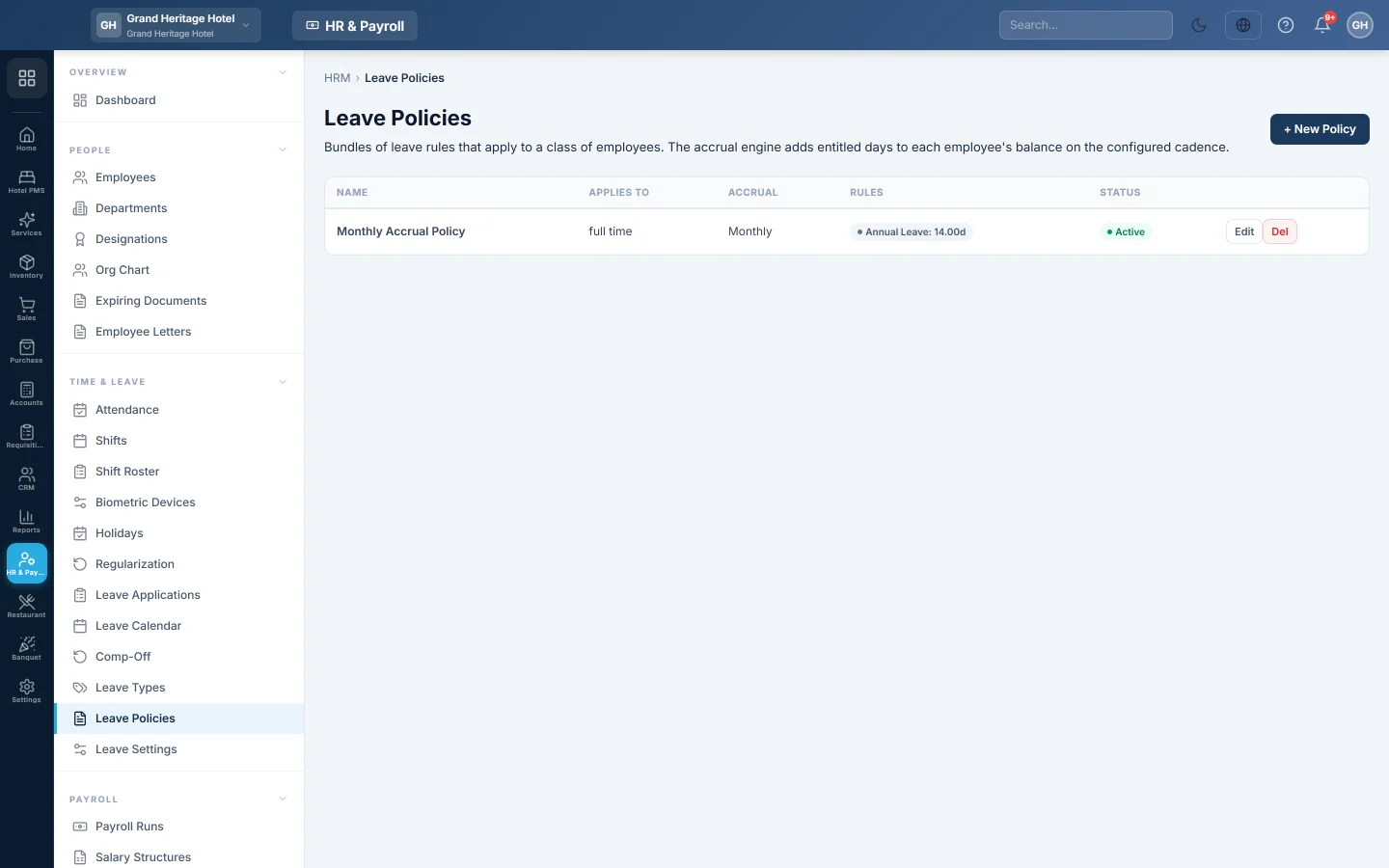
Bundle leave rules for a group of employees so their leave balances build up automatically each month, quarter or year.
A leave policy bundles leave rules for one group of employees, for example full-time permanent staff. EloERP uses it to add leave days to each employee's balance on a schedule.
Before you begin
- Create your Leave Types.
Where to find it
Open HR & Payroll → Time & Leave → Leave Policies.
Create a policy
- Click + New Policy.
- Type the Name, for example "Full-time Permanent".
- Under Applies to, choose the employment type: All, Full-time, Part-time, Contract or Intern.
- Under Accrual, choose Monthly, Quarterly or Yearly.
- Under Rules per leave type, click + Add rule and pick the Leave Type.
- Type the Annual entitlement and the Per period amount. For 14 days a year added monthly, type 14 and 1.17.
- Optional: set CF max (the most days that carry forward) and CF expires (mo) (after how many months they lapse), and tick Encashable.
- Add a rule for each leave type, leave Active ticked and click Save.
How balances build up
Each night EloERP checks the active policies. On the 1st of the month, quarter or year, it adds each rule's Per period days to every matching employee's balance. An employee matched by both an All policy and a policy for their own employment type gets the more specific one.
Common questions
Do I need a policy to give leave? No. Without one, employees can still apply for leave. A policy keeps balances up to date by itself.
Why did nobody get days this month? Accrual runs on the 1st of the period. A quarterly policy adds days only on the 1st of each quarter.
Can a policy cover only one department? Policies apply by employment type. Create separate leave types if a department needs different entitlements.
Thank you. If you still need help, write to info@eloerp.net.