Employee Letters
Issue numbered letters on your letterhead, such as experience certificates, bank account letters, salary certificates and NOCs, for one employee or many at once.
Employee Letters issues HR letters on your letterhead: experience certificates, letters to open a bank account, salary certificates, NOCs and your own templates. Every letter gets a number and is kept for reprints.
Before you begin
- Your company name, address, phone, NTN and logo print at the top of every letter. Check them in Company.
- Fill the employee details the letters use, such as CNIC, father name, designation and joining date. See Employees.
Where to find it
Open HR & Payroll → People → Employee Letters.
Issue a letter
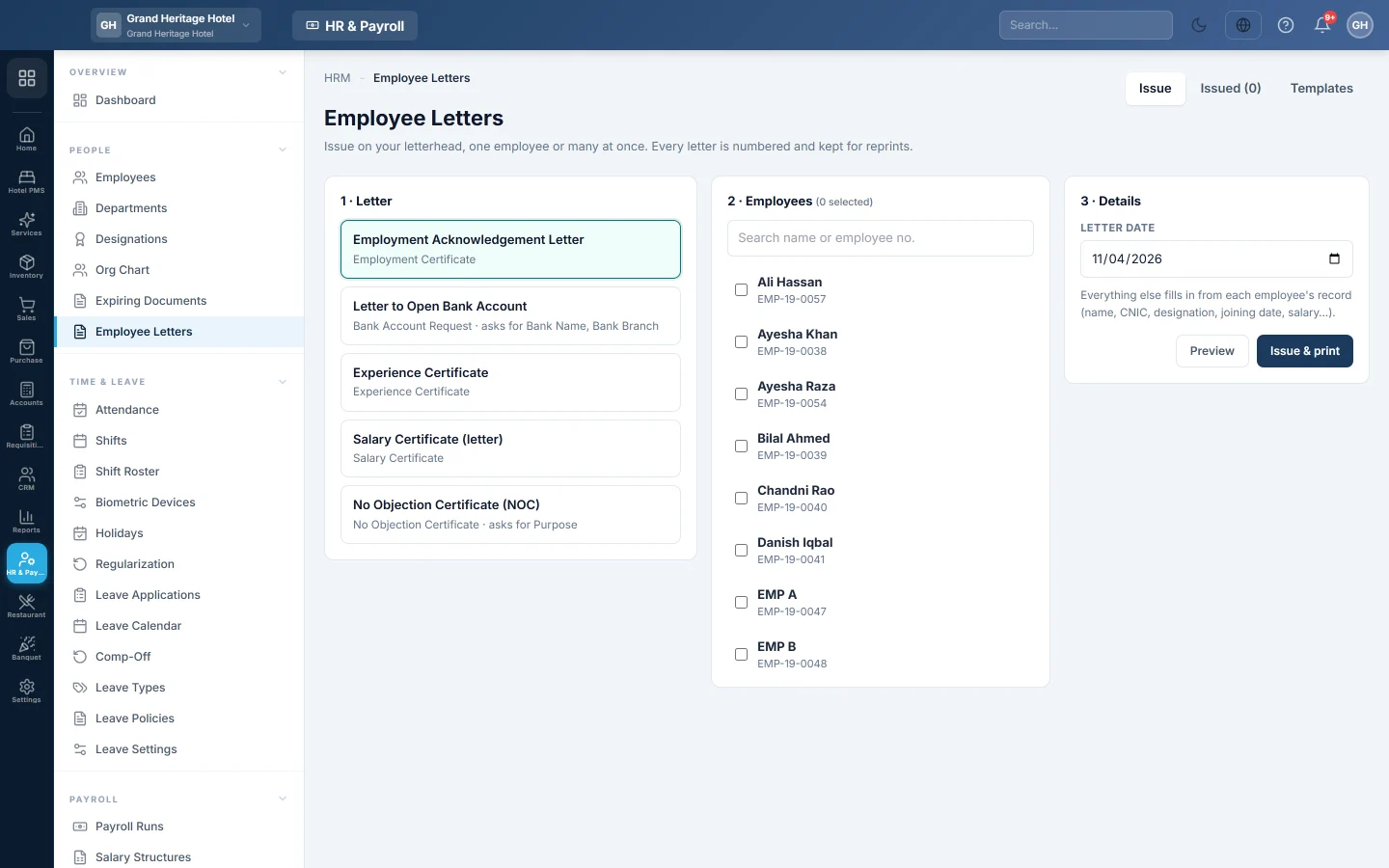
- On the Issue tab, under 1 · Letter, click the letter you need.
- Under 2 · Employees, tick one or more employees. Use Search name or employee no. to find them.
- Under 3 · Details, set the Letter date. If the letter asks for extra details, such as a bank name, fill them. They are the same for every selected employee.
- Click Preview to check the letter.
- Click Issue & print. With several employees selected, the button says how many letters it issues.
Everything else fills in from each employee's record. If a detail is empty, EloERP lists it and asks before printing it blank.
Reprint or cancel a letter
- Open the Issued tab. It lists every Letter no., Date, Employee, Letter and Status.
- Click Print on a row, or tick several rows and click Print 3 selected (the number is how many you ticked).
- To withdraw a letter, click Cancel on its row and type the reason. The letter stays in the list as Cancelled.
Make your own letter
EloERP starts you with an Employment Acknowledgement Letter, a Letter to Open Bank Account, an Experience Certificate, a Salary Certificate (letter) and a No Objection Certificate (NOC).
- Open the Templates tab and click + New letter, or Edit on an existing one.
- Type the Name in the list and the Title on the page.
- Optional: fill Addressed to (one line each) and Subject.
- Type the Opening, for example "TO WHOM IT MAY CONCERN".
- Write the Text. A blank line starts a new paragraph.
- Use the placeholders shown under Fills in by itself, such as {name}, {cnic}, {designation} or {joining_date}. Any other word in braces, such as {bank_name}, is asked for when you issue the letter.
- Tick "Private & Confidential" mark or Acknowledgement strip for the employee to sign if you need them.
- Leave Show in the Issue list ticked, or untick it to hide the letter.
- Click Save letter.
Common questions
Can I issue the same letter to the whole department? Yes. Tick every employee under 2 · Employees and click Issue & print. Each gets their own numbered letter.
How do I change the logo on the letters? Change it in your company settings. Every HR document uses the same letterhead.
Where is the yearly increment letter? It is printed from Increments.
Can I delete an issued letter? No. Cancel it with a reason, so the numbering stays complete.
谢谢。 如果仍需帮助,请发邮件至 info@eloerp.net。