Org Chart
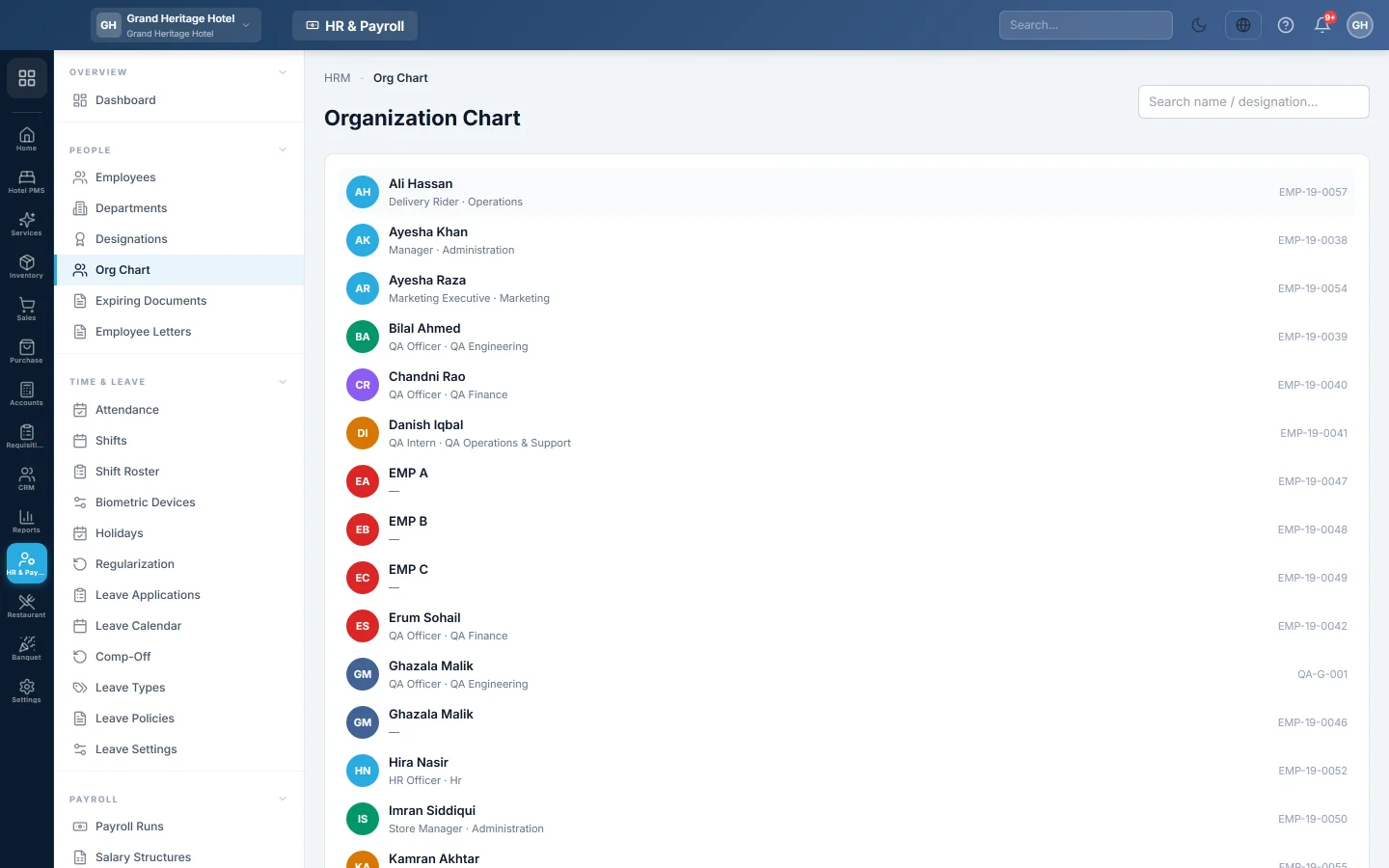
A tree of your current staff by who they report to, with their designation and department, built from each employee's Reporting to field.
The Org Chart shows your staff as a tree: each manager with the people who report to them indented below. You build it by setting Reporting to on each employee.
Before you begin
- Add your employees with their designation and department. See Employees.
- Decide who each person's manager is. Start from the top: the owner or general manager reports to nobody.
Where to find it
Open HR & Payroll → People → Org Chart. The page heading reads Organization Chart.
Build the chart one employee at a time
- Open HR & Payroll → People → Employees and open the employee.
- Click the Employment tab.
- In Reporting to, type the manager's name and pick them from the list.
- Click Save Employee.
Leave Reporting to blank for the person at the top of the tree. The list leaves out the employee themselves and everyone who already reports to them, directly or further down.
Set the manager for many employees at once
- On Employees, tick the employees who share a manager, for example all the cashiers.
- Click Bulk edit in the bar that appears.
- Tick Reporting to and pick the manager.
- Click Update followed by the number of employees.
Only the fields you tick change. To clear the manager, tick Reporting to and leave the picker blank.
Read the chart
- Each line shows the employee's initials, name, designation, department and employee number.
- A manager shows how many people report to them, for example 3 reports, with those people listed below.
- People at the same level are sorted by name.
- Type in Search name / designation… to find someone by name, designation or department.
Common questions
Why is everyone on one level? No employee has Reporting to set yet. Set it on the employee form or with Bulk edit.
Do people who left appear? No. Only employees with status Active or On Leave are charted.
A manager left. What happens to their team? Their reports move to the top level of the chart. Open Employees, tick them and use Bulk edit to give them a new manager.
Can I print or export the chart? Not from this page. To list each employee with their manager, add the Reports to column on Employees with ▦ Columns and use ⬇ Export.
谢谢。 如果仍需帮助,请发邮件至 info@eloerp.net。