Expiring Documents
Every employee document with an expiry date, grouped by urgency, so HR renews CNICs, passports, visas, medical certificates and licences in time.
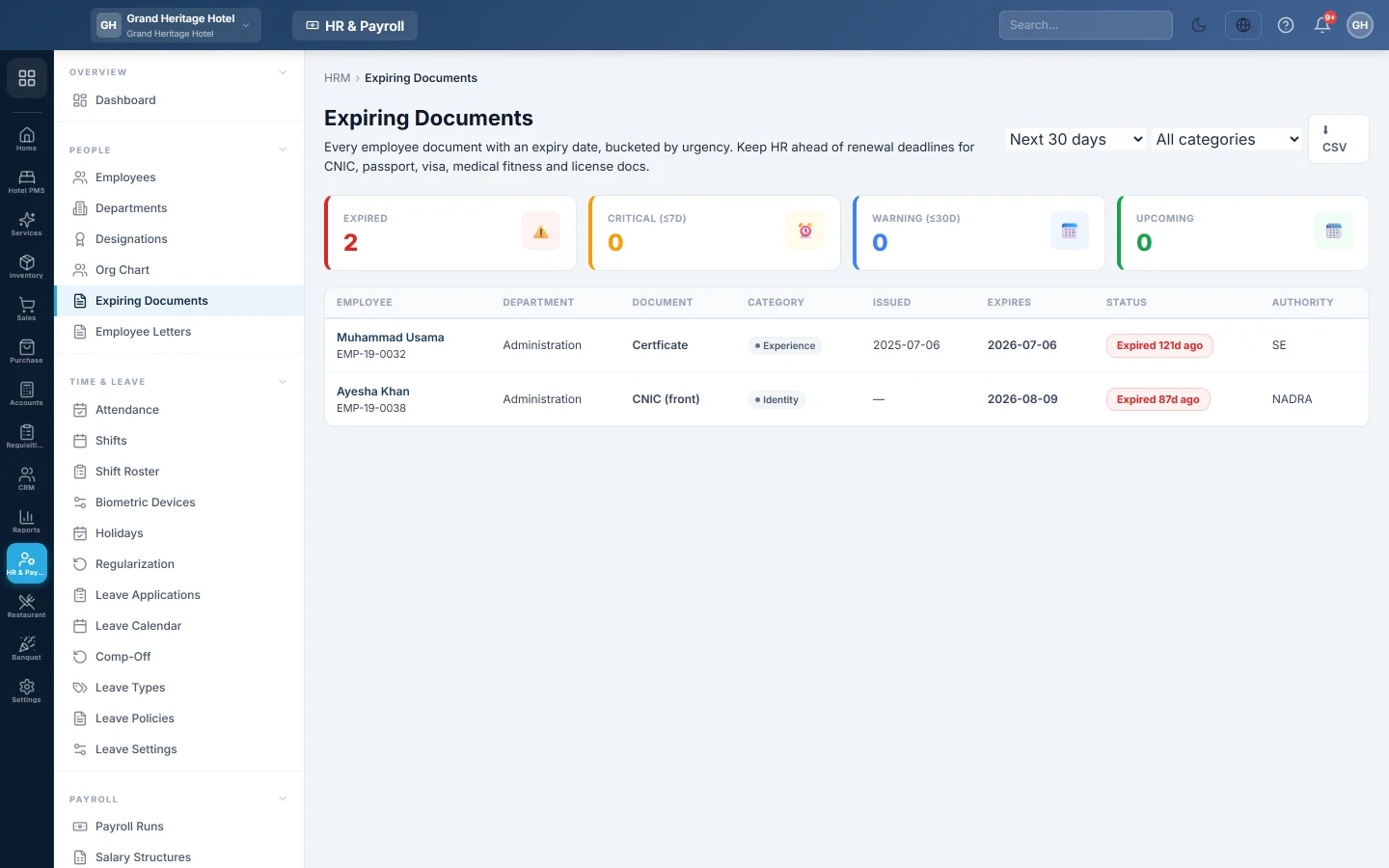
Expiring Documents lists every employee document that has an expiry date, sorted by how soon it expires. Use it to renew ID cards, passports, visas, medical certificates and licences before they lapse.
Before you begin
- Upload employee documents with an Expiry Date on the Documents tab of each employee. See Employees.
Where to find it
Open HR & Payroll → People → Expiring Documents. The Docs Expiring card on the Dashboard opens it too.
Check what is expiring
- Pick the window: Next 7 days, Next 30 days, Next 60 days, Next 90 days or Next 180 days.
- Optional: pick a category, such as Identity, Visa, Medical or License, or leave All categories.
- Read the counts at the top: Expired, Critical (≤7d), Warning (≤30d) and Upcoming.
- Work down the list. Each row shows the Employee, Department, Document, Category, Authority, Issued and Expires dates and the Status.
Renew a document
- Open the employee on Employees and go to the Documents tab.
- Click Replace on the old document and upload the new one with its new Expiry Date. The old version stays in the history.
Common questions
Why is a document missing from the list? It has no expiry date, or it expires after the window you picked. Choose a longer window.
Are expired documents shown? Yes. They are counted under Expired, with how many days ago they expired.
Can I be told before something expires? Alerts can warn you about expiring documents. See Alerts.
Terima kasih. Jika masih butuh bantuan, kirim email ke info@eloerp.net.