Designations
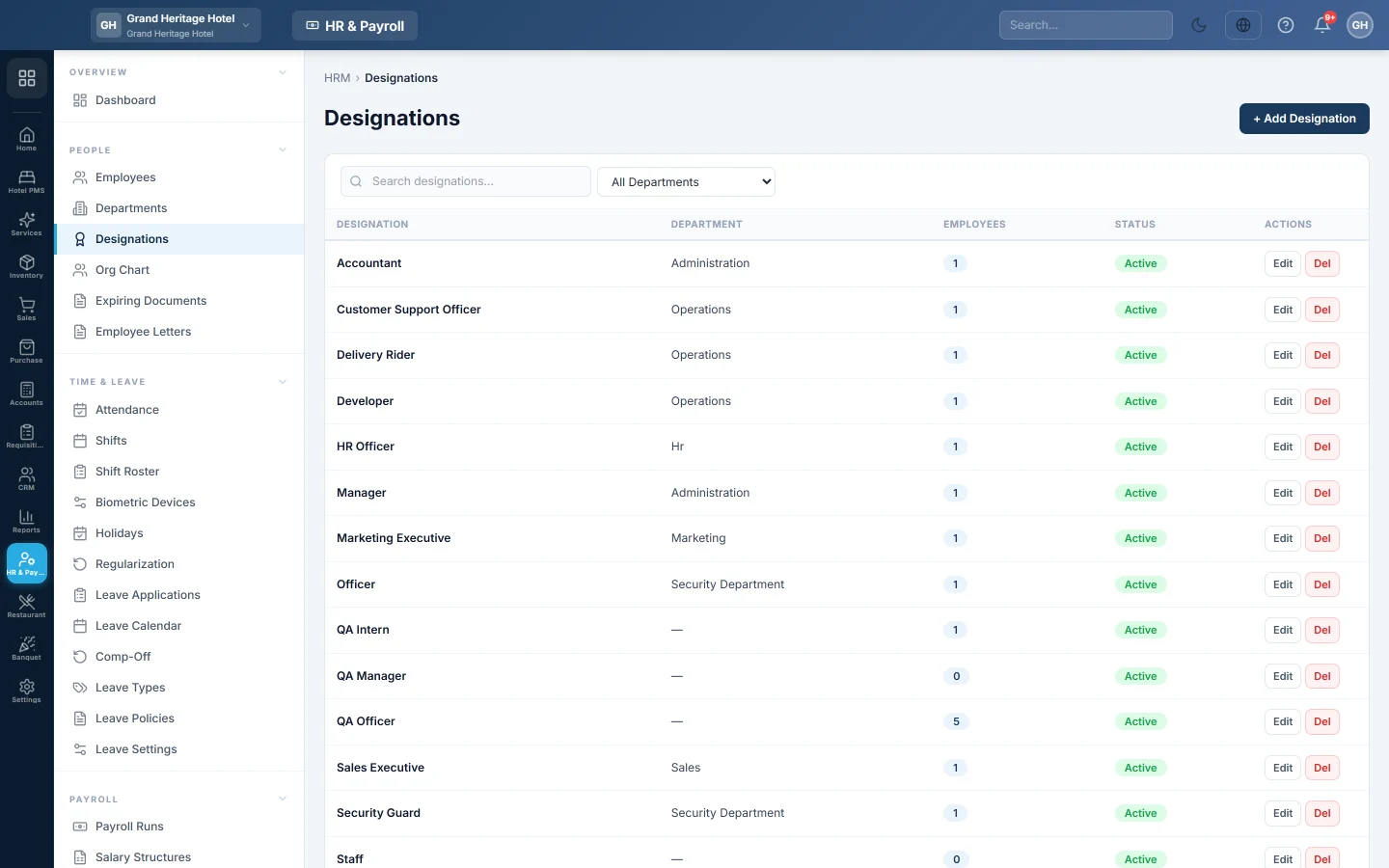
Create and maintain job titles, optionally tied to a department, for employee records, letters and reports.
Designations are the job titles your employees hold, such as Cashier, Store Manager or Chef. They appear on employee records, letters, payslips and reports.
Before you begin
- Create the Departments you want to link titles to.
- Your role needs the HR permissions to manage designations. See Users & Roles.
Where to find it
Open HR & Payroll → People → Designations.
Add a designation
- Click + Add Designation.
- Type the Name, for example "Store Manager".
- Optional: pick the Department it belongs to, or leave No Department.
- Optional: type a Description.
- Leave Active ticked and click Save.
Change or remove a designation
- Click Edit on its row, make the change and click Save.
- Click Del to delete it. A designation that employees still hold cannot be deleted.
Use Search designations... or All Departments to narrow the list. The list shows each designation's Department, Employees and Status.
Common questions
Why can I not delete a designation? Employees still hold it. Give them another designation on Employees first.
Can two departments have the same title? Yes. Add the designation once for each department, so reports can tell them apart.
Where does the designation print? On payslips, employee letters, salary certificates and HR reports.
Teşekkür ederiz. Hâlâ yardıma ihtiyacınız varsa info@eloerp.net adresine yazın.