Departments
Create and maintain the departments your employees belong to, used for filters, reports and payroll cost by department.
Departments group your employees, for example Front Office, Kitchen, Accounts or Sales. Reports, dashboards and payroll cost by department all use them.
Before you begin
- Your role needs the HR permissions to manage departments. See Users & Roles.
Where to find it
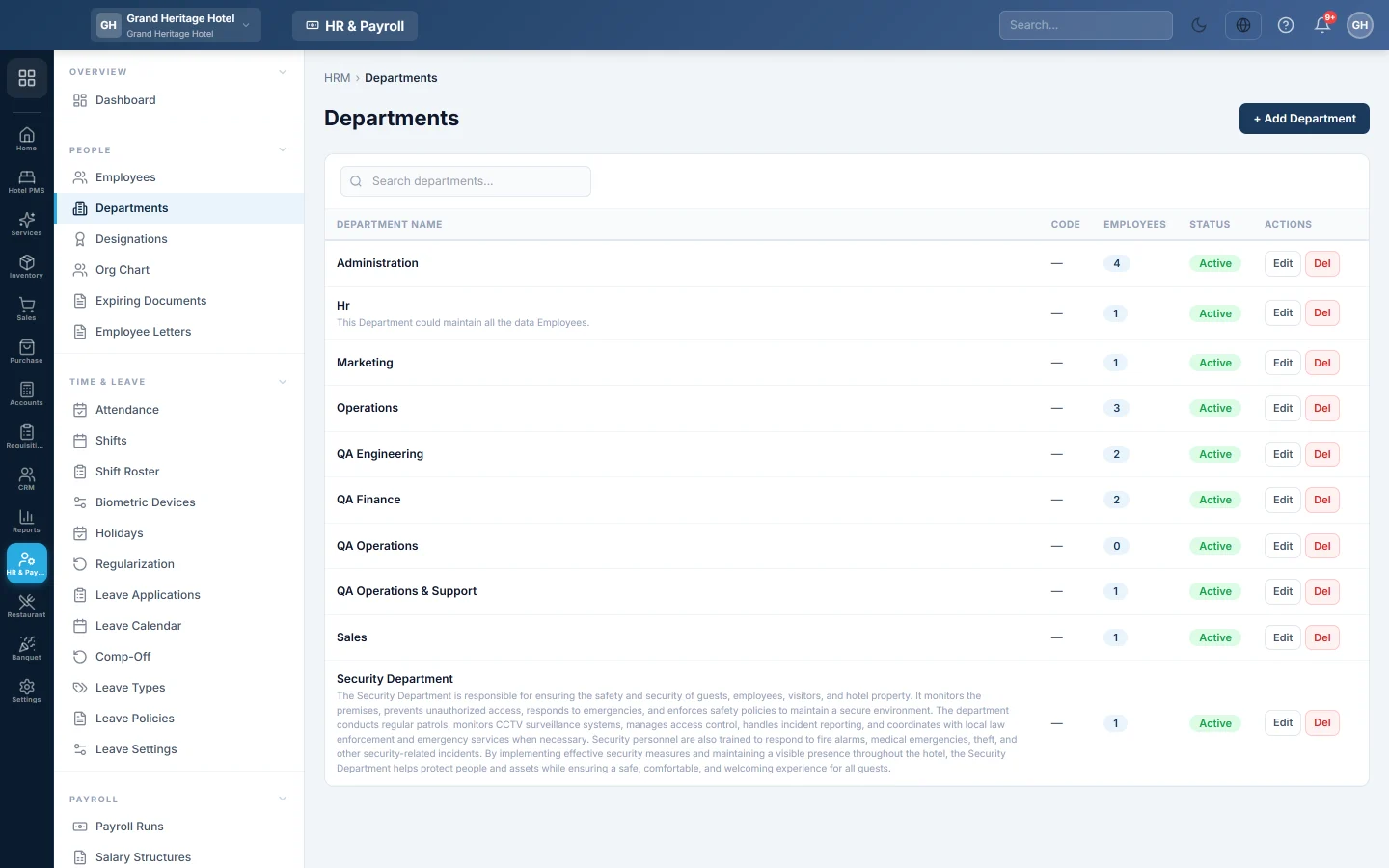
Open HR & Payroll → People → Departments.
Add a department
- Click + Add Department.
- Type the Name.
- Optional: type a short Code, such as HR or MKT, and a Description.
- Leave Active ticked.
- Click Save.
Change or remove a department
- Click Edit on its row, make the change and click Save.
- Untick Active to stop using a department without deleting it.
- Click Del to delete it. A department with active employees cannot be deleted. Move them to another department first.
The list shows each department's Code, how many Employees it has and its Status. Use Search departments... to find one.
Common questions
Why can I not delete a department? It still has active employees. Reassign them on Employees, for example with Bulk edit, then delete it.
Do I have to create departments before importing employees? No. The employee import creates any department named in the file that does not exist yet.
Where do I see salary cost per department? On the Dashboard and in the Cost by Department report on HR & Payroll Reports.
Teşekkür ederiz. Hâlâ yardıma ihtiyacınız varsa info@eloerp.net adresine yazın.