Rules
Decide which events send an automatic message, on which channel and with which template, straight away or after a delay.
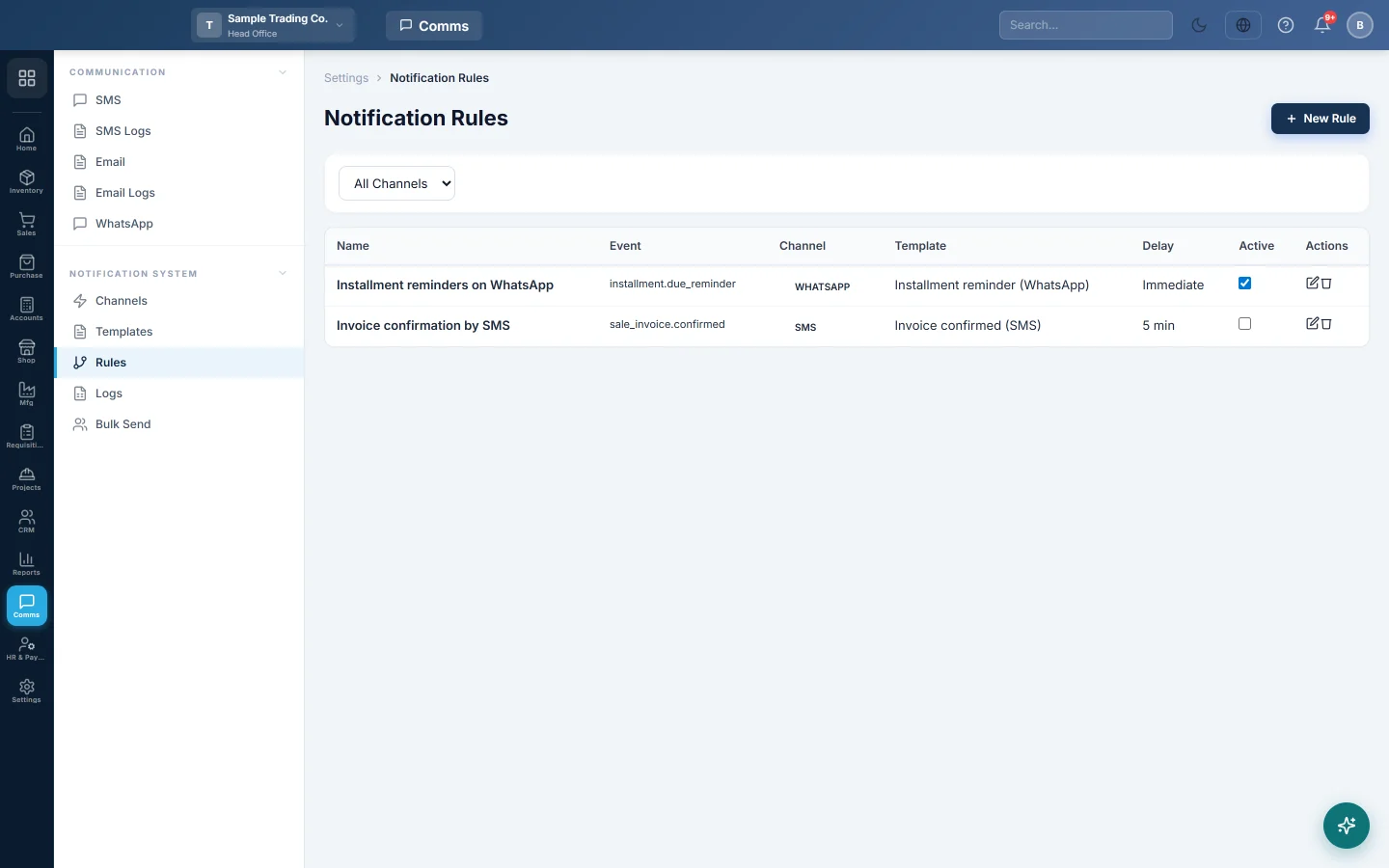
A rule switches an automatic message on: when this event happens, send this template on this channel. For example, when a sale invoice is confirmed, send the customer an SMS.
Before you begin
- The channel is set up and switched on. See Notification Channels.
- A template exists for the same channel and event. See Templates.
- Your role needs the notification rule permissions. See Users & Roles.
Where to find it
Open Communication → Notification System → Rules.
Add a rule
- Click New Rule.
- Type a Rule Name, for example SMS on Invoice Confirmed.
- Choose the Event Type, for example Sale invoice confirmed or Receipt voucher confirmed (to the customer).
- Choose the Channel.
- Pick the Template. Only templates for that channel are listed; pick one written for the same event.
- Type a Delay (minutes, 0 = immediate) if the message should wait, for example 30.
- Keep Active ticked.
- Click Create.
From now on, each time the event happens, EloERP fills in the template and queues the message. Queued messages go out within about a minute, or after the delay.

Events you can use
The Event Type list is grouped by module. Some examples:
| Module | Events |
|---|---|
| Sales | Sale invoice created, confirmed, fully paid, overdue; sale return confirmed; delivery note created; installment due soon |
| Subscriptions | Subscription invoice raised, payment reminder, paid, suspended, restored |
| Purchases | Purchase order created, GRN confirmed, purchase invoice confirmed, purchase return confirmed |
| Requisitions | Requisition submitted, approved, rejected |
| Accounts | Payment voucher confirmed (to the supplier), receipt voucher confirmed (to the customer) |
| HR & Payroll | Payslip generated, payroll approved, salary paid, leave approved or rejected, loan installment due, employee document expiring |
| CRM | Lead created, deal moved stage, deal won, deal lost, activity due in 30 minutes |
| Manufacturing | Work order completed |
Pause, change or delete a rule
- Untick Active in the list to pause a rule.
- Click the pencil to change it, then Update.
- Click the bin and confirm with Delete.
Common questions
A rule is active but nothing was sent. Check the Logs. If there is no entry, the channel is off, its Daily Limit was reached, the template is inactive, or the customer has no phone or email.
Can two rules use the same event? Yes. For example, one SMS and one email for Sale invoice confirmed.
Is the delay used for in-app messages? No. In-app messages appear in the bell at once, so the delay box is hidden for them.
Are messages sent for old invoices when I add a rule? No. A rule works from the moment you save it.
Teşekkür ederiz. Hâlâ yardıma ihtiyacınız varsa info@eloerp.net adresine yazın.