Leads
Record people and businesses who might buy from you, track their status and priority, log follow-ups and convert them into customers.
A lead is someone who might buy from you: a walk-in enquiry, a phone call, a referral or a website form. You record them here, follow up, and convert the good ones into customers.
Before you begin
- Your role needs the CRM leads permissions. See Users & Roles.
- Leads belong to the branch selected in the top bar. Pick the right branch before you add them.
Where to find it
Open CRM → CRM → Leads. The side menu also has a New Lead quick action.
Add a lead
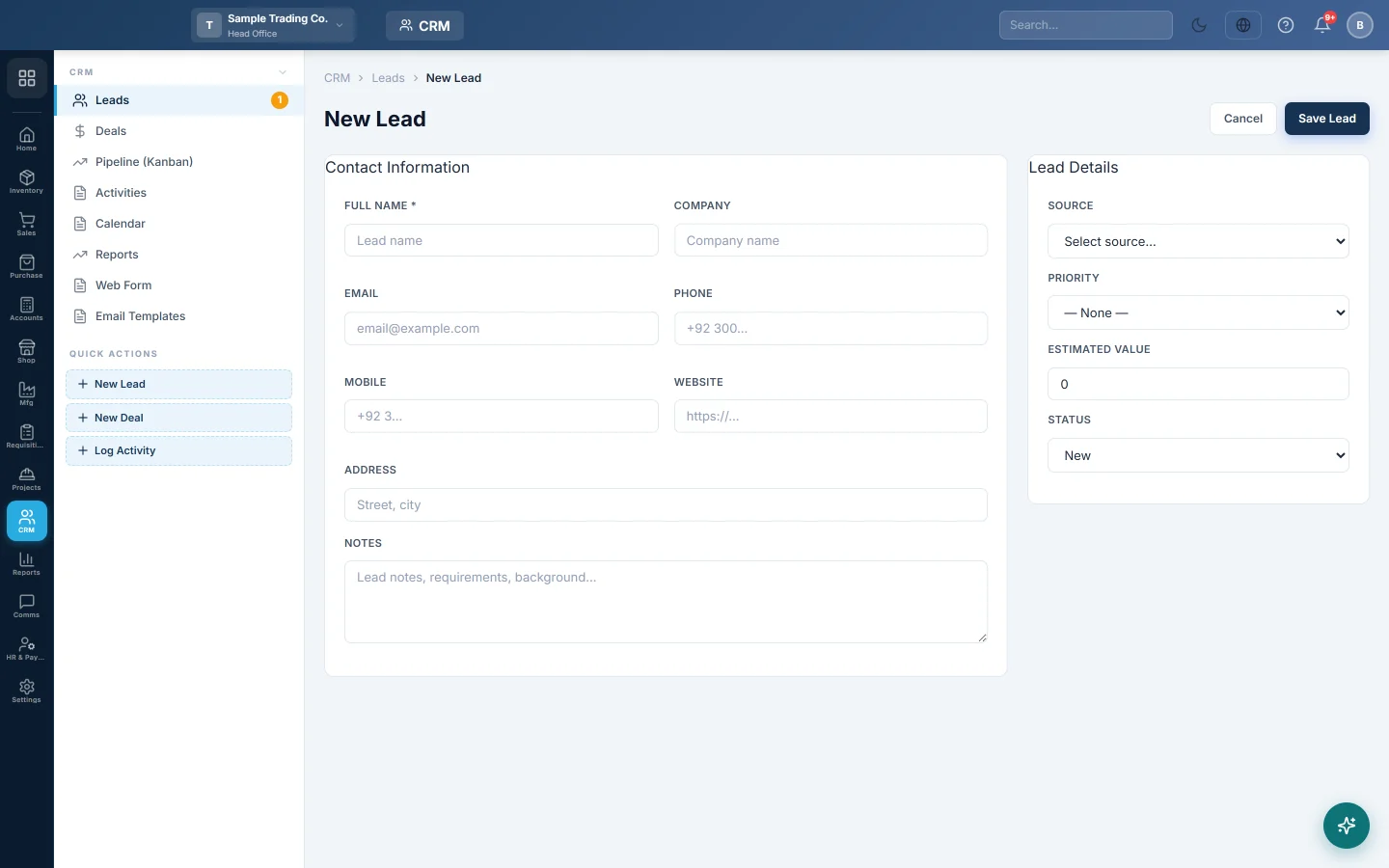
- Click New Lead.
- Type the Full Name. It is the only required field.
- Fill in Company, Email, Phone, Mobile, Website and Address if you have them.
- Under Lead Details, choose the Source, such as Website, Referral or Cold Call.
- Choose the Priority: Hot, Warm or Cold.
- Type the Estimated Value, what you think the lead may buy, for example Rs 150,000.
- Leave Status on New, and add any Notes.
- Click Save Lead.
EloERP gives the lead a number such as LD-2026-00012.
Find leads
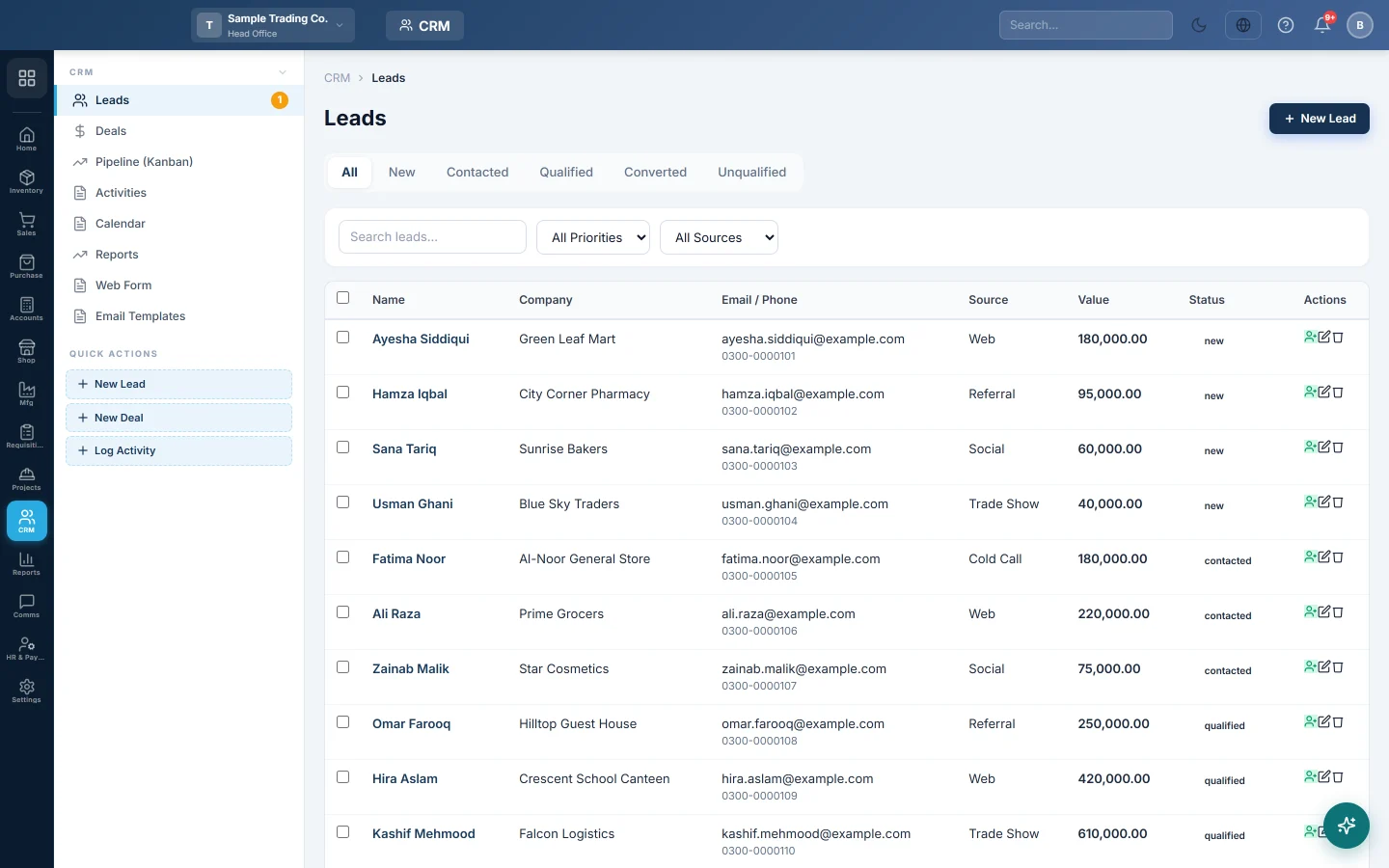
- Click a status tab: All, New, Contacted, Qualified, Converted or Unqualified.
- Type a name, email, company or lead number in Search leads....
- Filter by priority or source with the two drop-downs.
Work a lead
Click the lead's name to open it. The left panel shows the contact details; the right has Activities, Deals and Notes tabs.
- Click + Log Activity to record a call, email, meeting, demo or task.
- Choose the Type and Status, type a Subject, and set Scheduled At for a follow-up.
- Save the activity. It also shows on Activities and the Calendar.
- Click Edit to move the Status along, for example from New to Contacted to Qualified, or to give the lead an owner in Assigned To.
- Click Save Changes.
When you give a lead an owner, that user gets an alert if the lead assigned alert is on. See Alerts.
Convert a lead to a customer
- Open the lead, or find it in the list.
- Click Convert to Customer (the person-plus icon in the list).
- Confirm.
EloERP looks for a customer with the same email. If there is none, it creates a customer with the lead's name, email, phone and address. The lead's status becomes Converted and shows the customer's name.
To sell to the lead later, create a deal for them. See Deals.
Email several leads
- Tick the leads in the list. A bar shows how many are selected.
- Click Send Email to n leads.
- Pick the Email Template and check the Subject.
- Click Send Email.
The template can use {{name}}, {{company}} and {{email}}, which are filled in per lead. Single braces such as {name} work too. Leads without an email are skipped. Each email is logged as an activity on the lead.
The emails go out through your company's own Email channel when one is switched on, otherwise through the system mailer. See Channels.
Delete a lead
Click the bin icon and confirm with Delete. Use Unqualified instead if you want to keep the history.
Common questions
What is the difference between a lead and a deal? A lead is a person who may buy. A deal is a particular sale you are chasing, with a value and a stage. One lead can have several deals.
Do website enquiries arrive as leads? Yes, if you put the CRM form on your website. They arrive with status New and priority Warm. See Web Form.
The template list in Send Bulk Email is empty. Only CRM email templates of type Lead or General show there. Add one under CRM → CRM → Email Templates with New Template.
I converted a lead but cannot find the customer. If a customer with the same email already existed, the lead was linked to that customer instead of creating a new one.
Vielen Dank. Wenn Sie weitere Hilfe brauchen, schreiben Sie an info@eloerp.net.