Staff
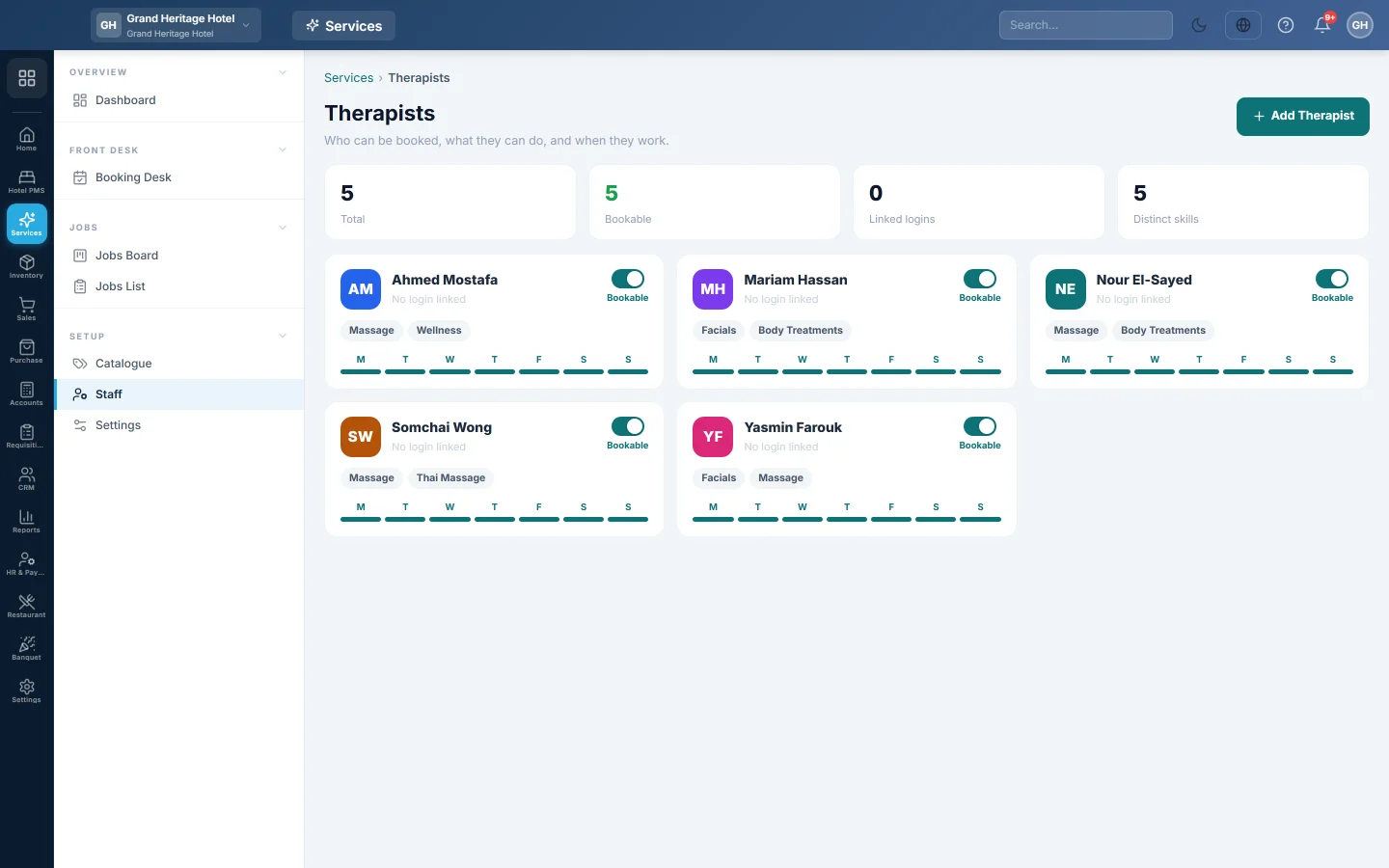
Add the stylists, therapists or technicians who can be booked, with their role, skills, colour and weekly working hours; each one also gets an HR employee record.
Staff is your team as the booking desk sees it: who can be booked, what they can do and when they work. Each bookable person becomes a column on the Booking Desk.
Before you begin
- You need the Manage Service Catalogue permission.
- With a preset applied, this page uses your preset's word, such as Stylist or Technician.
Where to find it
Open Services → Setup → Staff.
Add a staff member
- Click Add Staff (or Add Stylist, and so on).
- Type the Display name, for example Sara Khan.
- Pick the Role. The list fits your industry preset, such as Stylist and Colorist for a salon or Phone Technician for a repair shop. If yours is not listed, pick Other (type it in)… and type it.
- Type the Mobile / WhatsApp number with the country code, and the Email. Booking messages reach them on this number.
- Optionally pick a Login account, so they can sign in and see their own day.
- Pick a Calendar color for their bookings on the desk.
- Under Skills, type each skill and press Enter, for example colorist.
- Leave Bookable and Active on.
- Under Weekly working hours, set each day's start and end. Add a Break if needed, or tick Day off. Copy this day to the whole week saves typing.
- Click Save.
Saving also creates their HR employee record, used for payroll, attendance and commission. When it exists, the card shows the employee number.
Pause or remove someone
- Click the Bookable switch on a card to pause them. Paused staff leave the desk grid but stay on old jobs.
- To remove someone, click their card and click Delete. To keep them on record but hide them everywhere, turn Active off.
Common questions
Why is a staff member missing from the desk? They are paused or inactive. Turn Bookable and Active on.
Does the Role matter? Yes. It becomes their designation in HR and a filter chip on the booking desk.
How is their commission paid? Through payroll, from the commission % on each service. See Pay staff commission on services.
شكرًا لك. إذا كنت لا تزال بحاجة إلى مساعدة، راسلنا على info@eloerp.net.