Examination Findings
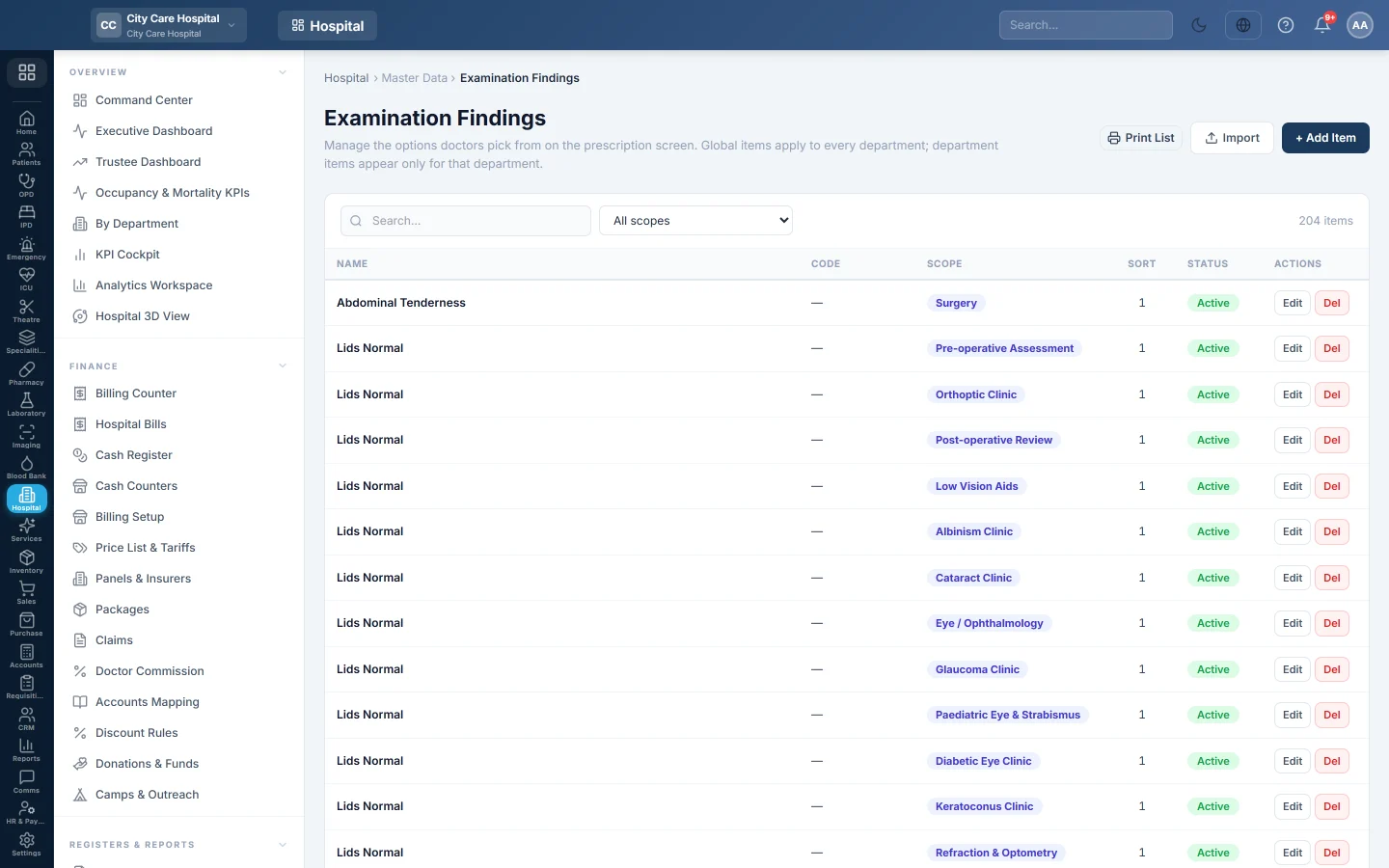
The list of examination findings doctors pick from on the consultation screen, global or per department.
Examination Findings is the list of signs a doctor ticks on examination, such as Pallor, Jaundice or Oedema. It keeps findings consistent between doctors.
Before you begin
- Adding needs the masters create right; editing and deleting need the masters edit and delete rights.
- Departments exist if some items belong to one clinic only. See Departments.
Where to find it
Open Hospital → Master Data → Examination Findings.
Add an item
- Click + Add Item.
- Type the Name, for example Pallor.
- In Scope, keep Global (all departments), or pick the one department that should see it.
- Optionally type a Code and a Sort Order. Lower numbers show first.
- Keep Active ticked and click Save.
Import a long list
- Click Import.
- Click Download Template (CSV) and fill in one item per row.
- Choose the file and click Upload & Import.
Existing items are updated and new ones added. The result shows how many were added, updated and skipped.
Where it is used
On OPD Consultation, the findings appear as chips in the examination section. A doctor can add a missing one there with Add item. Which sections each department shows is set on Department Forms.
Common questions
An item shows in the wrong clinic. Edit it and change the Scope.
Can I hide an item without deleting it? Untick Active. Records already made keep it.
How is this different from Systemic Examination? Findings are ticked as present. Systemic Examination lists body systems, each marked normal or abnormal.
Teşekkür ederiz. Hâlâ yardıma ihtiyacınız varsa info@eloerp.net adresine yazın.