Make your first sale
Sell from a sales invoice in the back office or from the POS Terminal at the counter, and what each one posts.
There are two ways to sell. A sales invoice suits wholesale, credit and office sales. The POS Terminal suits a shop counter, where speed matters and the customer pays on the spot. Both take the goods out of stock and post the sale to your accounts.
Before you begin
- At least one product with a sale price. See Add your products and All Products.
- Stock for those products, or the sale leaves them below zero. See Enter opening stock.
- Payment methods such as Cash and Bank. See Payment Methods.
- For a credit sale, a customer with a ledger. See All Customers.
- The Credit and Installment sale types appear only when they are switched on under Settings → Configuration → Features & Add-ons.
Where to find it
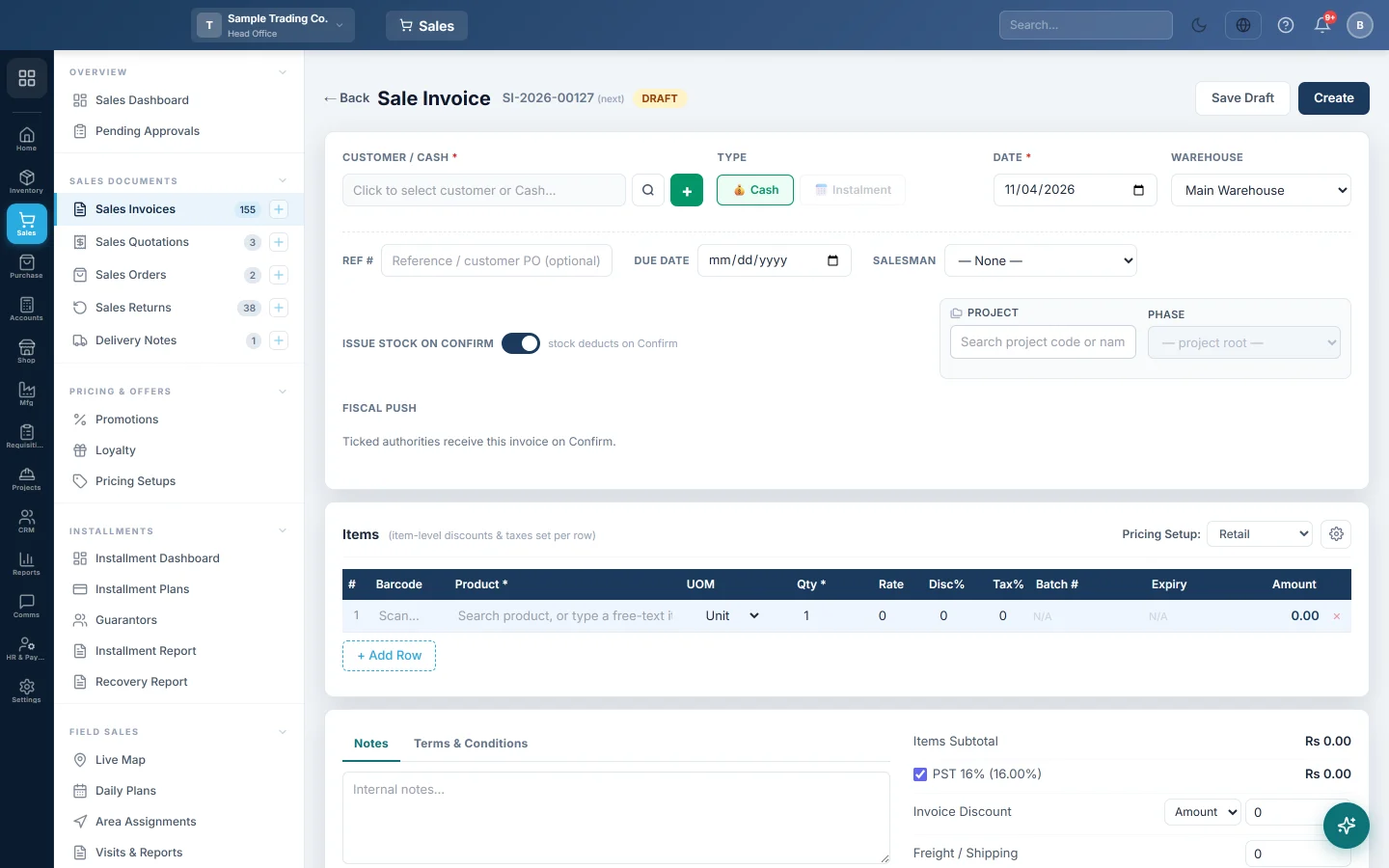
- Sales invoice: Sales → Sales Documents → Sales Invoices, then + New Invoice. The side menu also has a New Invoice quick action.
- Counter sale: Sales → POS → POS Terminal, or the Open POS quick action.
Make a sale on an invoice
- Open Sales → Sales Documents → Sales Invoices and click + New Invoice.
- Click the CUSTOMER / CASH box. In Select Customer, pick Cash Sale for a walk-in customer, or search for the customer by name or phone.
- To add a customer on the spot, click + next to the box, fill in Customer Name and click Create & Select.
- Under TYPE, choose Cash, Credit or Instalment.
- Check the DATE and the WAREHOUSE the goods leave from.
- In Items, search for a product or scan its barcode, then enter the Qty. The Sale Price comes from the product; change it, or add a Disc%, if you need to.
- Add an Invoice Discount or Freight / Shipping if there is one, and check the GRAND TOTAL.
- Choose the Payment Method and enter what the customer pays now in Down Payment. Tick Full to fill in the whole total.
- Click Create. The invoice is saved and confirmed in one step.
- Click Print Invoice to print it or save it as a PDF.
ISSUE STOCK ON CONFIRM is on by default, so stock goes out when you confirm. Turn it off when the goods leave later; the invoice then shows a Delivery Note button to issue them. See Sales Invoices for every option on this screen.
Make a sale at the POS Terminal
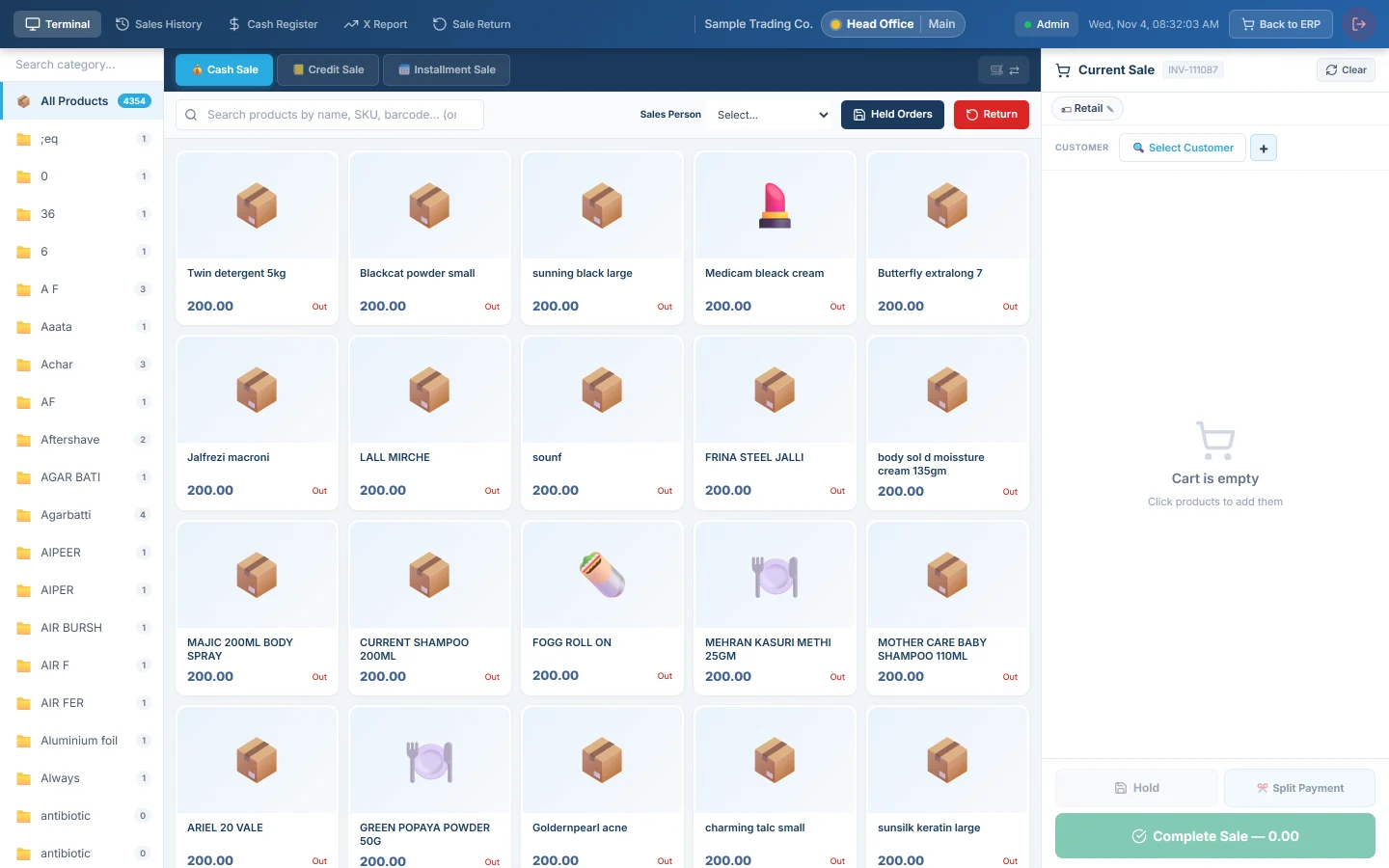
- Open Sales → POS → POS Terminal.
- If the Open Cash Register screen appears, count the cash in the drawer, type it as the Opening Balance and click Open Register & Start.
- Click products to add them to the cart, or type in Search products by name, SKU, barcode... (or scan) and scan.
- Leave Cash Sale selected for a walk-in customer. For a named customer, click Select Customer.
- Choose the Method the customer pays with, for example Cash or Card.
- For cash, type the amount handed over in Cash Tendered. The Change to give back is shown.
- Click Complete Sale.
- In Sale Complete, click Print Receipt, then New Sale for the next customer.
The Open Cash Register screen appears only for users who have Enable Cash Register ticked under Settings → Configuration → Users & Roles. In restaurant mode the sale types are Dine In, Take Away, Delivery and Drive-Thru instead. See POS Terminal.
What happens in the books
When the invoice is confirmed, or the POS sale is completed:
- The customer's ledger is debited with the invoice total. For a cash sale, or a customer without a ledger, the cash or bank account of the payment method is debited instead.
- Sales Revenue is credited with the value of the goods before discount. Any discount is debited to Discount Allowed.
- Tax charged on the invoice is credited to the tax's own account, or to Sales Tax Payable.
- A second voucher moves the cost of the goods: Cost of Goods Sold is debited and Inventory is credited, at the products' average cost. Service items have no cost entry.
- A down payment from a customer with a ledger posts a receipt: cash or bank is debited and the customer's ledger is credited.
Common questions
The Credit button is greyed out. You picked Cash Sale, or the customer has no ledger. Open the customer, turn on Create Ledger in Accounts under Ledger Settings, save, then pick them again.
It says "Cash sale requires full payment". A cash sale cannot leave a balance. Tick Full next to Down Payment, or choose a customer with a ledger and sell on Credit.
I made a mistake on a confirmed invoice. Open it, correct it and click Update & Re-post. The ledger and stock are posted again with the new values. If the goods came back, make a sales return instead.
The invoice says it needs approval. Invoices at or above the approval threshold in Settings → Sales → Sales Preferences must be approved first. A user with approval rights clicks Approve, then Confirm Invoice.
The customer pays the rest later. Open the invoice and click Add Payment, or record a receipt voucher. See Take a payment and pay a supplier.
Teşekkür ederiz. Hâlâ yardıma ihtiyacınız varsa info@eloerp.net adresine yazın.