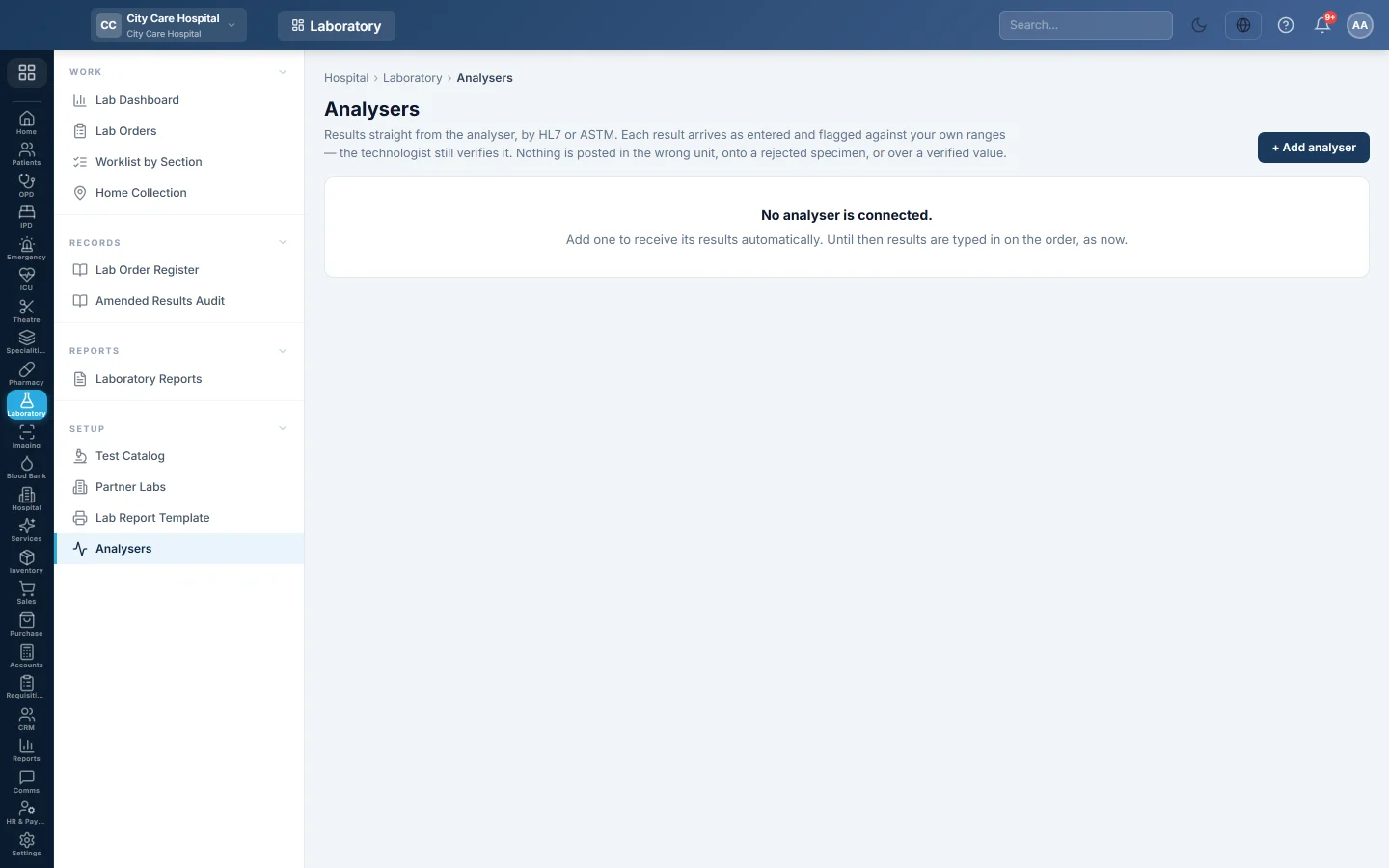
Analysers
Connect lab analysers by HL7 or ASTM so their results land on the order, map the analyser's codes to your parameters and check every message received.
Analysers lets a lab machine send its results straight to the order. Each result arrives as entered and flagged against your own ranges. A technologist still verifies it before release.
Before you begin
- Adding and setting up analysers needs Manage Lab Test Catalog or Manage Lab Orders / Workflow. Viewing the log and replaying a message needs Enter Lab Results.
- The tests and their parameters exist in the Test Catalog.
- The analyser, or its middleware, can send HL7 v2 or ASTM results. A listener must run on the server. Ask your service provider to start it; the page shows the command they need.
Where to find it
Open Laboratory → Setup → Analysers.
Add an analyser
- Click + Add analyser.
- Type the Name, for example Sysmex XN-350, and the Model.
- Choose the Protocol: HL7 v2 (ORU^R01) or ASTM E1394 / LIS2-A2.
- Choose the Connection:
- TCP socket: type the Listen on address and the Port the analyser sends to.
- File drop folder: type the Drop folder name the analyser saves result files into.
- Keep Receiving results ticked.
- Under Analyser codes, click + Code for each code the machine sends, such as WBC, and pick the parameter it Fills.
- Click Save.
A code not listed is matched by the parameter's own code or LOINC, so you only need to map codes that differ.
How results are matched
The analyser sends the tube's accession number from its label, or the order number. EloERP finds the order and fills the matching result lines. It does not post:
- onto a rejected specimen or a cancelled order,
- over a result that is already verified,
- a value in a different unit from the test, or a text answer into a number field.
Those lines are listed as not posted, with the reason, so you can enter them by hand.
Check the messages
- Click the analyser in the list. Its card shows when it last sent anything and today's posted and unmatched counts.
- On Messages, click a message to see each line and whether it was posted. Raw message shows exactly what arrived.
- Tick Only the ones with lines not posted to see just the problems.
Each message shows Posted, Partly posted, Nothing posted or Unreadable, and links to its order.
Replay a message
If a message failed because a code was not mapped, fix the mapping and send it again by hand.
- Click the analyser, then Replay a message.
- Paste the message from the analyser's log.
- Click Post these results.
Common questions
Results arrive but go nowhere. The tube label's number does not match a sample or order, or the codes are not mapped. Open the message to see the reason.
Can I still type results by hand? Yes. Results from an analyser and typed results work side by side.
Does an analyser result skip verification? No. It arrives as entered and must be verified and signed out like any result.
谢谢。 如果仍需帮助,请发邮件至 info@eloerp.net。