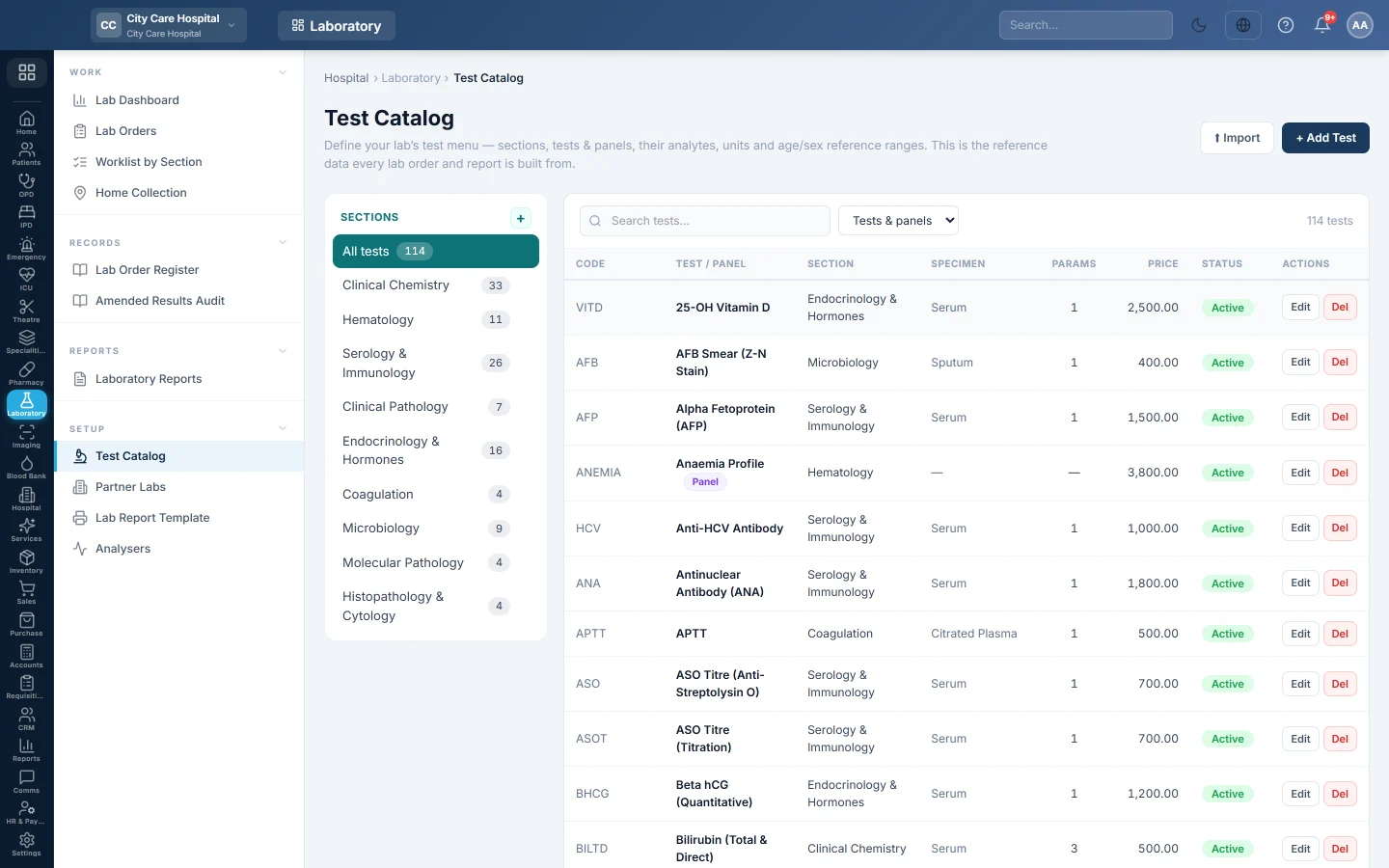
Test Catalog
Set up the lab's test menu with sections, tests, panels, parameters, units, prices and age and sex reference ranges, or import it from a price list.
The Test Catalog is your lab's menu. Every order, result line, flag and report is built from what you set here.
Before you begin
- Changing the catalog needs Manage Lab Test Catalog. See Users & Roles.
- A new hospital starts with a starter menu of common tests, sections and panels. Check it and set your own prices.
Where to find it
Open Laboratory → Setup → Test Catalog.
Add a section
Sections are the lab's benches, such as Haematology or Clinical Chemistry.
- Click + next to Sections.
- Type a Code such as CHEM and a Name. Sort sets its place in the list.
- Click Save.
To change or retire a section, click ✎ next to it. Untick Active to hide it. You can delete a section only when it has no tests.
Add a test
- Click + Add Test.
- Type the Code and Name, for example CBC and Complete Blood Count.
- Choose the Section and the Specimen, and type the Container / Tube, such as Purple (EDTA).
- Fill in Method, TAT (hours) and Default Price. TAT is the promised turnaround; the dashboard measures against it.
- Under Parameters / Analytes, click + Add Parameter for each value the test reports.
- For each parameter, type its name and Unit and pick the type: Numeric, Text, Options, Calculated, Titer (e.g. 1:160), Culture & Sensitivity or Narrative (Histopath/Cytology). For Options, type the choices separated by commas.
- Under Reference Ranges, click + range and fill in Sex, Age (in years, months or days), Low, High, Crit Low, Crit High, or Normal (text) such as Negative.
- Click Save Test.
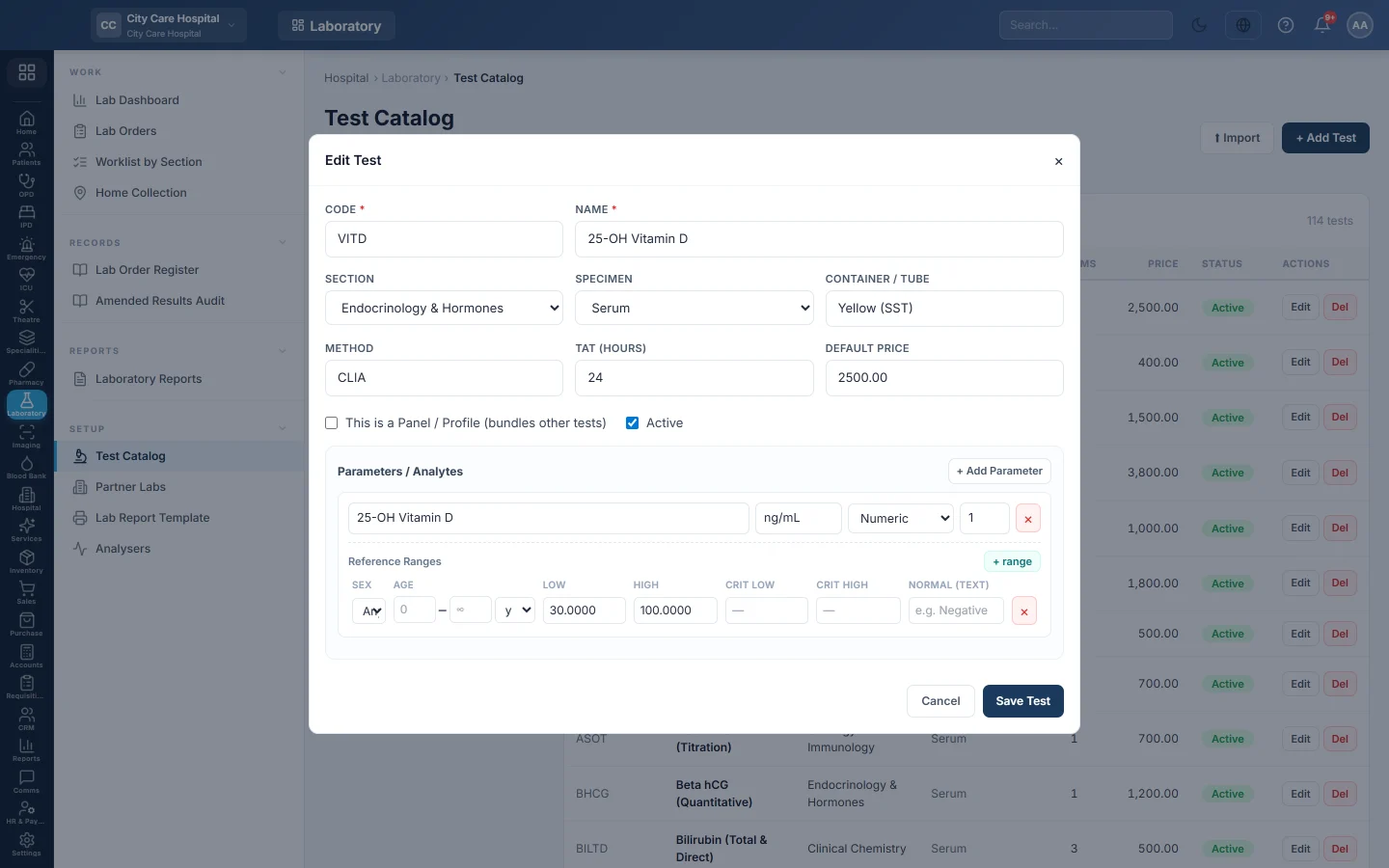
Add one range per sex and age band when they differ. When a result is saved, EloERP picks the range that fits the patient and flags the value: H or L outside Low and High, HH or LL beyond the critical limits, and A for a text answer that does not match Normal (text).
Make a panel
A panel bundles other tests under one price, such as a lipid profile.
- Click + Add Test and fill in the code, name and Default Price.
- Tick This is a Panel / Profile (bundles other tests).
- Under Member Tests, pick each test from + Add member test….
- Click Save Test.
Ordering the panel creates the result lines of all its member tests and bills the panel's price.
Import a price list
- Click ⬆ Import.
- Click ⬇ Download template to see the columns: Code, Name, Section, Specimen, Container, Method, TAT, Price, Unit, Ref Low, Ref High, Ref Text.
- Fill it in. Only Code and Name are needed.
- Choose the CSV or Excel file and check the preview.
- Click Import.
An existing code is updated in place. A new code is added with one parameter and its range, and new sections are created. The result shows how many were added, updated and skipped, and lists any row errors.
Change or remove a test
- Click Edit to change a test. A new price applies to new orders only; orders already booked keep their price.
- Untick Active to stop a test being ordered while keeping its history.
- Click Del to remove it. It is also taken out of any panel.
Common questions
A test shows no price on the order form. Its Default Price is empty. Edit the test and set it.
Where do panel or insurance prices come from? A panel's own test prices win over the catalog price when you bill to the panel. See Bill a lab order.
Results show no flag. The parameter has no range for the patient's age and sex, or the patient has no age or date of birth.
Can I reuse a deleted test's code? Yes. Adding a test with that code brings the old one back with the new details.
谢谢。 如果仍需帮助,请发邮件至 info@eloerp.net。