Blood Bank Setup
Set your blood bank's own rules for donors, deferral, emergency release, returns, expiry alerts and minimum stock, and keep the components with shelf life and price, the TTI tests and the storage units.
Blood Bank Setup holds the rules your blood bank works by and the components you make and charge for. It also lists the screening tests and the fridges and freezers you use. Do this once before the first donation.
Before you begin
- Your role needs Blood Bank Setup (rules, components, tests) to change anything. See Users & Roles.
- EloERP starts you with six components, five screening tests and three storage units. Check and adjust them.
Where to find it
Open Blood Bank → Setup → Blood Bank Setup.
Set the rules
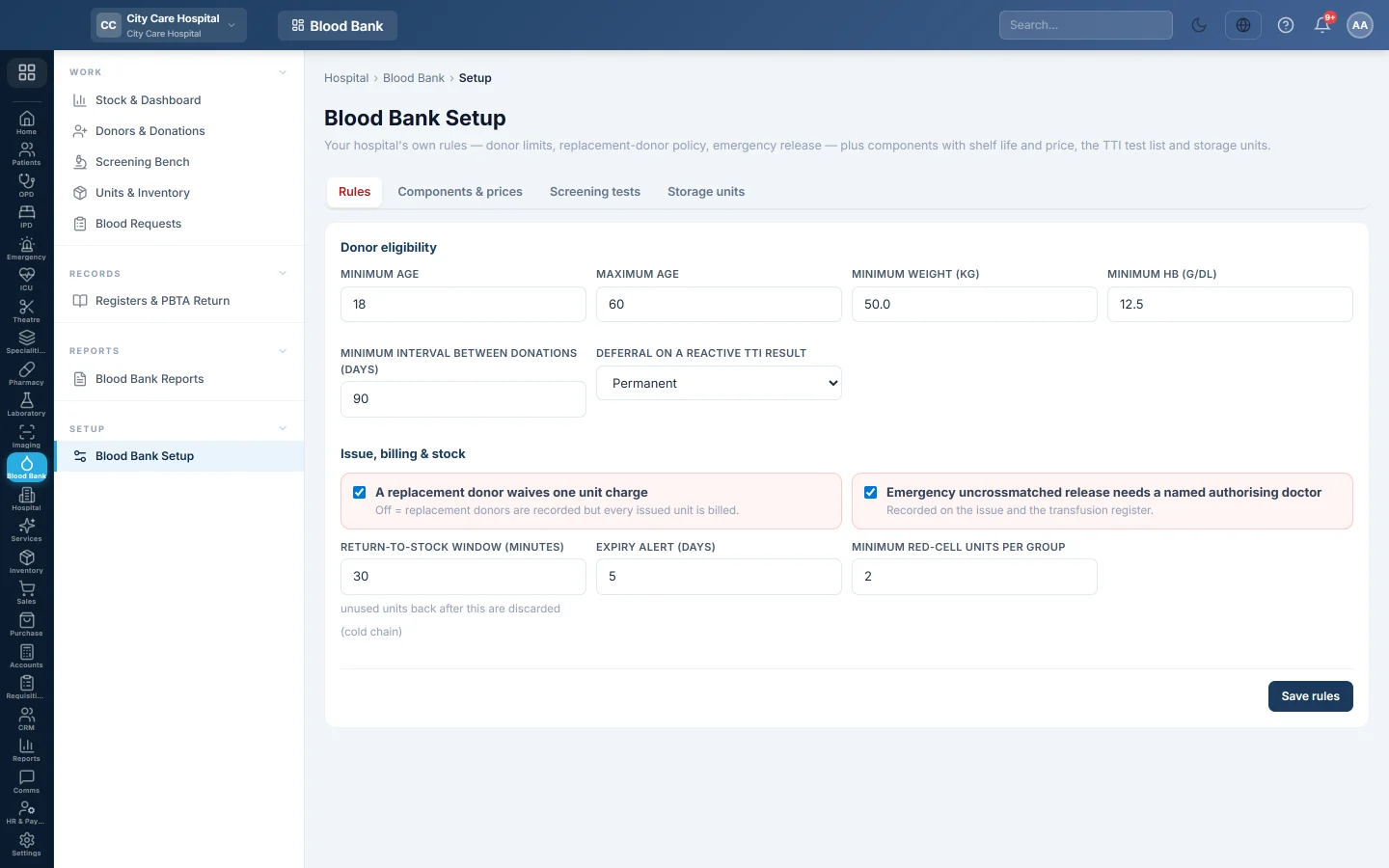
On the Rules tab:
- Under Donor eligibility, set the Minimum age, Maximum age, Minimum weight (kg), Minimum Hb (g/dL) and Minimum interval between donations (days). The starting values are 18, 60, 50 kg, 12.5 g/dL and 90 days.
- Choose the Deferral on a reactive TTI result: Permanent, or Temporary with the Temporary deferral (days).
- Under Issue, billing & stock, tick A replacement donor waives one unit charge if each replacement donor should cancel one unit's charge.
- Tick Emergency uncrossmatched release needs a named authorising doctor to make the doctor's name compulsory on an emergency issue.
- Set the Return-to-stock window (minutes). Unused units returned later than this are discarded.
- Set the Expiry alert (days) and the Minimum red-cell units per group.
- Click Save rules.
Components and prices
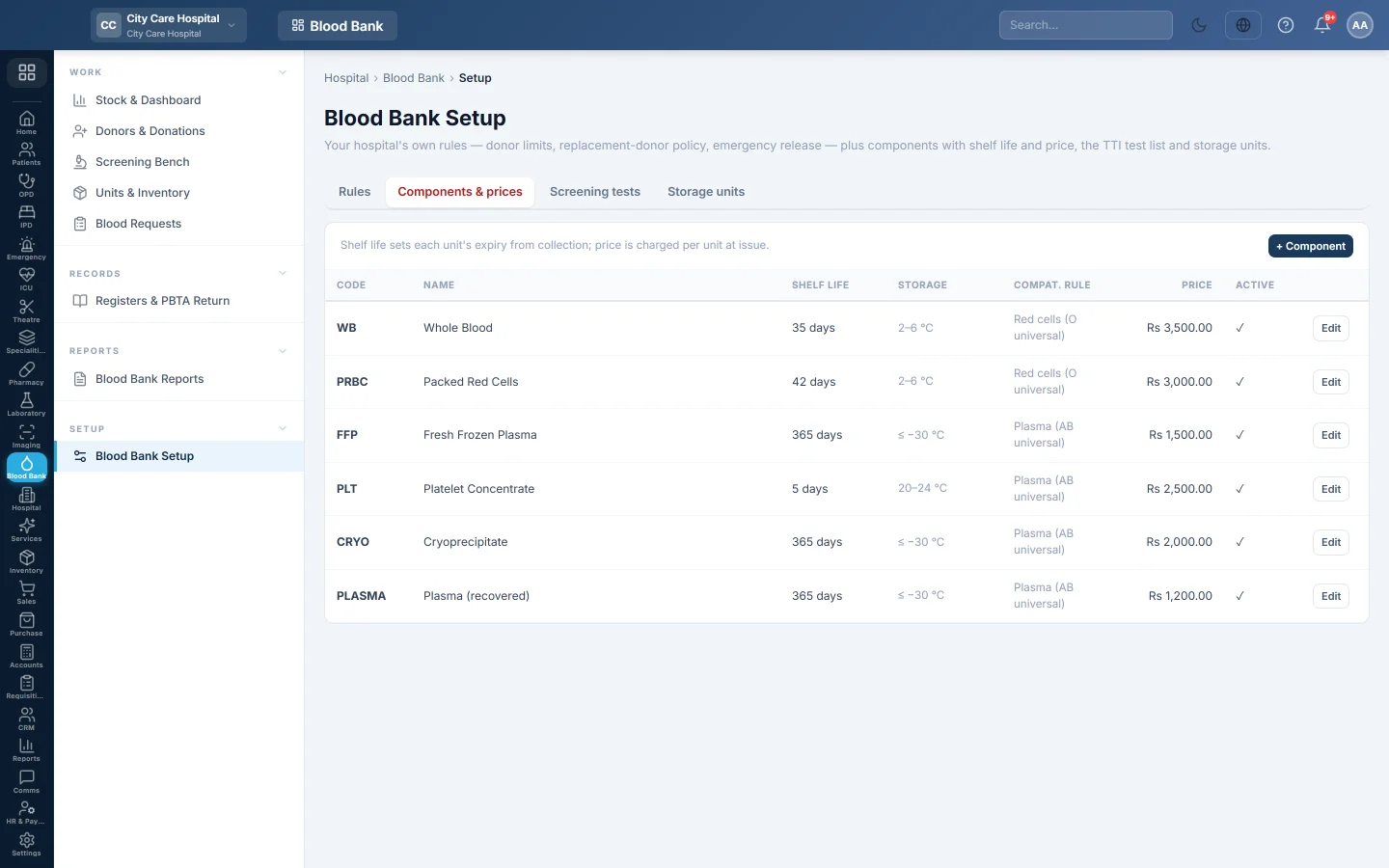
The Components & prices tab lists Whole Blood, Packed Red Cells, Fresh Frozen Plasma, Platelet Concentrate, Cryoprecipitate and recovered Plasma.
- Click Edit on a component, or + Component for a new one.
- Set the Code, Name, Shelf life (days) and Storage temp.
- Choose the Compatibility rule: Red cells (O universal donor) or Plasma (AB universal donor).
- Type the Price per unit in Rs, for example 1,500.
- Click Save.
Screening tests
The Screening tests tab starts with HBsAg, Anti-HCV, HIV I & II, Malaria and Syphilis. Click + Test to add one, for example a NAT test. Untick Active to stop requiring a test. Every active test must have a result before a unit is released.
Storage units
The Storage units tab lists your appliances. Click + Storage unit, give a Name, choose the Kind (Refrigerator, Freezer or Platelet agitator) and type the Temperature range.
Common questions
Can I change the code of a component later? You can, but keep codes stable. Unit numbers end in the code, so old units keep the old one.
What does the compatibility rule decide? Which donor groups a patient may receive. Red cells: O gives to all, and Rh-negative patients get Rh-negative units. Plasma: AB gives to all, Rh is ignored.
Why can't I save a minimum interval of 14 days? The interval must be between 28 and 365 days.
Does turning off a test affect donations already screened? No. It only changes what new verifications require.
Thank you. If you still need help, write to info@eloerp.net.