Imaging Catalogue
Set up the modalities, the exams each one performs with prices and turnaround targets, the report templates, the PACS link and tele-reporting.
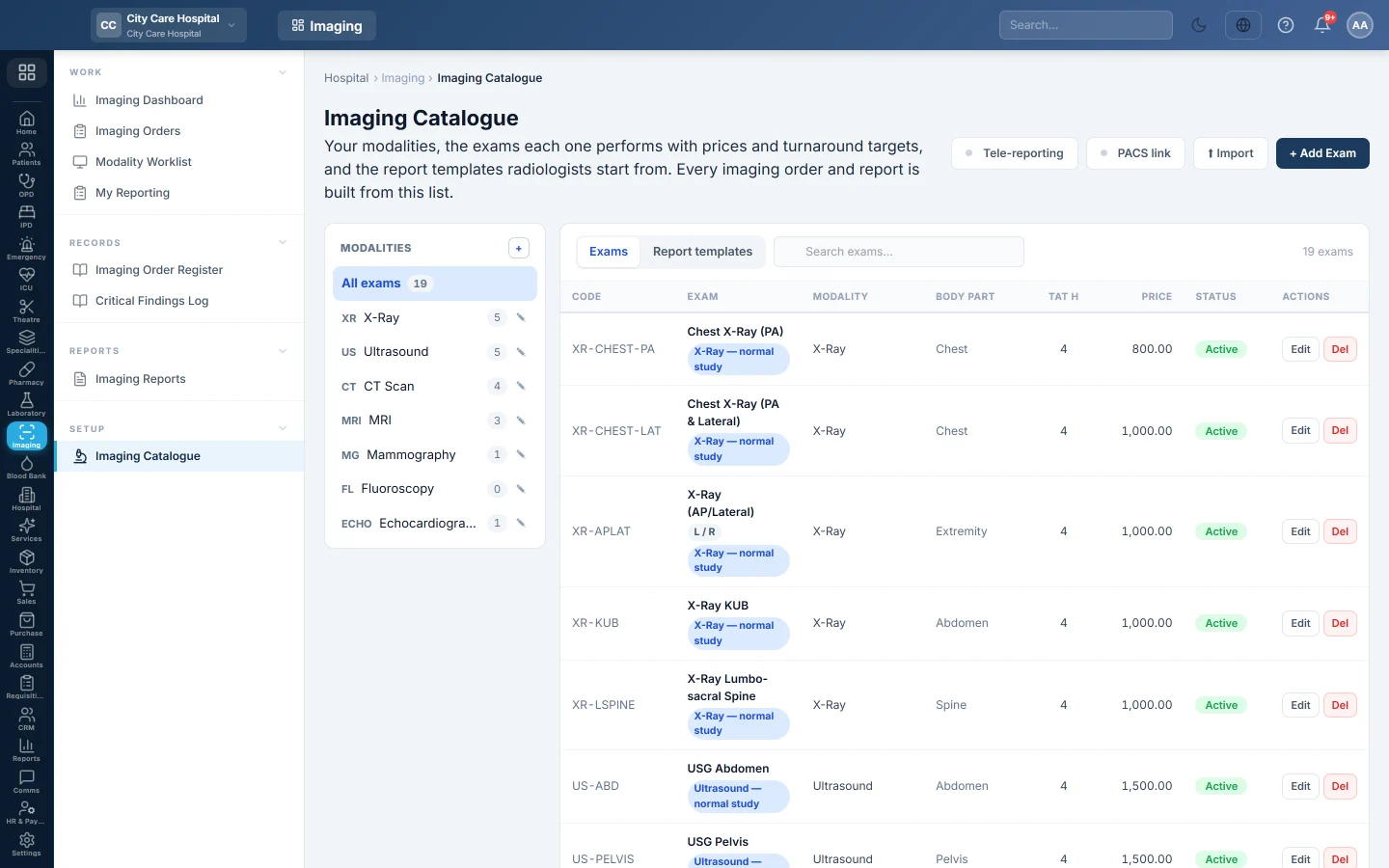
The Imaging Catalogue holds everything imaging orders and reports are built from: your modalities, the exams with prices and turnaround targets, and the report templates radiologists start from.
Before you begin
- Your role needs Manage Imaging Catalogue & Templates to add or change anything. See Users & Roles.
- A new hospital starts with seven modalities, nineteen common exams with indicative prices and five normal-study templates. Check and change the prices before the first order.
Where to find it
Open Imaging → Setup → Imaging Catalogue.
Add a modality
- Click + next to Modalities.
- Type a short Code, such as CT, and the Name, such as CT Scan.
- Optionally fill Room / machine and pick the Room (printed for the patient).
- Click Save.
Click ✎ on a modality to edit it. A modality with exams cannot be deleted; move or delete its exams first.
Add an exam
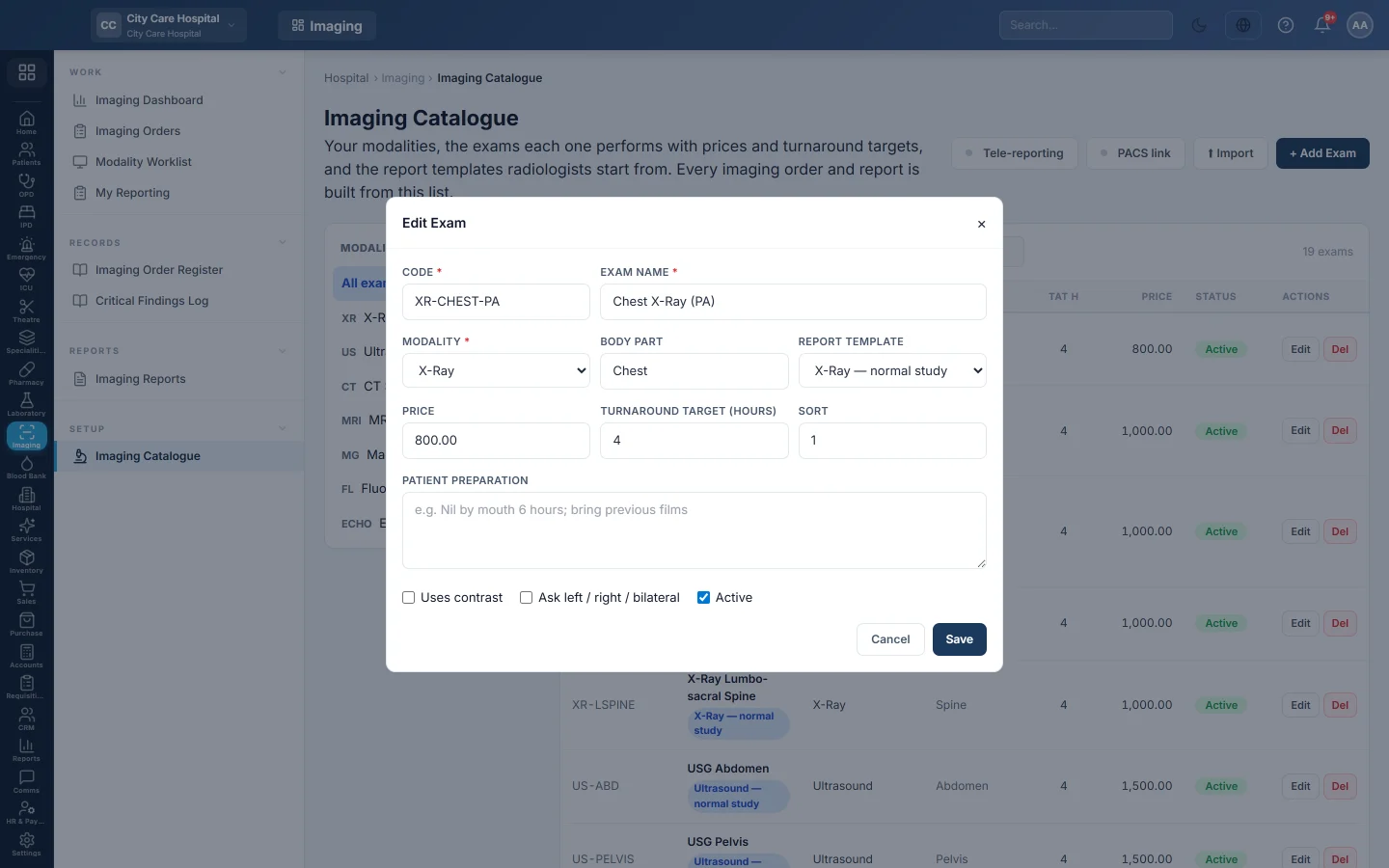
- On the Exams tab, click + Add Exam.
- Fill in the Code and Exam name, for example CT-BRAIN and CT Brain (Plain).
- Choose the Modality and, optionally, the Body part and Report template.
- Enter the Price and the Turnaround target (hours).
- Write any Patient preparation, such as Nil by mouth 6 hours. It shows on the exam card until the report is signed.
- Tick Uses contrast or Ask left / right / bilateral where they apply.
- Click Save.
Deleting an exam hides it from new orders. Old orders keep their copy of the name and price.
Import your price list
- Click Import.
- Paste one exam per line:
CODE, Name, MODALITY_CODE, price, body part, TAT hours. - Click Import.
Existing codes are updated and new ones are created. The result shows how many were created, updated or skipped, with the reason for each skipped line.
Add a report template
- Click the Report templates tab, then + Add Template.
- Give it a Name, such as CT Brain — normal study, and choose the Modality or Any modality.
- Write the normal-study wording under Clinical information, Technique, Findings, Impression and Recommendation.
- Click Save.
- Link it to exams with the Report template field on each exam.
When a radiologist opens a performed exam, the report is pre-filled from its template.
Set up the PACS link
- Click PACS link.
- Paste the Viewer address your PACS opens a study at. Click a placeholder such as
{study_uid},{accession}or{mrn}to add it to the address. - Check the preview under A study would open at, then click Save.
From then on every exam gets a DICOM accession number, the worklist exports for the PACS, and the Images button opens the study. Switch off turns it off. A green dot on the button shows it is on.
Switch tele-reporting on
Click Tele-reporting and confirm. Exams can then be assigned to a named radiologist. See My Reporting. Click it again to switch it off.
Common questions
Where do panel rates come from? A panel's own tariff, when it has one, overrides the catalogue price at billing.
Can I reuse a deleted exam's code? Yes. Adding an exam with that code brings the old one back with the new details.
The New Imaging Order form does not show an exam. It is inactive or deleted. Edit it and tick Active.
Can a template serve several modalities? Yes. Choose Any modality.
Thank you. If you still need help, write to info@eloerp.net.