Prescription Register
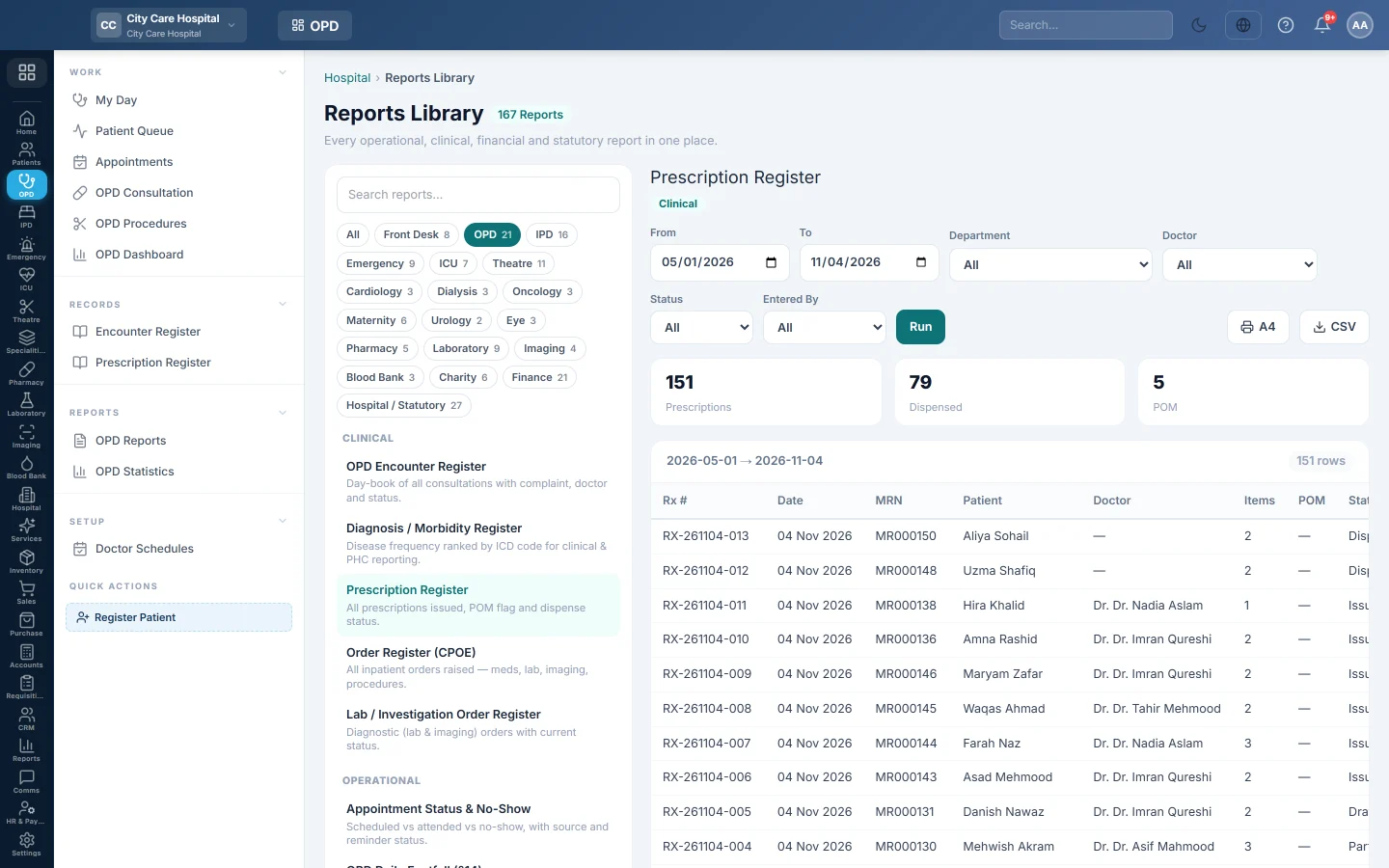
Every prescription written in a date range, with the doctor, number of medicines, controlled-drug (POM) flag and whether the pharmacy has dispensed it.
The Prescription Register lists every prescription doctors wrote in a period. It shows how many medicines each has, whether it contains controlled (POM) drugs, and whether the pharmacy has dispensed it.
Before you begin
- Your role needs the hospital reports permission. See Users & Roles.
- The report runs in the Reports Library.
Where to find it
Open Outpatients (OPD) → Records → Prescription Register.
Run the register
- Set From and To.
- Optionally pick a Department, a Doctor, a Status or a user in Entered By.
- Click Run.
- Click A4 to print, or CSV to download every row.
Status can be Draft (consultation not signed yet), Issued (signed and sent to the pharmacy), Partial (some medicines given) or Dispensed.
What the report shows
The tiles count Prescriptions, Dispensed and POM.
| Column | What it shows |
|---|---|
| Rx #, Date | The prescription number and date. |
| MRN, Patient | Who it is for. |
| Doctor | The prescribing doctor. |
| Items | How many medicines it lists. |
| POM | A tick when it has a prescription-only (controlled) medicine. |
| Status | Draft, Issued, Partial or Dispensed. |
| Entered By, Entered At | Who saved it and when. |
Common questions
Why are some prescriptions still Draft? The doctor saved the consultation but did not sign it. Signing issues the prescription to the pharmacy. See OPD Consultation.
Issued but never dispensed? The patient did not collect the medicines from the hospital pharmacy. See Dispensing & Stock.
Can I see each medicine line? Yes. Run Rx Item Register (Line Level) in OPD Reports.
Terima kasih. Jika masih butuh bantuan, kirim email ke info@eloerp.net.