Sync Logs
See every order, product and stock sync between EloERP and your connected stores, with what came through and what failed.
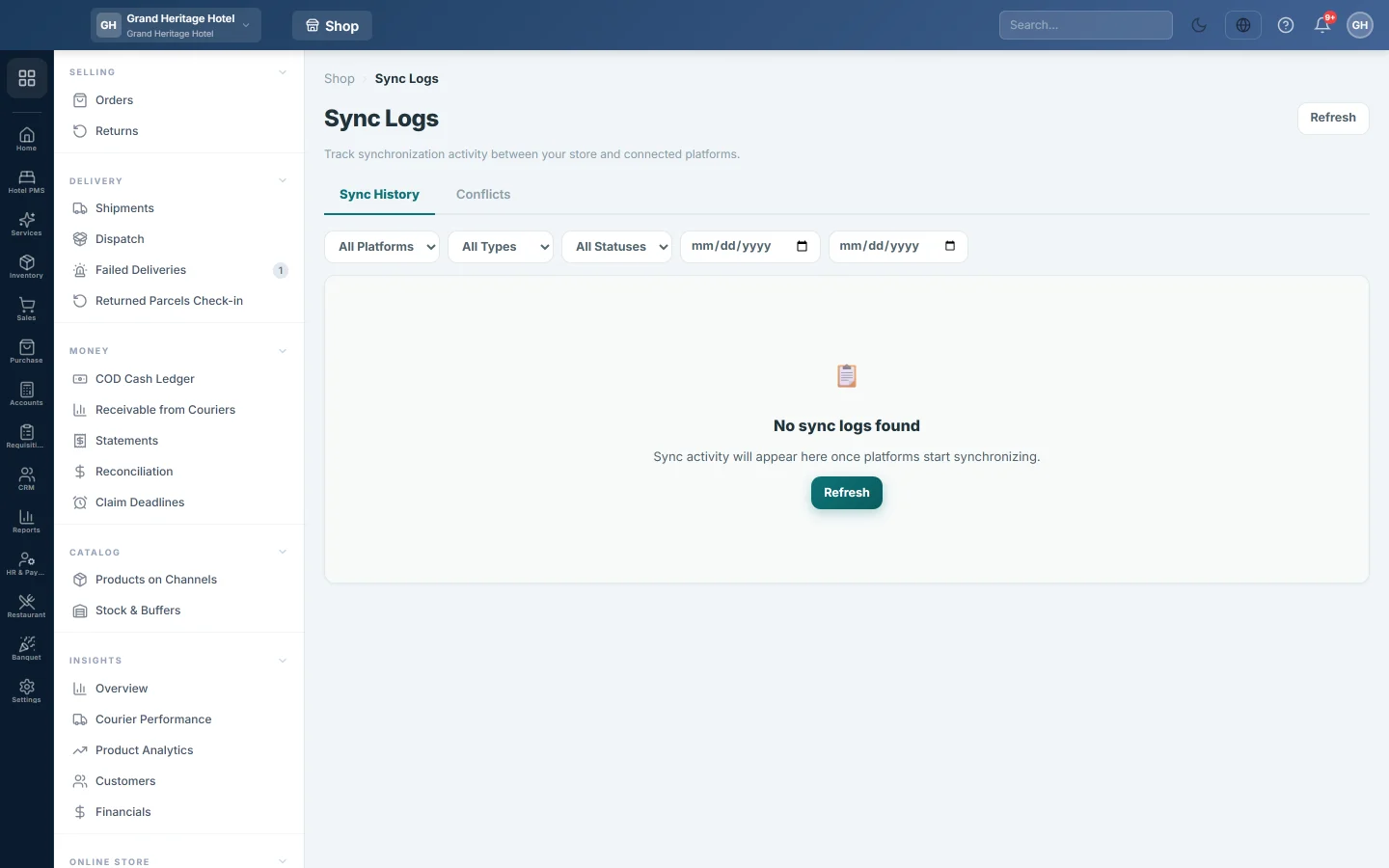
Sync Logs is the record of every exchange between EloERP and your connected stores: orders brought in, products pulled or pushed, stock sent. When something is missing on one side, look here first.
Before you begin
- Your role needs the online shop sync log permission. See Users & Roles.
- At least one store is connected on Channels.
Where to find it
Open Online shop → Setup → Sync Logs.
Read the sync history
The Sync History tab lists the newest syncs first, 50 to a page.
| Column | What it shows |
|---|---|
| Timestamp | When the sync started. |
| Platform | The connected store. |
| Direction | ← pull for data coming into EloERP, → push for data sent out. |
| Type | What was synced, such as orders or products. |
| Status | completed, failed or running. |
| Records | How many records went through (✓) and how many failed (✗). |
| Message | The error, when there was one. Hover over it to read it in full. |
| Duration | How long it took. |
Find a sync
- Choose a store in All Platforms.
- Choose a type in All Types: Orders, Products, Customers, Stock or Prices.
- Choose Completed, Failed or Running in All Statuses.
- Click Refresh to load the newest entries.
Use the arrows at the bottom to move between pages.
Order updates from the store
A store update never rewrites an order that is invoiced, verified, booked, in a shipment or past new. EloERP applies only a status that moves forward, the customer note and a tracking number the order lacks. Lines, amounts, customer and payment stay as they are here.
Such a sync shows as completed with the message header only, followed by the fields it skipped. The same note goes on the order's Timeline. The Orders button on Channels reads every page of a Shopify store's orders through the same importer its webhooks use, so the two never disagree.
Fix a failed sync
- Filter on Failed and read the Message.
- If it is a key or connection error, open the store on Channels, check its keys and click Test Connection.
- Run the sync again from Channels with Orders, Pull or Push.
- Come back and click Refresh to check the new entry.
Common questions
A sync shows running for a long time. It stopped part way, for example when the page was closed during a large push. Run it again from Channels.
Records show 3✓ 1✗. Which one failed? The Message column shows the error the store returned. Fix the cause and sync again.
What is the Conflicts tab? It is meant for values that differ between EloERP and a store. Nothing is recorded there on this release, so it shows No conflicts.
شكرًا لك. إذا كنت لا تزال بحاجة إلى مساعدة، راسلنا على info@eloerp.net.