Automation Rules
Make rules that act on new online orders by themselves, such as holding a high-risk cash-on-delivery order, tagging a duplicate or cancelling a fake order.
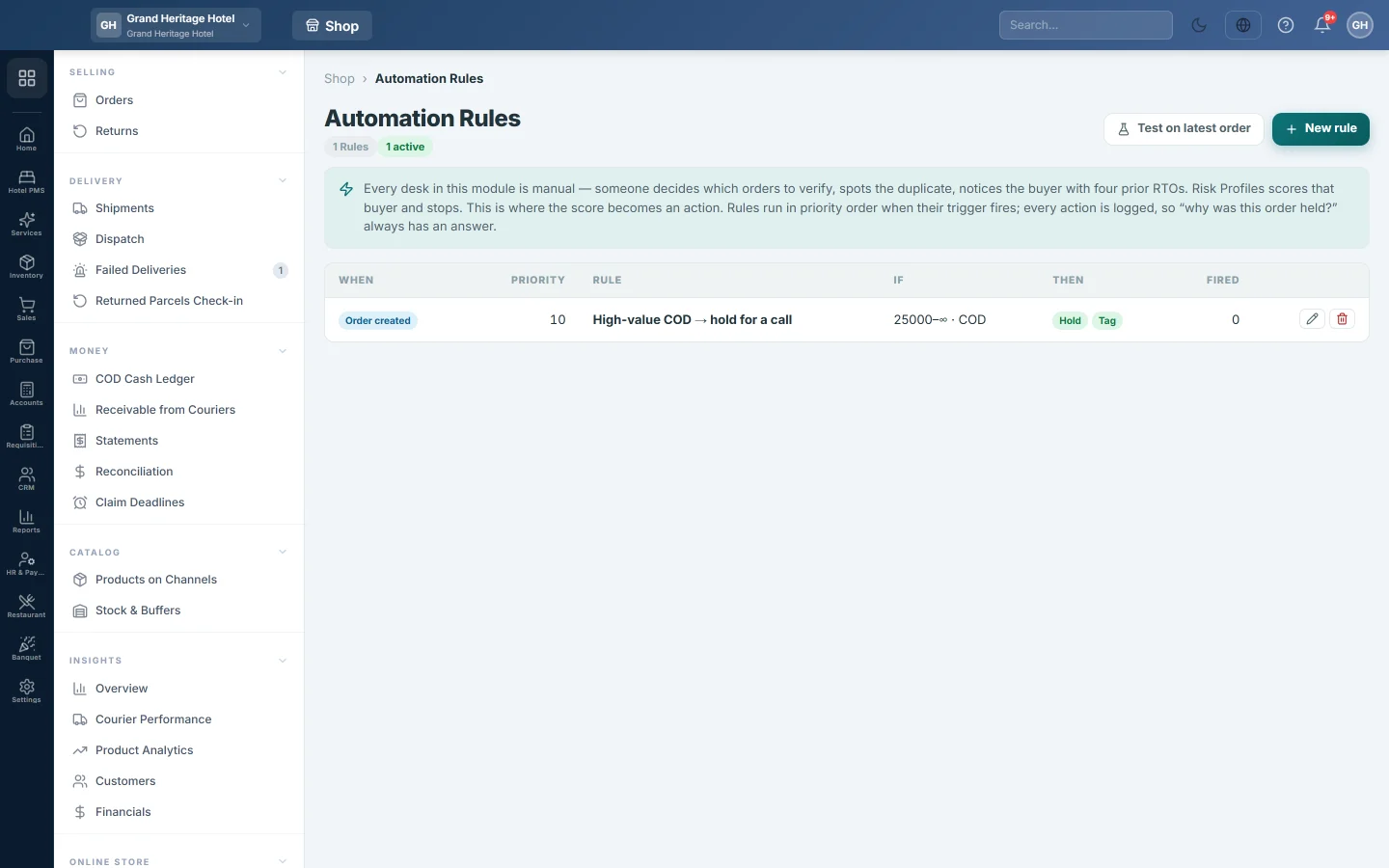
Automation Rules turn your checks into actions. When an order arrives, each matching rule can hold it, flag it, tag it or cancel it, and every action is logged so you can always see why an order was held.
Before you begin
- Connect your channels first, so orders arrive. See Channels.
- Rules on risk use the buyer scores on Customers (the Risk Profiles tab).
Where to find it
Open Online shop → Setup → Automation Rules.
Add a rule
- Click New rule.
- Type a Name, for example High-risk COD → require prepay.
- Choose the When (trigger): Order created, Order verified, Order confirmed or Delivery failed.
- Set the Priority. Rules run lowest number first.
- Tick Stop chain if matched if no later rule should run on an order this one matches.
- Under If — all blank means every order, fill in only the conditions you need:
- Value min and Value max for the order total.
- Payment: COD or Prepaid.
- Risk tier: Watch, Medium or High.
- Channel: the stores it applies to.
- Duplicate window (hours): matches an order with the same phone and total within that many hours.
- Has any tag and Has none of tag, comma separated.
- Under Then — pick one or more, tick what the rule does (see the table below).
- Keep Active ticked and click Save rule.
Order created fires when an order arrives from a channel or is typed in with New Order. Order verified and Order confirmed fire when the order reaches that step, and Delivery failed when a failed attempt is logged.
What each action does
| Action | What happens to the order |
|---|---|
| Require verification | Tagged needs-verification, unless it is already verified. |
| Queue for booking | Tagged auto-book, so the dispatch team can find it. It does not book the courier itself. |
| Hold | Put on hold with the Hold reason you type. |
| Require prepayment (flag + hold) | Tagged prepay-only and held, so someone asks the buyer to pay first. It never changes the payment itself. |
| Cancel | Cancelled with the Cancel reason you type, unless it is already delivered or cancelled. |
| Add tags | Adds the tags you type. |
Test a rule
Click Test on latest order. The Dry run against order box shows each rule, whether it Matched? and what it Would do. Nothing is changed.
The test uses the newest order and the trigger of the first rule in the list.
See what the rules did
Recent activity at the bottom lists each action: when, the order, the rule, the action, the outcome (applied, skipped or failed) and the detail. Fired in the list counts how often each rule matched.
Common questions
Why was this order held? Find it under Recent activity, or open the order: the hold reason names the rule.
Do rules run on orders that are already in? No. A rule runs on orders that arrive after you save it.
Can a rule book the courier? No. Queue for booking only tags the order. Book it on Dispatch.
My rule did nothing. Check that it is Active, that its trigger matches the step the order went through, and that a rule above it with Stop chain if matched did not stop the chain.
谢谢。 如果仍需帮助,请发邮件至 info@eloerp.net。