AI Agents
Set how far each AI agent may go for your online store, approve or undo what they propose, and read the morning briefings.
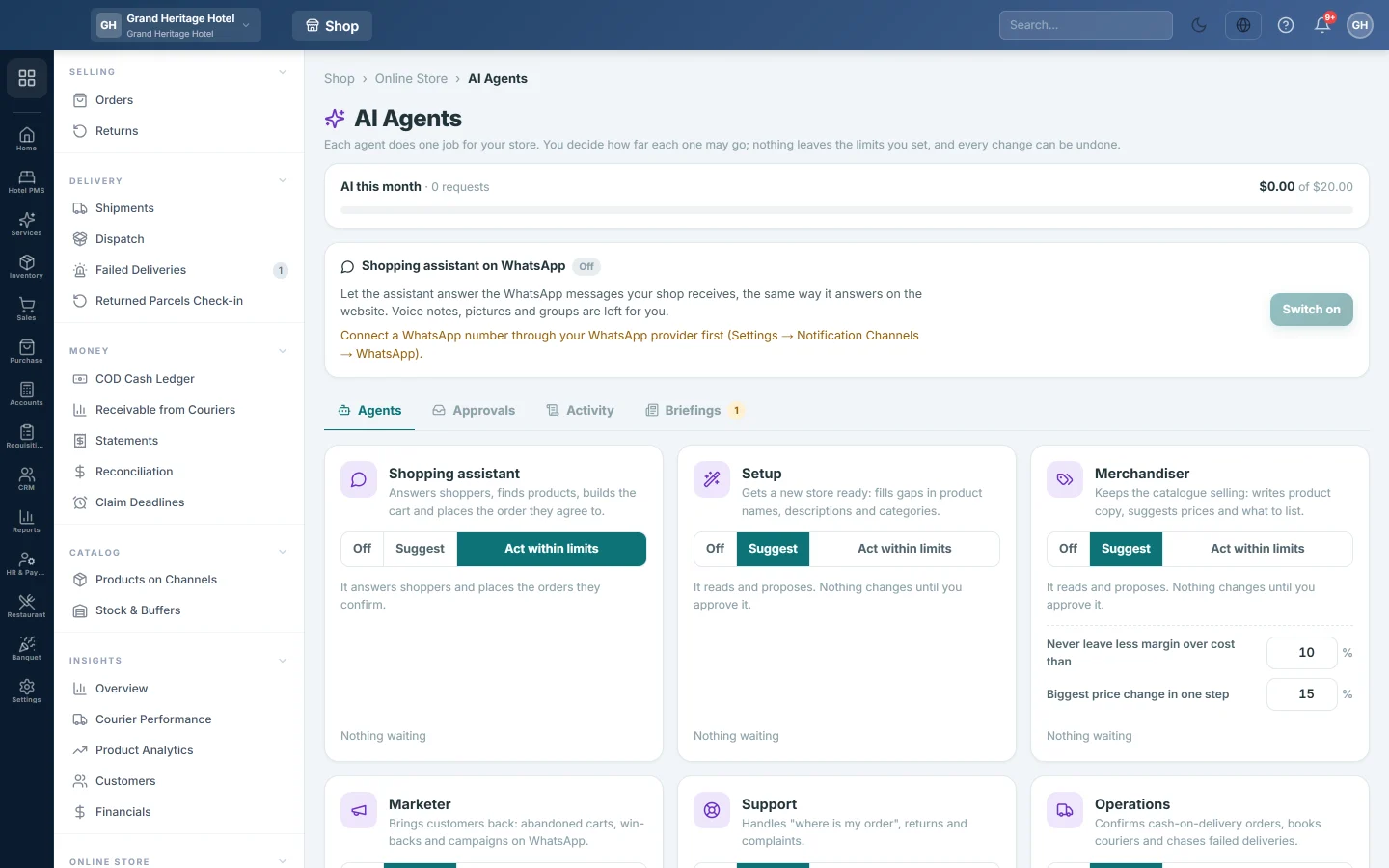
Each AI agent does one job for your online store, such as answering shoppers or writing product copy. On this page you decide how far each one may go, approve what it proposes, and undo any change it made.
Before you begin
- The online store must be switched on for your company by your service provider, and only a company administrator can open this page.
- The AI itself is switched on by your service provider. Until then a box says The AI is not switched on for this store yet, so the agents are not running. You can still set each agent; the settings apply from the moment it is switched on.
Where to find it
Open Online shop → Online Store → AI Agents.
Set how far an agent may go
The Agents tab lists the agents. Each has three choices:
- Off: it does nothing.
- Suggest: it reads and proposes. Nothing changes until you approve it.
- Act within limits: small, safe changes such as product copy or listing a product are made at once. Prices and taking a product off the store still wait for you.
For the Shopping assistant, Suggest means it answers shoppers but cannot place an order, and Act within limits means it also places the orders shoppers confirm.
The Merchandiser and Finance agents have two limits: Never leave less margin over cost than and Biggest price change in one step, both in %. A change is saved as soon as you leave the box.
Agents marked Arrives with a later release cannot do anything yet.
Approve or decline a proposal
- Click the Approvals tab. The number on it is what is waiting for you.
- Read the proposal: what it changes, the old value and the new one, and the agent's reason.
- Click Approve to make the change, or Decline to drop it.
Undo a change
- Click the Activity tab. It lists everything an agent did or asked for, with on its own on changes it made without asking.
- Click Undo on a change marked Done.
Read the briefings
The Briefings tab has a short report each morning on yesterday's orders, what sold out and which carts were left. Click Mark as read when you have read one.
Watch the AI limit
The AI this month box shows the requests made and how much of the monthly limit is used. When the limit is used up, shoppers still get answers from a lighter assistant and the other agents rest until next month. Ask your service provider to raise the limit.
Other switches on the page
- Shopping assistant on WhatsApp: click Switch on to let the assistant answer the WhatsApp messages your shop receives. It stays quiet on a chat it has passed to you, and for two hours after someone at the shop replied there.
- Your ChatGPT plan: when offered, Link ChatGPT runs the agents' own work, such as product copy and the briefing, on your ChatGPT Plus or Pro plan instead of the store's AI limit.
Common questions
Will an agent change my prices on its own? No. Price changes always wait for your approval, and never go below cost.
Where do I see what the assistant told shoppers? On Conversations.
Nothing appears on the Approvals tab. No agent has proposed anything, or the AI is not switched on yet.
Obrigado. Se ainda precisar de ajuda, escreva para info@eloerp.net.