Claim Deadlines
Log the money a courier or marketplace owes you for lost, damaged or short-paid parcels, and file each claim before its window closes.
Couriers and marketplaces only pay for a lost, damaged or short-paid parcel if you claim within their window. Claim Deadlines keeps every claim with a countdown, so you file the urgent ones before the money is lost.
Before you begin
- Your role needs View Reconciliation to see claims and Perform Reconciliation to log or update them. See Users & Roles.
- Know the courier's or marketplace's claim window in days, and keep their claim or ticket number to hand.
Where to find it
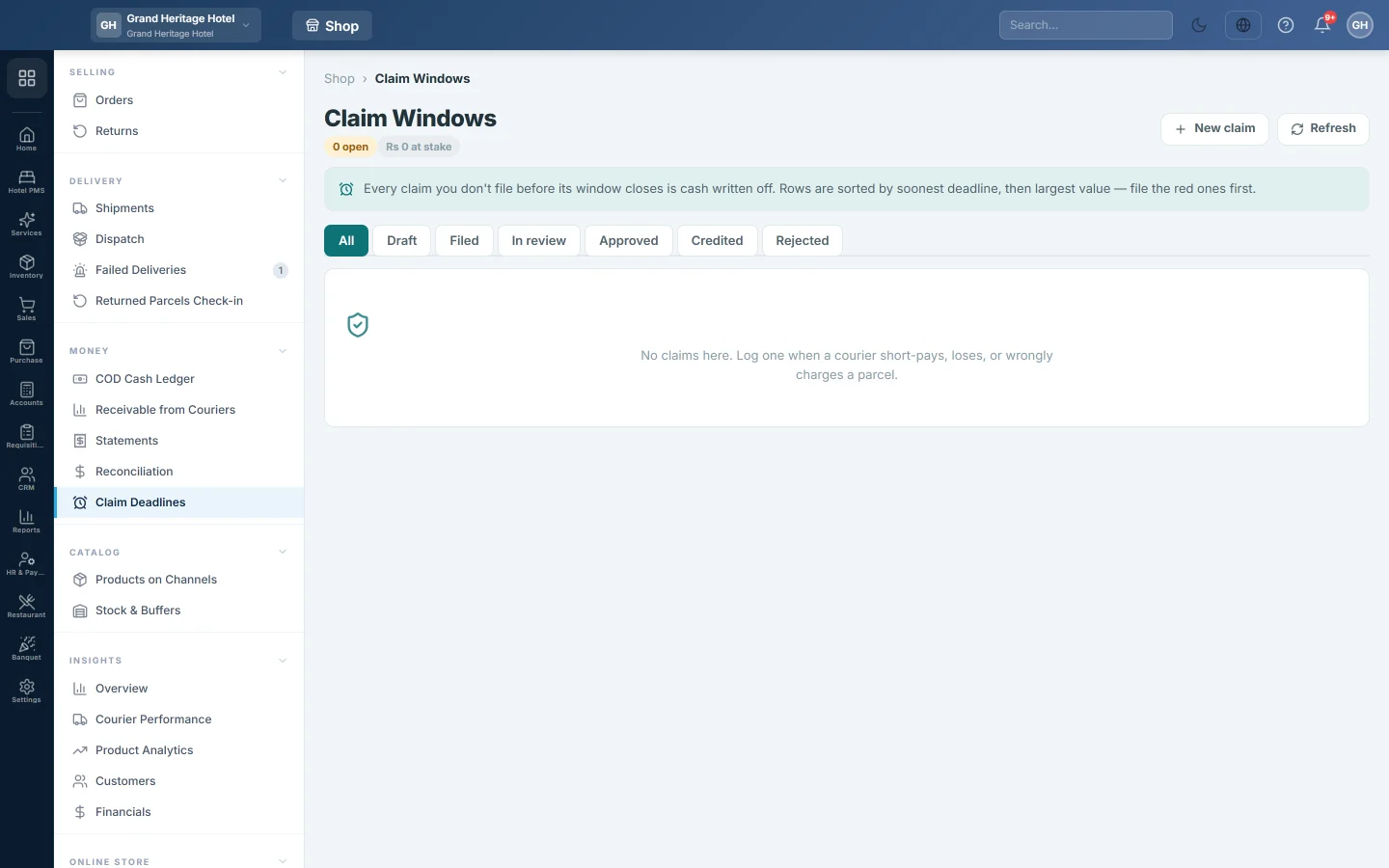
Open Online shop → Money → Claim Deadlines. The page opens with the heading Claim Windows.
Read the register
The chips under the heading show how many claims are open, the value at stake, how many are expiring <72h, how many have expired and the amount recovered.
Open claims come first, sorted by the nearest deadline and then the largest amount. Deadline shows the time left, turning red as it runs out, or how long ago it passed. The tabs filter by status: All, Draft, Filed, In review, Approved, Credited and Rejected.
Log a claim
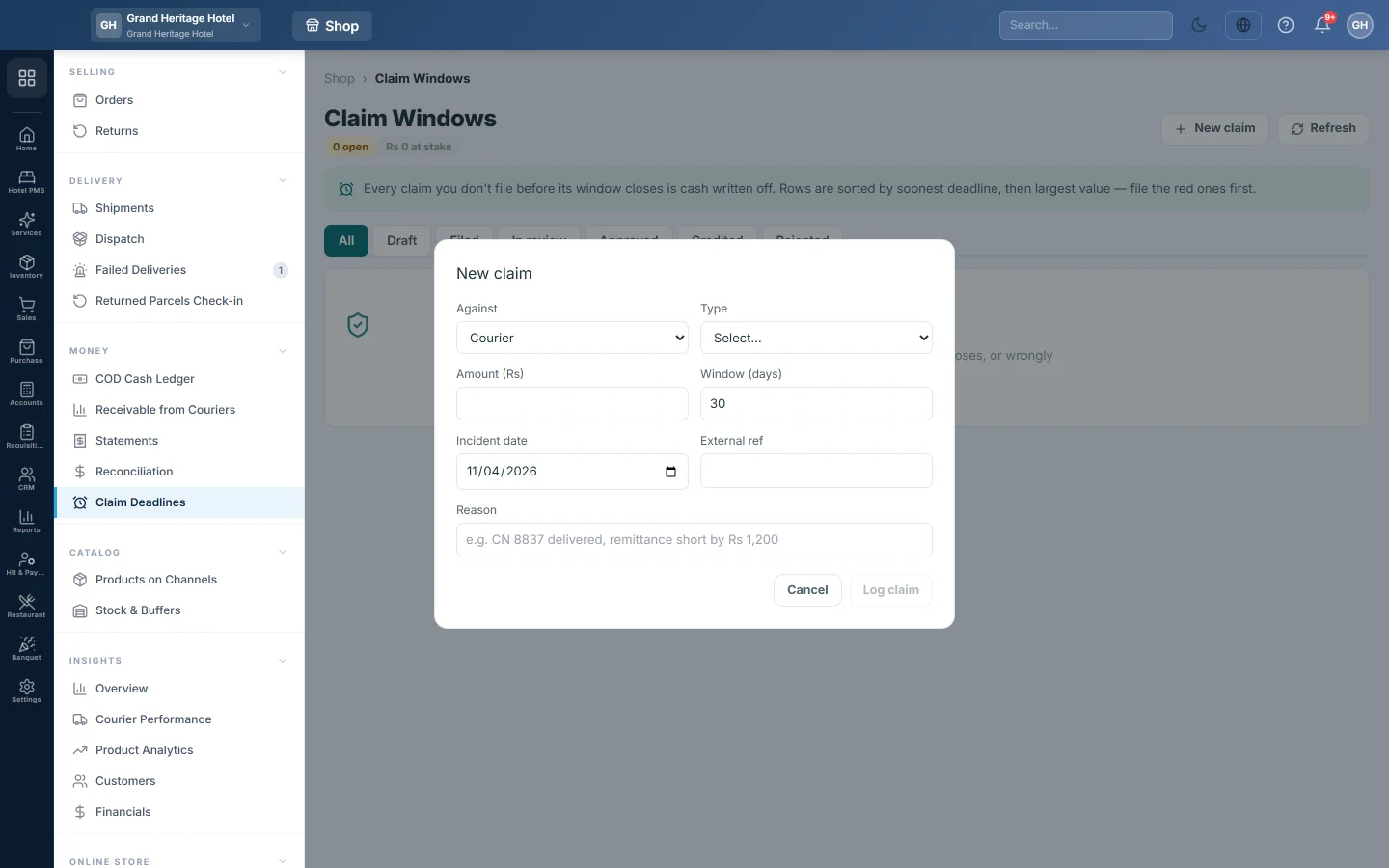
- Click New claim.
- Under Against, choose Courier or Marketplace.
- Choose the Type, for example Lost in transit, Short-paid remittance, Weight discrepancy or Damaged return.
- Type the Amount you are claiming.
- Set Window (days), how long the courier or marketplace allows. It starts at 30.
- Set the Incident date. The deadline is this date plus the window.
- Type their ticket number in External ref and a short Reason, for example CN 8837 delivered, remittance short by Rs. 1,200.
- Click Log claim. It starts as Draft.
Move a claim along
Use the status list at the end of each row:
- Choose Filed once you have sent the claim. The filing time is saved.
- Choose In review while they look at it.
- Choose Approved or Rejected when they answer.
- Choose Credited when the money arrives, and type the Credited amount. It shows under the claim amount.
The Recovery scoreboard at the bottom shows, per courier or marketplace, the number of Claims, the amount Claimed and Recovered, and the recovery Rate.
What happens in the books
Nothing. Claim Deadlines is a register. When a courier pays a claim, the money comes in on its next remittance; post it on Statements. If it pays separately, record it as a receipt. See Receipt Voucher (RV).
Common questions
Which claims do I file first? The red ones at the top. They are open and closest to their deadline.
A claim expired. Can I still file it? The register still shows it as open with the hours over. Whether the courier accepts it is up to them.
Can I delete a claim? Not from this page. Set it to Rejected if you will not pursue it.
Where do I find parcels worth claiming? Look at the oldest money on Receivable from Couriers and the parcels on Returned Parcels Check-in.
Obrigado. Se ainda precisar de ajuda, escreva para info@eloerp.net.