Account Payable (AP)
Every supplier with their opening balance, debits, credits and closing balance from the books, and a check that ties the total to the Trial Balance.
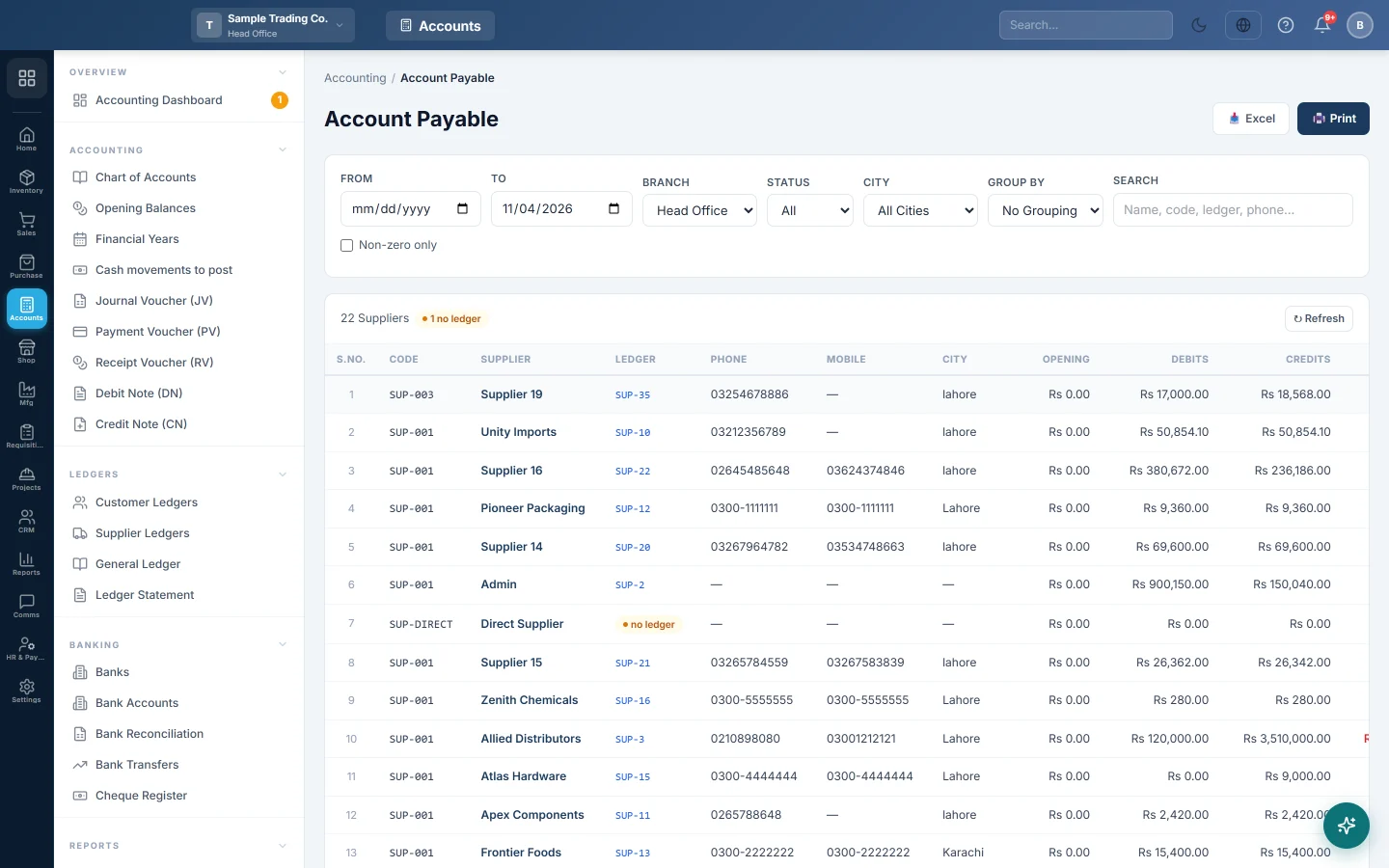
The Account Payable register lists every supplier with what you owe them on a date. The balances come straight from the books, so the total matches the payables in your Trial Balance.
Before you begin
- Suppliers are created in All Suppliers. Each supplier gets an account in the books when it is saved.
- Your role needs access to the Accounting reports. Your administrator sets this in Users & Roles.
Where to find it
Open Accounting → Reports → Account Payable (AP).
Run the report
The register opens with every balance from the start of your books up to today.
- Leave From blank for the lifetime balance, or set it to see an opening balance on that date.
- Set To, the date the closing balance is worked out on.
- If you work at head office, pick a Branch, or All Branches.
Changing a date or branch reloads the list. Click Refresh to load it again.
Filter, search and group
These work on the loaded list at once, without reloading:
- Status: All, Active or Inactive.
- City: shown when your suppliers have one.
- Search: name, code, ledger code, phone or mobile.
- Non-zero only: hides suppliers with no balance.
- Group By: City, with a subtotal row per city.
Click Print or Excel to take the list as filtered.
Read the report
| Column | What it shows |
|---|---|
| Code / Supplier | The supplier's code and name. |
| Ledger | The supplier's account code in the books. no ledger means the account is missing, so no balance can show. |
| Phone, Mobile, City | Contact details. |
| Opening | What you owed before From. Zero when From is blank. |
| Debits | Payments, purchase returns and debit notes between From and To. |
| Credits | Purchase invoices and other amounts you came to owe in the same period. |
| Closing | Opening plus Credits minus Debits: what you owe the supplier on To. |
| Last Txn | The date of the last entry in the period. |
A red closing balance means you owe the supplier. A green one means the supplier owes you, for example after an advance payment. Click a row to open the supplier's Ledger Statement for the same dates.
A worked example:
| Supplier | Opening | Debits | Credits | Closing |
|---|---|---|---|---|
| City Wholesalers | Rs 40,000 | Rs 30,000 | Rs 25,000 | Rs 35,000 |
| Ali Traders | Rs 0 | Rs 15,000 | Rs 10,000 | Rs -5,000 |
| Grand Total | Rs 40,000 | Rs 45,000 | Rs 35,000 | Rs 30,000 |
The reconciliation line
The line under the table explains how the register ties to the books:
- parties have no GL ledger: suppliers listed without an account.
- customer-cum-supplier accounts: suppliers who share one account with a customer record. The account is counted in one register only; in the other it shows greyed out with counted in Receivables and stays out of the totals.
- Control: entries posted to the general Accounts Payable account instead of a supplier's own account.
- unlinked ledgers: payable accounts that belong to no supplier, for example a deleted supplier's account.
- no-branch entries excluded: entries with no branch, which a branch filter cannot see.
- Reconciles to TB: the register total plus the control and unlinked amounts. It should equal the payables group in the Trial Balance for the same dates and branch.
Common questions
Why does the total differ from the Payables Aging? This register reads the books. The Payables Aging reads unpaid purchase invoices. Opening balances, journal vouchers and payments not matched to an invoice change one but not the other.
Why does a supplier show a green balance? You paid in advance or paid too much. The next purchase uses up the advance.
A payment I made does not reduce the balance. Check that the Payment Voucher was posted to the supplier's own account, not to a general expense or payable account.
How do I see the details behind a balance? Click the supplier's row. The Supplier Ledgers screen shows the same balances with the full statement.
Merci. Si vous avez encore besoin d’aide, écrivez à info@eloerp.net.