Bank Accounts
Open each company bank account with its own ledger and opening balance, and see the balance of every account at a glance.
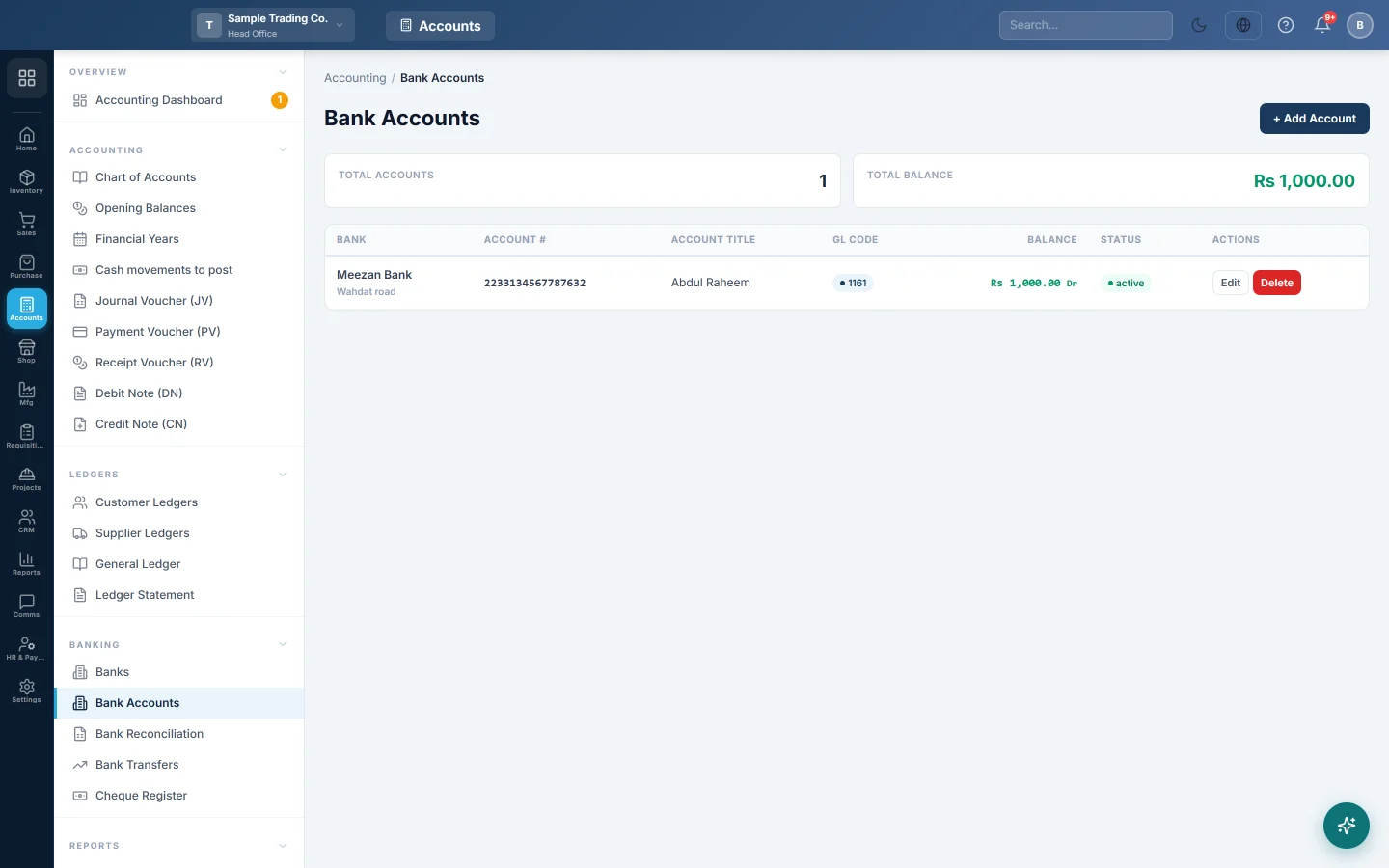
Bank Accounts lists every bank account your company holds and its current balance. Each account you add here gets its own ledger in the Chart of Accounts, so payments, receipts and transfers through it show in the books.
Before you begin
- Add the bank first on Banks.
- Banking screens are part of your plan. If Banking is missing from the Accounting menu, see Billing.
- For an account in another currency, switch on multi-currency and add the rate for the opening date; see Currencies. The Account currency field only shows when multi-currency is on.
- Check the branch in the top bar. A new account's ledger belongs to the branch you are working in.
Where to find it
Accounting → Banking → Bank Accounts.
Read the list
The two cards at the top show Total Accounts and Total Balance (all accounts added together).
| Column | What it shows |
|---|---|
| Bank | The bank and, below it, the bank branch. |
| Account # | The account number. |
| Account Title | The name you gave the account. |
| GL Code | The code of the account's ledger in the Chart of Accounts. |
| Balance | The ledger balance today. Dr in green means money in the bank; Cr in red means an overdraft. |
| Status | active or inactive. |
Add a bank account
- Click + Add Account.
- Pick the Bank.
- Type the Account Number.
- Type the Account Title, for example City Bank Current A/C.
- If multi-currency is on, pick the Account currency. Leave it blank for your base currency.
- Type the Opening Balance: what the bank statement showed on the day you start. Leave it at 0 for a new account.
- Pick the Balance Type: Debit for money in the account, Credit for an overdraft.
- Set Opening Date (as of) to the statement date of that balance.
- Leave Opening Offset Account on Default, unless your accountant names the equity account that takes the other side.
- Click Save.
EloERP creates the ledger (shown as GL Code) under current assets and posts the opening balance on the date you gave.
Change an account
- Click Edit on the account's row.
- Change the Account Title, or set Status to Inactive.
- While the account has no transactions yet, you can also correct the Opening Balance, Balance Type, Opening Date (as of) and Opening Offset Account.
- Click Save.
The bank and the account number cannot be changed after saving. Once any transaction is posted to the account, the opening balance is locked and the form says so.
Delete an account
- Click Delete on the account's row.
- Confirm the message.
EloERP refuses when the balance is not zero or the account has any entries, including its opening balance. Set it to Inactive instead.
What happens in the books
The opening balance is posted as an opening balance voucher numbered OB-BANK- followed by the account's internal number. Its other side goes to your opening balance equity account, so the Trial Balance stays in balance.
| Account | Debit | Credit |
|---|---|---|
| City Bank Current A/C | Rs 250,000 | |
| Opening Balance Equity | Rs 250,000 |
For an overdraft (Balance Type = Credit) the sides swap. After that, every payment, receipt, transfer and cheque clearing through the account moves its ledger, and Balance follows.
Common questions
Why can I not change the opening balance? Transactions are already posted to the account, and changing the opening figure would rewrite history. Post a Journal Voucher for the difference instead, after checking with your accountant.
The balance here differs from my bank statement. Uncleared cheques, bank charges and deposits in transit cause the gap. Match them on Bank Reconciliation.
Where is the account's ledger? Find its GL Code in the Chart of Accounts, or open it on Ledger Statement to see every entry.
I saved an account under the wrong bank. The bank cannot be changed. If the account has no entries, delete it and add it again under the right bank.
The save says there is no rate. The account is in another currency and no rate exists for the opening date. Add the rate under Settings → Exchange rates, then save again.
Terima kasih. Jika masih butuh bantuan, kirim email ke info@eloerp.net.