General Ledger
Every journal line posted in a period, for all accounts grouped by account group or for one account with its running balance.
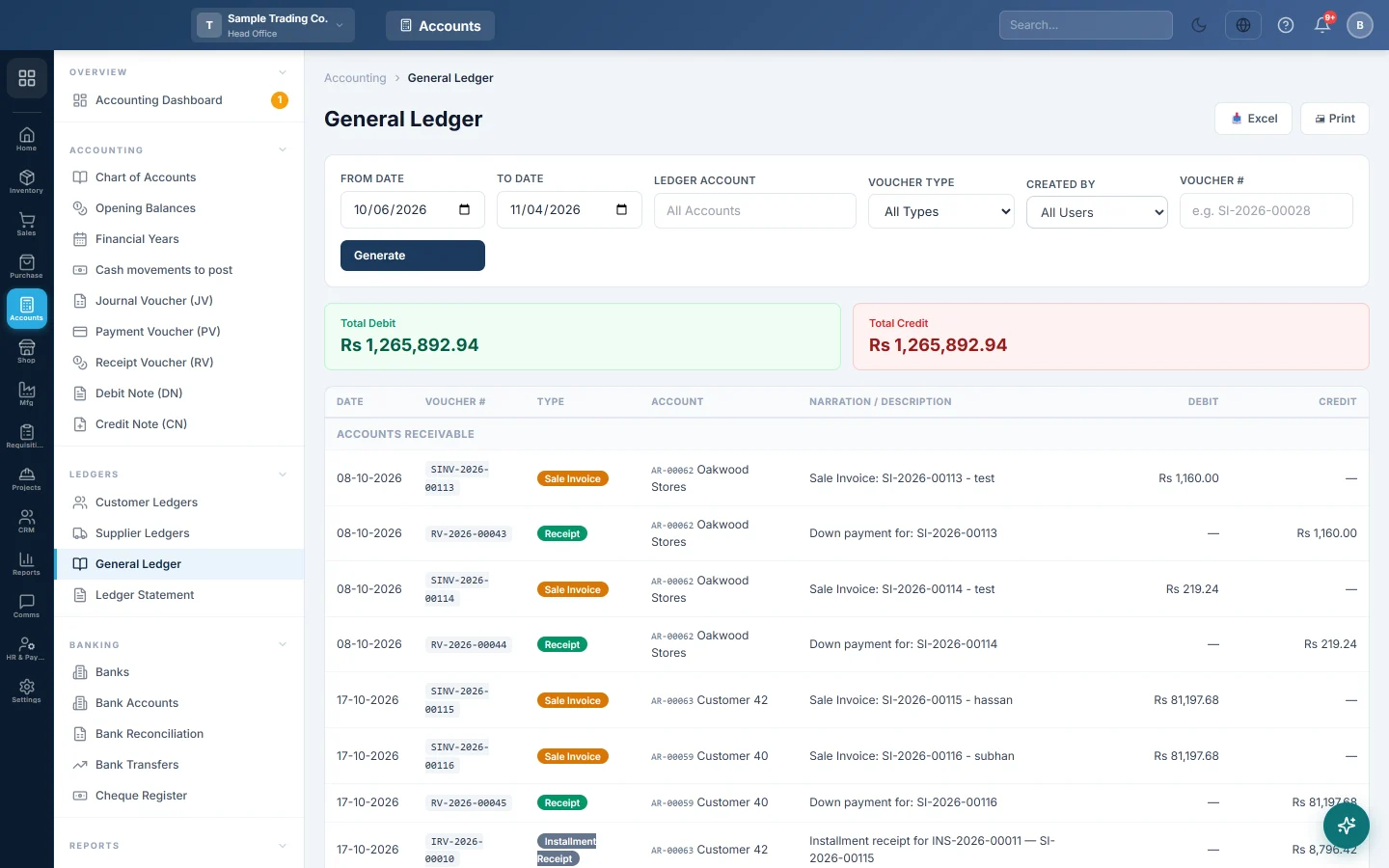
The General Ledger lists every debit and credit posted to your accounts in a period. Leave the account empty to see every account, grouped by account group, or pick one account to see its opening balance, each entry and a running balance.
Before you begin
- The General Ledger is part of your subscription plan. If the menu item is missing, your plan does not include it; ask your administrator.
- Your role needs the View General Ledger permission, set under Users & Roles.
- If your role is limited to certain account groups, you only see entries on those accounts.
Where to find it
Open Accounting → Ledgers → General Ledger.
Run the General Ledger
- Set From Date and To Date. The page opens in your company's default report range and loads by itself.
- Leave Ledger Account on All Accounts, or type a code or name and pick the account from the list.
- Optionally narrow it down:
- Voucher Type: only journals, payments, receipts, purchase or sale invoices, debit notes or credit notes.
- Created By: only vouchers a given user entered.
- Voucher #: part of a voucher number or a document number. Press Enter to search.
- Click Generate.
How to read it
All accounts. Entries are listed under each account group, with Date, Voucher #, Type, Account, Narration / Description, Debit and Credit. The GRAND TOTAL row at the foot adds up every line. With no filters, total debit equals total credit, because every voucher balances.
One account. The table starts with Opening Balance (Balance b/f): everything posted to the account before the From Date, plus any opening balance on the account. Each line then moves the Balance, and the last row is Closing Balance (Balance c/f).
| Date | Voucher # | Narration | Debit | Credit | Balance |
|---|---|---|---|---|---|
| Opening Balance (Balance b/f) | Rs 20,000 Dr | ||||
| 3 Mar | RV-2026-00041 | Received from Ali Traders | 5,000 | Rs 25,000 Dr | |
| 4 Mar | PV-2026-00017 | Shop rent | 12,000 | Rs 13,000 Dr |
This is Cash in Hand: it started with Rs 20,000, received Rs 5,000 and paid Rs 12,000. Dr on an asset or expense account is normal; Cr is normal on a liability, equity or income account.
The cards above the table show Total Debit and Total Credit, and for one account also Opening Balance and Closing Balance.
Vouchers you enter start with their type: JV journal, PV payment, RV receipt, DN debit note, CN credit note. OB is an opening balance and REV a reversal. A voucher posted by a sale, purchase or other document carries that document's number in its reference.
Print, export or share
- Excel downloads what is on screen, grouped as on screen.
- Print prints it in landscape with the period and filters at the top.
- WhatsApp sends it as a PDF. It shows only when sharing is switched on in Print Settings.
Common questions
Total debit and total credit are not equal. They only have to match with no filters. A Ledger Account, Voucher Type, Created By or Voucher # filter shows one side of some vouchers. A branch user also sees only their own branch's lines.
An entry I expected is not there. Only posted vouchers count. A voucher held for approval appears after it is approved in the Voucher Register. Deleted vouchers are left out, and a few stock-only entries are not part of the financial reports.
Head office sees more than a branch user. At head office the report covers all branches. A user signed in to a branch sees that branch's entries only.
Can I open a voucher from here? Not from this page. Use the Ledger Statement, where each voucher number opens the entry.
Which is better: General Ledger or Ledger Statement? Use the General Ledger to search across accounts, by type, user or voucher number. Use the Ledger Statement for one account's statement that you can drill into.
Terima kasih. Jika masih butuh bantuan, kirim email ke info@eloerp.net.