Chart of Accounts
The tree of account groups and accounts every voucher posts to; add, rename, open or remove accounts here.
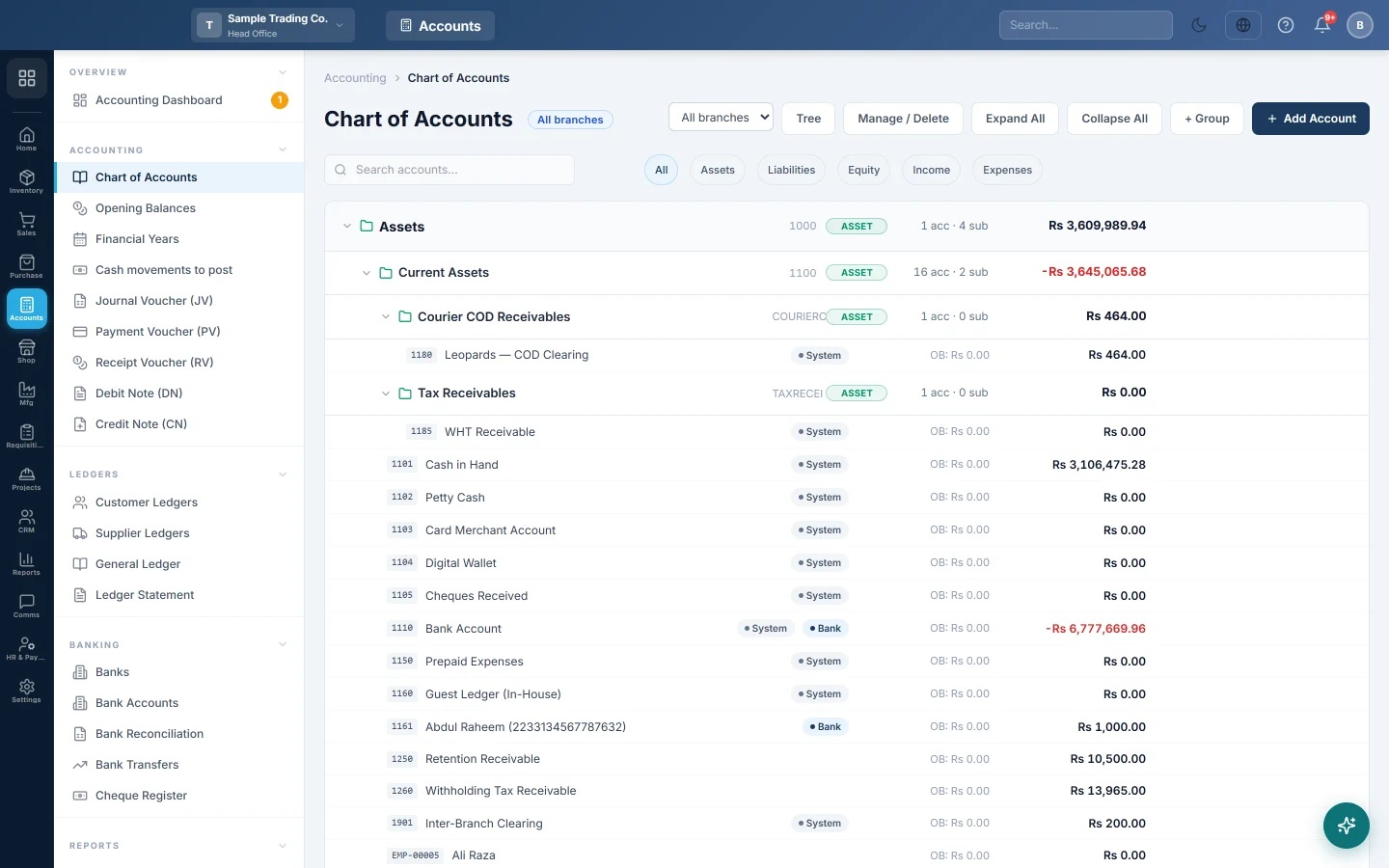
The Chart of Accounts is the list of every account in your books, arranged in groups such as Assets, Liabilities, Equity, Income and Expenses. Every sale, purchase, payment and voucher posts to the accounts listed here.
Before you begin
- EloERP creates a standard chart when your company is set up. Most businesses only add a few accounts, such as extra expense heads or a security deposit.
- Customers, suppliers and bank accounts get their own account automatically when you add them. You do not need to create those here.
- Deleting needs the chart-of-accounts delete right. Ask your administrator under Users & Roles.
Where to find it
Open Accounting → Accounting → Chart of Accounts.
Read the tree
Each group row shows its name, code, type chip, the count of accounts and sub-groups, and the group's total balance. Click a group name or its arrow to open or close it.
- Use Expand All and Collapse All to open or close every group. Groups with more than 50 accounts, such as your customers, start closed.
- Type in Search accounts... to find an account by name or code.
- Click All, Assets, Liabilities, Equity, Income or Expenses to show one kind only.
- Head office users can pick a branch in the list next to the title, or All branches. The chip next to the title says which balances you are seeing.
Each account row shows its code, name, opening balance (OB) and current balance. A minus sign and red figure mean the balance is on the other side from normal. Badges show System (built-in), Bank and Inactive accounts.
Add an account
- Find the group the account belongs to and click + Account on its row. You can also click Add Account at the top.
- Check the Account Group. The Account Code fills in on its own with the next free number in that group.
- Type the Account Name, for example Electricity Expense.
- If the account already had a balance before you started using EloERP, enter it in Opening Balance and choose Debit or Credit in Balance Type.
- Add a Description if it helps others.
- Click Create Account.
Add a group or sub-group
- Click + Sub-group on the group it belongs under, or + Group at the top.
- Pick the Parent Group, or (None – Top level).
- Type the Group Name. Leave Group Code empty to use the parent's code.
- Leave Type on (inherit) to take the parent's type, or pick one.
- Click Create Group.
Edit an account or group
- Click an account row to open Edit Account. Click Edit on a group row to change a group.
- Change the name, group, opening balance or description.
- Click Update (account) or Save Changes (group).
Built-in accounts keep their code because EloERP finds them by it, but you can rename them. Built-in groups cannot be edited.
See an account's entries
Click the document icon at the right end of an account row. It opens the Ledger Statement for that account.
Delete, merge or clean up an account
- Click Manage / Delete at the top. Every account and group is listed flat, with a Status saying whether it Can be deleted, or what is holding it.
- Tick Only show what can be deleted to shorten the list.
- Click Delete on an unused account or an empty group and confirm.
- For an account that has entries, use Merge… to move all its entries into another account and remove it, or Delete with entries… to delete every document behind it. Both show a preview first and ask for a reason and your password.
- Click Tree to go back.
What happens in the books
An opening balance entered on an account is posted as an opening balance voucher numbered OB-COA- plus the account's number. The other side goes to your opening balance offset account, usually Opening Balance Equity. You can choose that account on Opening Balances.
| Account | Debit | Credit |
|---|---|---|
| Security Deposit | Rs 50,000 | |
| Opening Balance Equity | Rs 50,000 |
The voucher is dated the day you save the account. Once the account has other entries, its opening balance is locked; reverse or delete those entries first to change it.
Common questions
Why is an account greyed out, with a module name beside it? It belongs to a module your company does not use, such as hotel or hospital accounts. Tick Show all modules to list such accounts.
I cannot change the code of an account. It is a built-in account. The system finds it by its code, so only the name can change.
Why can't I delete this account? Hover over its status in Manage / Delete. An account with entries, or one used by a customer, supplier, bank account or payment method, stays. System accounts can never be deleted.
The balance here differs from the Balance Sheet. Check the branch chip next to the title. The tree may show all branches while the report shows one branch, or the other way round.
Do I need an account for each customer? No. Each customer and supplier gets its own account under Accounts Receivable or Accounts Payable when you add them in All Customers or All Suppliers.
Gracias. Si todavía necesita ayuda, escriba a info@eloerp.net.