Return Report
List purchase returns for a period with the invoice they were made against, their value and the tax reversed.
The Purchase Return Report lists the goods you sent back to suppliers in a period, one row per return.
Before you begin
- The report shows the branch you are working in.
- Returns are entered on Returns.
Where to find it
Open Purchases → Reports → Return Report.
Run the report
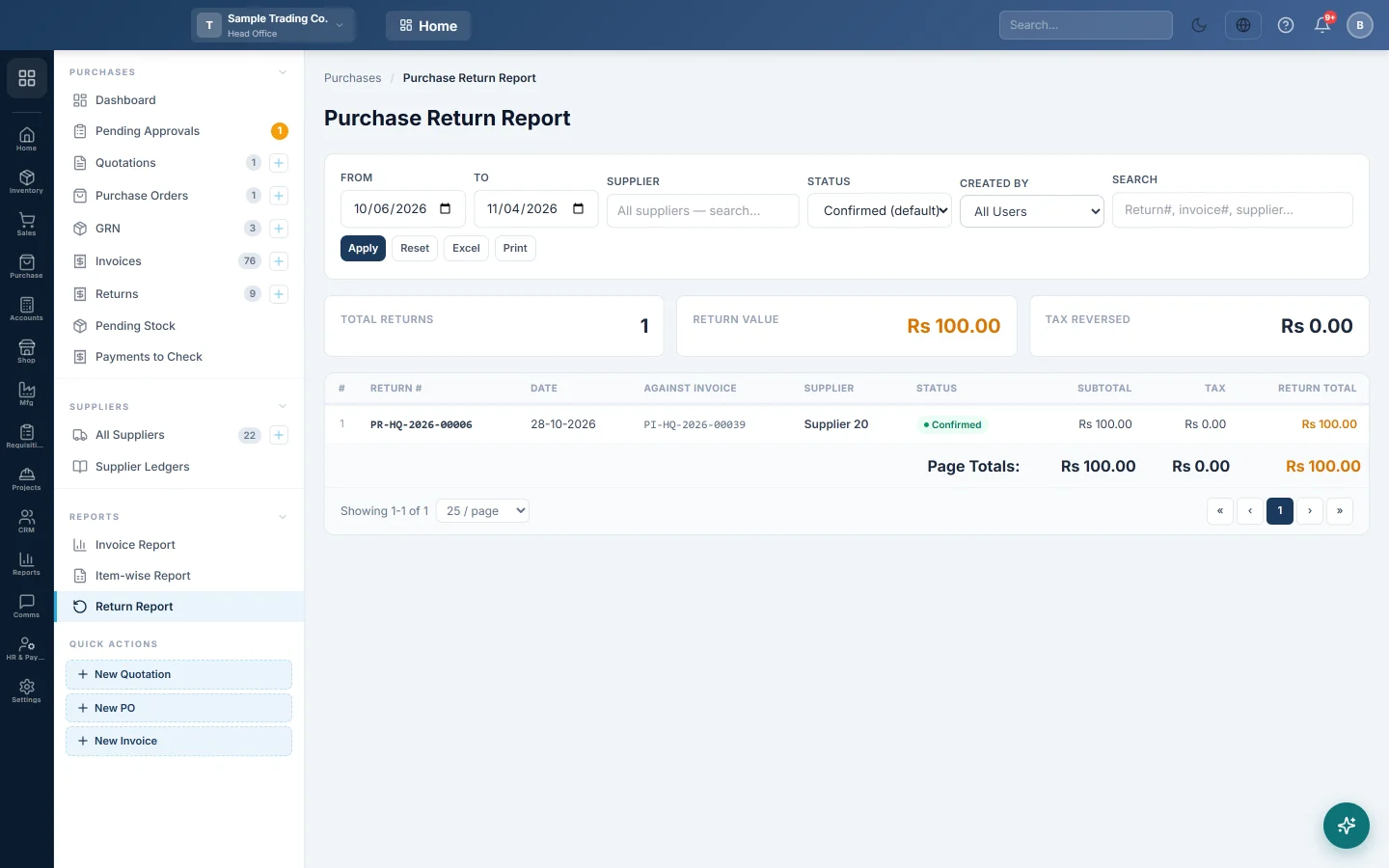
- Set From and To.
- Pick a Supplier, a Status or a Created By user if you need to.
- Type a return number, invoice number or supplier in Search to find one return.
- Click Apply. Reset puts the filters back.
The cards show Total Returns, Return Value and Tax Reversed. Each row shows the Return #, Date, Against Invoice, Supplier, Status, Subtotal, Tax and Return Total.
Export or print
Click Excel or Print.
Common questions
Why are my draft returns missing? The status box starts on Confirmed (default). Pick Draft or Cancelled to see those.
Some returns have no invoice. They were made with Return without source invoice, for example damaged stock sent back.
Does Tax Reversed reduce my input tax? Yes. Approving a return reverses the input tax that the invoice claimed.
Vielen Dank. Wenn Sie weitere Hilfe brauchen, schreiben Sie an info@eloerp.net.