Z-Report (End of Shift)
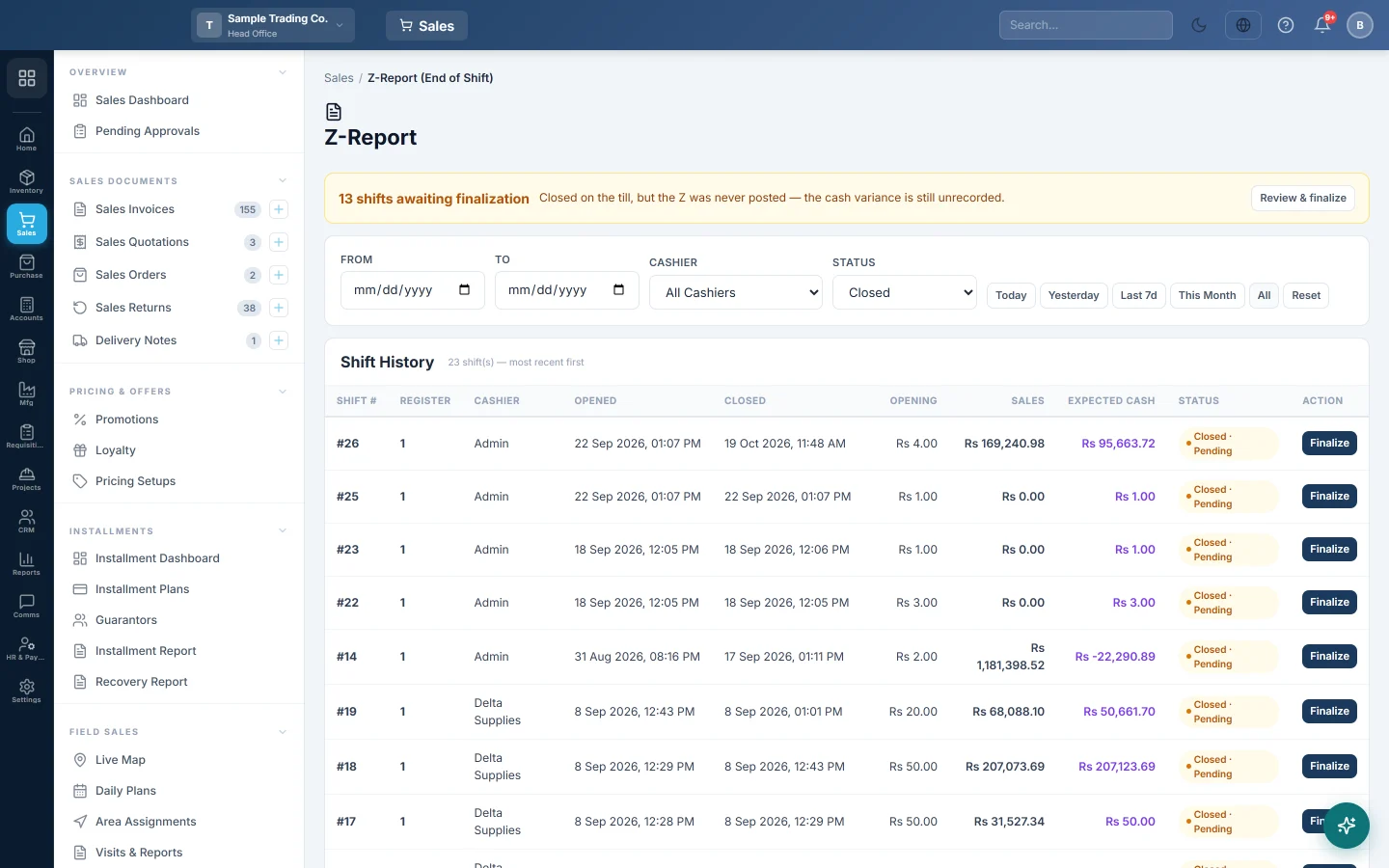
The shift history and the final word on each closed shift: enter the counted cash, decide where a shortage or overage goes, and finalize and print the Z.
The Z-Report is where a manager closes the books on a shift. It lists the shifts, shows the full report for each closed one, and finalizes it with the counted cash. A shortage or overage is posted when you finalize.
Before you begin
- The shift is closed, from the Cash Register or the X-Report. See Open and close a shift.
- Your role has View Z-Report (End of Shift). See Users & Roles.
- To charge a shortage to the cashier, the cashier's user is linked to an employee with a ledger. See Employees.
Where to find it
Open Sales → POS → Z-Report (End of Shift). The list shows shifts of the branch in the top bar.
Find a shift
- Set From and To, or click Today, Yesterday, Last 7d, This Month or All.
- Pick a Cashier, or leave All Cashiers.
- Pick the Status: Closed (the default), Open or All.
Shift History lists each shift with Shift #, Register, Cashier, Opened, Closed, Opening, Sales and Expected Cash. The status reads Open, Closed · Pending or Finalized. Reset clears the filters.
Finalize a shift
- Click Finalize on a shift marked Closed · Pending. The full report opens.
- Read the totals, the Payment Breakdown, the Cash Drawer Summary and the Cash Movements Log.
- Under Finalize Shift (Z-Close), type the Counted Cash (actual cash in drawer). It starts at the cashier's own count.
- To count note by note, click Enter by denomination and fill in each Note / Coin. Enter total manually switches back.
- Add Closing Notes if something needs explaining.
- Check Expected, Counted and Difference, marked OVER or SHORT.
- If there is a difference, choose where it goes: Cashier's account, Cash Variance Suspense or Don't post.
- Click Finalize & Close Z-Report and confirm.
- Pick A4 or 80mm Thermal and click Print.
After finalizing, the shift shows Shift Finalized with the counted cash, the expected cash and the difference. Click ← Back to List to return. A finalized shift has a View button instead of Finalize.
Clear the shifts awaiting finalization
A yellow bar appears when closed shifts from any date were never finalized, for example "3 shifts awaiting finalization".
- Click Review & finalize.
- For each shift, check Expected cash and type the Counted cash. It starts at the expected figure, which means no difference.
- If there is a difference, pick Charge the cashier, Cash variance (suspense) or Record only, no posting.
- Click Finalize on the row and confirm.
What happens in the books
The sales and returns were posted when they happened, so finalizing posts only the cash difference, as a journal voucher:
- Cashier's account: a shortage debits the cashier's employee ledger and credits Cash in Hand. An overage does the opposite.
- Cash Variance Suspense: the same, against a Cash Variance Suspense account that EloERP creates the first time. Move it to the right account later.
- Don't post: nothing is posted; the difference is only recorded on the Z-Report.
If the cashier has no linked employee, Cashier's account falls back to Cash Variance Suspense. The variance voucher is listed in the General Ledger.
Common questions
The shift I want has no Finalize button. It is still open; the row says In progress. Close it first from the X-Report (Mid-Shift) or the Cash Register.
The message warns the cash variance could NOT be posted. EloERP could not find your cash in hand account. Check the Chart of Accounts, then post the difference by hand with a journal voucher.
Finalize says the shift is not fully synced. The shift belongs to an offline till that still has sales to send. Bring the till online and wait. A manager with Close Cash Register can force it closed on the data that arrived, but only when the device is gone for good. See Shifts, X and Z reports on the offline till.
Can I change a finalized Z-Report? No. Fix a wrong posting with a journal voucher in accounts.
Why does the Z total differ from the Sale Invoice Report? The Z counts only the sales of that shift. Sales made outside any shift are not in it. Compare with the Sale Invoice Report for the same cashier and times.
Obrigado. Se ainda precisar de ajuda, escreva para info@eloerp.net.