X-Report (Mid-Shift)
A snapshot of an open shift: sales, payments by method, cash movements, top products and the cash that should be in the drawer. It changes nothing and can close the shift.
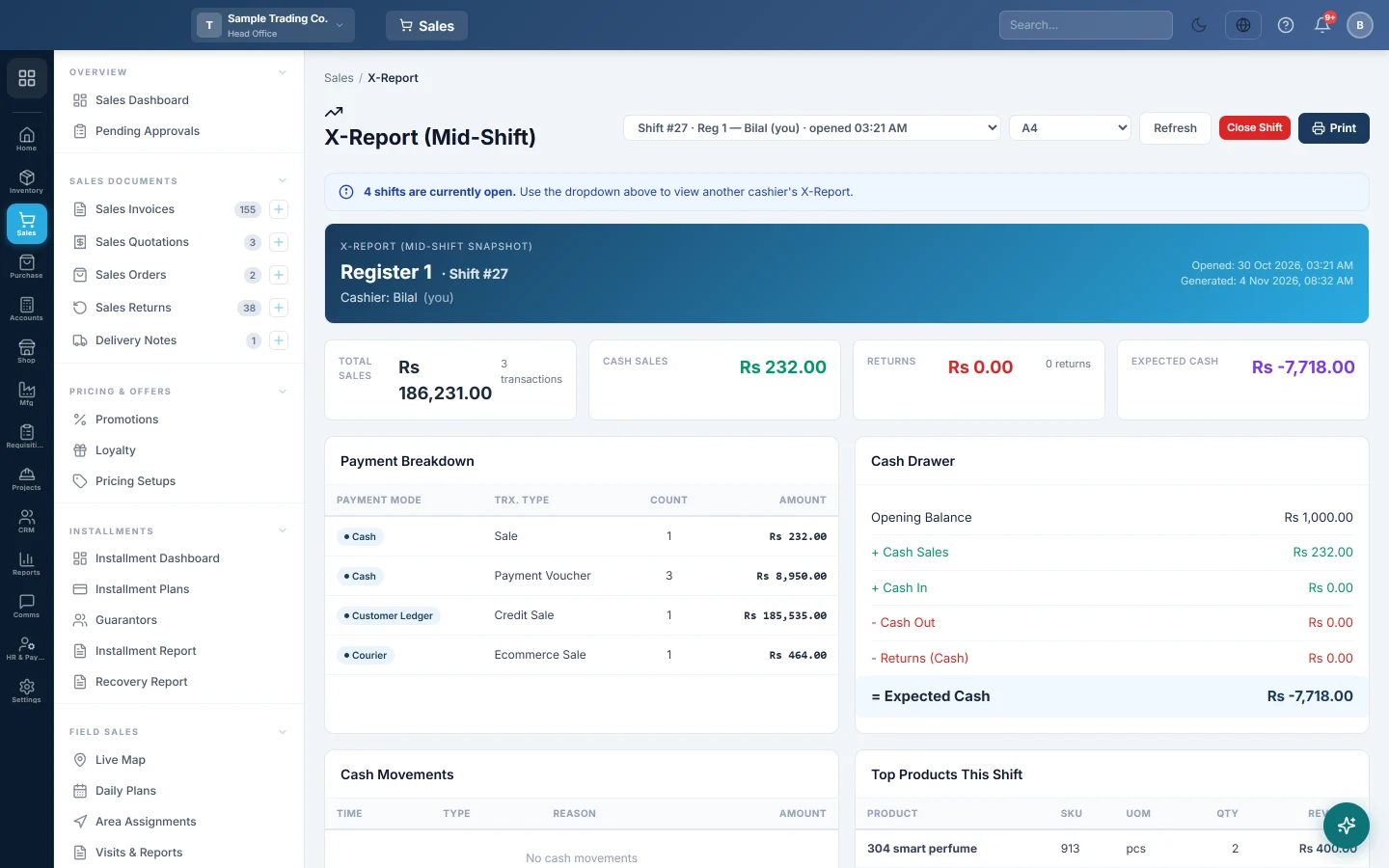
The X-Report shows an open shift as it stands now: what was sold, how it was paid and how much cash the drawer should hold. Looking at it changes nothing, so you can print it as often as you like. It also has the Close Shift button for the end of the shift.
Before you begin
- A cashier has opened a shift, see Open and close a shift.
- Your role has View X-Report (Mid-Shift). Closing another cashier's shift also needs Close Cash Register. See Users & Roles.
- For the denomination count, the notes and coins listed come from your company currency.
Where to find it
Open Sales → POS → X-Report (Mid-Shift), or click the X Report tab at the top of the POS Terminal.
It opens on your own open shift. If you have none, it shows the latest open shift in your branch.
Read the report
| Part | What it shows |
|---|---|
| Header | Register, Shift #, Cashier, when the shift Opened and when the report was Generated. |
| Total Sales | The value of all sales in the shift and how many transactions. |
| Cash Sales | Sales paid in cash. |
| Returns | Refunds given in the shift, by any method, and how many. |
| Expected Cash | The cash that should be in the drawer now. |
| Payment Breakdown | One row per Payment Mode and Trx. Type (sale, return, receipt or payment voucher) with Count and Amount. |
| Cash Drawer | Opening Balance, + Cash Sales, + Cash In, - Cash Out, - Returns (Cash) and = Expected Cash. Foreign cash shows on its own line. |
| Cash Movements | Each CASH IN and CASH OUT with its time and reason. |
| Top Products This Shift | Product, SKU, unit, quantity and revenue. |
| Sale Return Items This Shift | One row per product line returned, with a line that bridges the line values to the amount refunded. |
| Tax Collected | Tax on the shift's sales. |
See another cashier's shift
- When more than one shift is open, a blue note says how many and a shift list appears at the top.
- Pick the shift from the list. Each entry shows the shift number, register, cashier and the time it opened.
- Click Refresh to load the latest figures.
Print the report
- Pick the paper size: A4 or 80mm Thermal.
- Click Print.
Close the shift
- Count the cash in the drawer.
- Click Close Shift.
- In Close Shift — Cash Denomination, type how many of each Note / Coin you counted. Grand Total adds them up.
- Compare it with Expected Cash. Diff shows the gap and says OVER or SHORT.
- Click Close Shift. The message reads "Shift closed. Open Z-Report to finalize."
The shift then waits as Closed · Pending on the Z-Report (End of Shift), where a manager finalizes it.
What happens in the books
- The X-Report posts nothing. It reads the sales, returns and cash movements already recorded.
- Close Shift saves your count and closes the shift. Any shortage or overage is posted only when the Z-Report is finalized.
Common questions
It says "Failed to load X-Report. Make sure you have an open register." No shift is open in your branch. Open the register first, see Cash Register.
Total Sales is higher than the cash. Total Sales counts every sale; credit and card sales are not in the drawer. Read Payment Breakdown for the split.
Expected Cash is more than the Cash Drawer lines add up to. Cash receipt and payment vouchers you entered during the shift also count toward Expected Cash. They are listed in Payment Breakdown.
Why does the return list have more lines than returns? Sale Return Items This Shift lists each product line, not each return. The heading says how many returns the lines come from.
Can a manager close a cashier's shift? Yes, with Close Cash Register on their role. Pick the shift from the list, then click Close Shift.
A red note says the till's figures differ from the server. This appears on an offline till that has not finished syncing. The till's own figures include the sales still waiting to upload, so count the drawer against them. See Shifts, X and Z reports on the offline till.
Спасибо. Если помощь всё ещё нужна, напишите на info@eloerp.net.