Cash Register
The cashier's drawer for the current shift: open it with a float, record cash in and cash out, watch the expected cash and close it with a count.
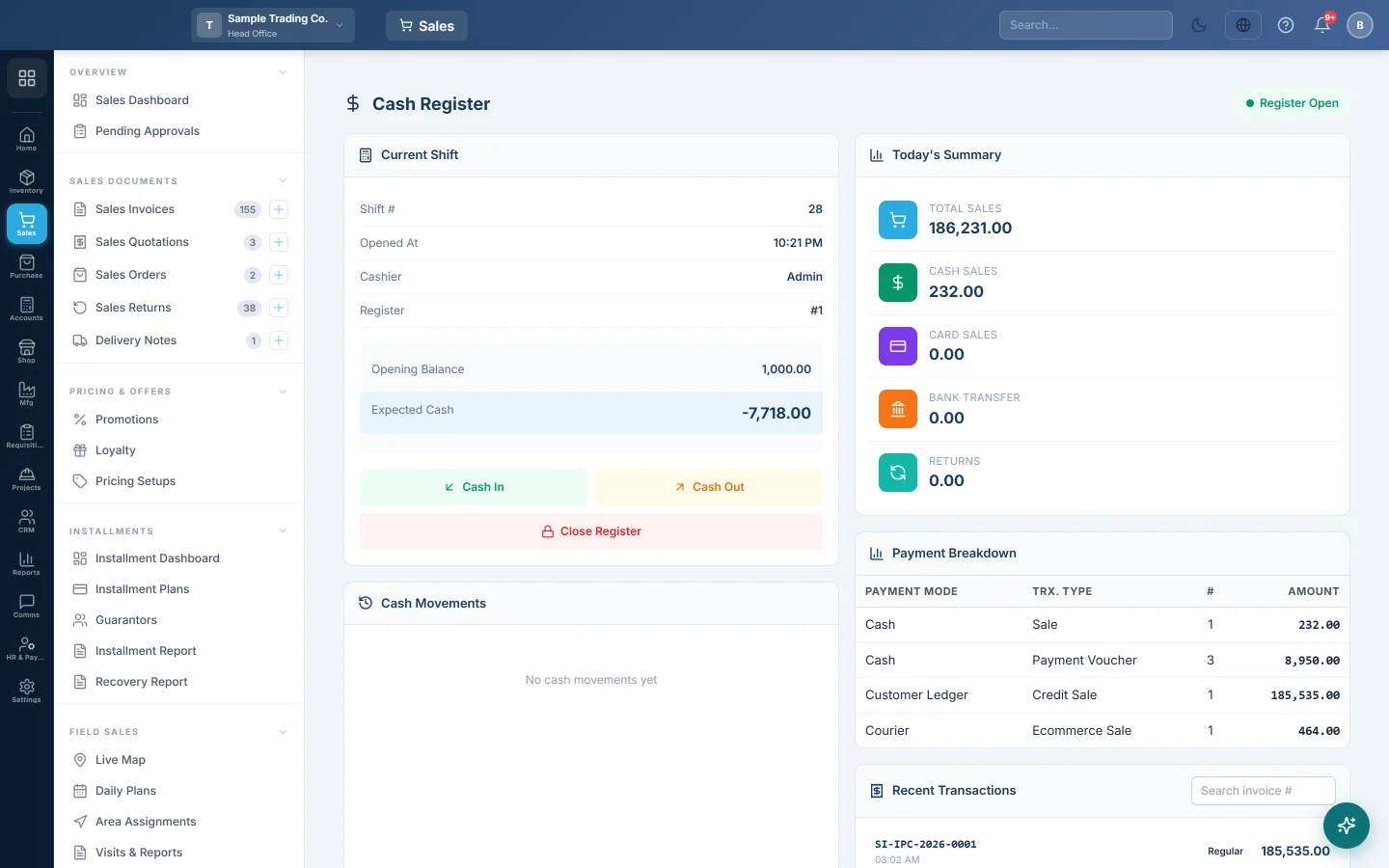
The Cash Register screen is the drawer for your shift. It shows what the drawer should hold, lets you record cash that comes in or goes out for reasons other than a sale, and closes the shift with your count.
Before you begin
- Your user has Enable Cash Register ticked under Users & Roles, so your sales are tied to a shift.
- Your role has View Cash Register to open this screen from the main menu. Inside the till, the Cash Register tab needs only Access POS Terminal.
- Register Mode in POS Settings decides whether each cashier has their own shift (Shift-Locked (Default)) or the branch shares one (Shared Register).
Where to find it
Open Sales → POS → Cash Register, or click the Cash Register tab at the top of the POS Terminal. Both open the same screen. The badge at the top right reads Register Open or Register Closed.
What the screen shows
| Part | What it shows |
|---|---|
| Current Shift | Shift #, Opened At, Cashier, Register, the Opening Balance and the Expected Cash in the drawer now. |
| Cash Movements | Every cash in and cash out of this shift, with its reason and time. |
| Today's Summary | Total Sales, Cash Sales, Card Sales, Bank Transfer and Returns for the open shift. |
| Payment Breakdown | Sales and returns by payment method. |
| Recent Transactions | The last 20 sales of the shift. Type in Search invoice # to find one. |
When the register is closed, the screen warns you about sales made today with no register open, under "sale(s) today not linked to any register".
Open the register
- Count the cash in the drawer.
- Type it in Opening Balance.
- Click Open Register, or press Enter.
The opening balance must be more than 0 on this screen. To start with an empty drawer, open the shift from the POS Terminal's Open Cash Register screen instead, see Open and close a shift.
If you already have an open shift, it is resumed and keeps its first opening balance; a message tells you so.
Record cash in
Use this when you add cash to the drawer, for example change from the office.
- Click Cash In.
- Type the Amount.
- Pick the Reason: Float / Change, Loan from office, Correction or Other. For Other, type Notes.
- Click Add Cash.
Record cash out
Use this when cash leaves the drawer for something other than a sale or a refund to a customer.
- Click Cash Out.
- Type the Amount.
- Pick the Reason: Petty Cash, Expense, Refund, Deposit to bank or Other. For Other, type Notes.
- Click Remove Cash.
EloERP refuses a cash out larger than the cash in the drawer, with a message showing how much is there.
Close the register
- Count the cash in the drawer.
- Click Close Register.
- Check the lines: Opening Balance, Cash Sales, Cash In, Cash Out and Expected Cash.
- Type your count in Actual Cash Counted. Over or Short shows the difference.
- Click Close Register.
The shift is now closed and waits for a manager on the Z-Report (End of Shift). To count note by note instead, close from the X-Report (Mid-Shift) with Close Shift.
What happens in the books
- Expected Cash is the Opening Balance, plus cash sales and cash in, minus cash out and cash refunds.
- Cash in and cash out post nothing yet. Accounts staff post each one to the right account from Cash movements to post.
- Closing the register records your count and the difference. Nothing is posted until the Z-Report is finalized.
Common questions
Open Register does nothing. The Opening Balance is 0 or empty. Type the float, or open from the POS Terminal if the drawer really is empty.
Expected Cash on this screen differs from the X-Report. The X-Report also counts cash receipts and payments you entered as vouchers during the shift. Count the drawer against the X-Report.
Why are my sales not on this screen? They were made while no register was open, or by another cashier. Open the register before the first sale of the day.
I recorded a cash out by mistake. Record a Cash In for the same amount with the reason Correction, and tell your accounts staff.
Where do I see shifts from earlier days? On the Z-Report (End of Shift), under Shift History.
Gracias. Si todavía necesita ayuda, escriba a info@eloerp.net.