Staff Performance
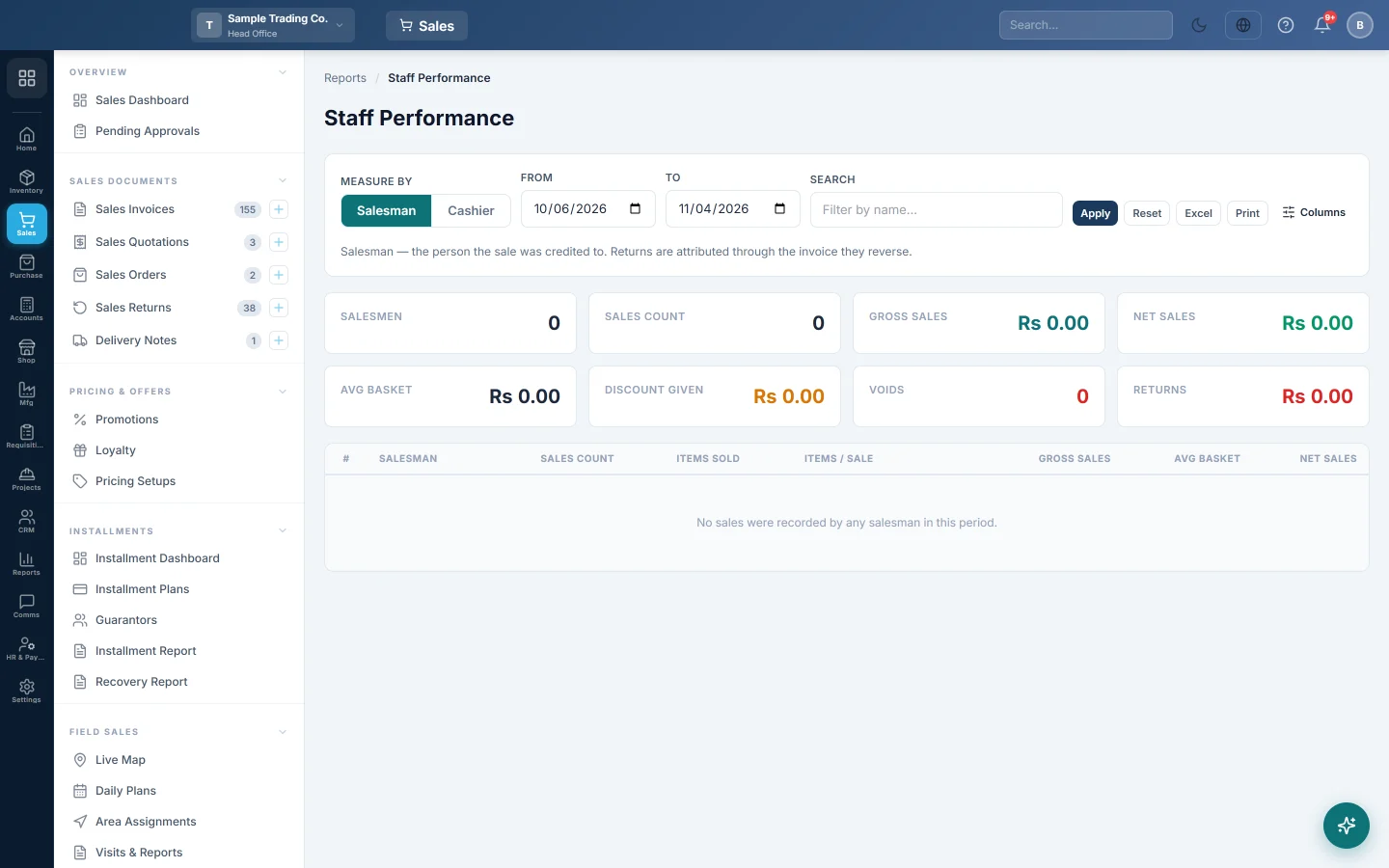
Compare your salesmen or cashiers for a period by sales count, gross and net sales, basket size, discounts, voids, returns and hours on the till.
Staff Performance compares the people who sell for you. Use it for commission and targets, or to spot a cashier with too many voids, discounts or returns.
Before you begin
- Your role needs View Staff Performance Report. Your administrator sets this in Users & Roles.
- For the Salesman view, invoices need a salesman. Till sales are often saved without one.
- When you work in the head office branch, the report covers every branch. In any other branch it shows that branch only.
Where to find it
Open Sales → Reports → Staff Performance. It is also listed under the Reports module.
Run the report
The report opens for your company's default date range and loads by itself.
- Under Measure by, click Salesman or Cashier.
- Set From and To, then click Apply.
- Type in Search to keep only matching names. This filters the list at once.
Salesman is the person the sale was credited to, for commission and targets. Cashier is the user who rang the sale up, for speed and till control. If no sales were credited to a salesman in the period, a yellow box offers Show cashiers.
Read the figures
The cards show the number of Salesmen or Cashiers, Sales Count, Gross Sales, Net Sales, Avg Basket, Discount Given, Voids and Returns (the value returned).
Each row is one person, ranked by Gross Sales, with a bar to compare at a glance.
| Column | How it is worked out |
|---|---|
| Sales Count | Confirmed, part-paid and paid invoices. |
| Gross Sales | The total of those invoices, with tax. |
| Avg Basket | Gross Sales ÷ Sales Count. |
| Net Sales | Gross Sales − Return Value. |
| Items Sold | Quantities on the invoice lines. Items / Sale is Items Sold ÷ Sales Count. |
| Discount | Line and invoice discounts on the person's sales. |
| Voids / Void Value | Cancelled invoices, counted apart from sales. |
| Returns / Return Value | Confirmed returns. On Cashier, the user who entered the return. On Salesman, the salesman of the invoice it reverses. |
| Shifts / Hours | Closed till sessions the person opened in the period, and their length. |
| Sales / Hour | Gross Sales ÷ Hours. |
A red percentage beside Return Value means returns are 5% or more of that person's sales.
Choose the columns
- Click Columns.
- Tick what you need, such as Discount Given, Voids, Returns, Hours or Last Sale.
Most of these start hidden. Your choice is remembered in this browser, and Excel and Print use it.
Export or print
Click Excel or Print.
Common questions
Why does a cashier show hours but no sales on the Salesman view? Till sessions are listed by the person who opened them, whichever view you are in. On Salesman, their own sales count only if invoices were credited to them.
What is "Deleted user #12"? A user who has since been removed. Their past sales still count under their old number.
Are draft invoices counted? No. Drafts are left out, and cancelled invoices are counted as Voids, not as sales.
How does this compare with the Z-Report? The Z-Report (End of Shift) covers one till session. This report adds up every session and invoice for the period, per person.
Can I see each salesman's profit? Use the Profitability Report with Invoice-wise. Its Salesperson column is the user who entered the invoice.
Thank you. If you still need help, write to info@eloerp.net.