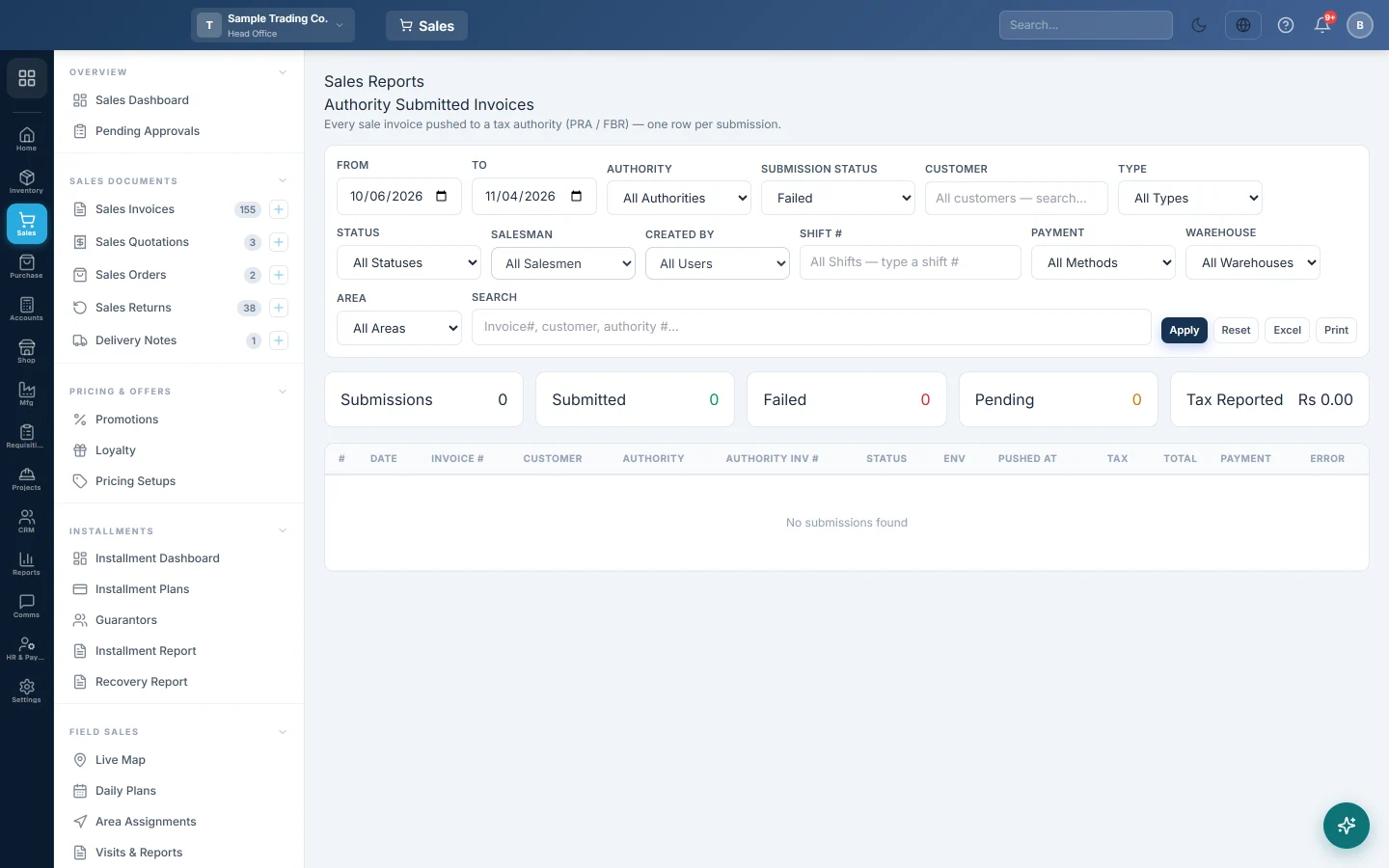
Authority Submitted Invoices
Every sale invoice filed with a tax authority such as PRA or FBR, one row per filing, with the authority's invoice number, the status and the reason for any refusal.
Authority Submitted Invoices lists every sale invoice your branch has sent to a tax authority, one row per filing. Use it to check which invoices were accepted, which are waiting and why any were refused.
This report is for businesses in Pakistan filing with the Punjab Revenue Authority (PRA) or the Federal Board of Revenue (FBR). It stays empty until a tax authority is switched on for your company.
Before you begin
- Your service provider must switch on PRA or FBR for your company, and the credentials must be set up. See Tax Authorities.
- Your role needs View Sale Invoice Report. Your administrator sets this in Users & Roles.
- The report shows the branch you are working in. Each branch files under its own registration, so switch branch in the top bar to see another one.
Where to find it
Open Sales → Reports → Authority Submitted Invoices.
Run the report
The report opens for your company's default date range and loads by itself.
- Set From and To. These are invoice dates.
- Pick an Authority: PRA (Punjab), FBR (Federal) or All Authorities.
- Pick a Submission Status: Submitted (posted), Pending / queued or Failed.
- Narrow it further if you need to: Customer, Type, Status, Salesman, Created By, Shift # or Payment.
- Type an invoice number, customer name or the authority's number in Search.
- Click Apply. Reset puts every filter back.
Read the figures
| Card | What it shows |
|---|---|
| Submissions | How many filings match the filters. |
| Submitted | Filings the authority accepted. |
| Failed | Filings the authority refused. |
| Pending | Filings queued and not yet answered by the authority. |
| Tax Reported | The tax on all the matching filings, whatever their status. |
Each row shows Date, Invoice #, Customer, Authority, Authority Inv #, Status, Env, Pushed At, Tax, Total, Payment and Error. Env shows whether the filing went to the authority's test system (SANDBOX) or the live one (PRODUCTION).
An invoice filed with two authorities shows as two rows.
Find out why a filing failed
- Set Submission Status to Failed and click Apply.
- Read the Error column. For known refusals, the reason and the fix show under the message.
- If there is no explanation yet, click Explain for a plain-words reading of the message.
- Correct the invoice, the product or the setting the message names. For FBR, send it again from FBR POS Integration.
Export or print
Click Excel or Print. Both take every matching row, not only the page you see.
Common questions
Why is the Tax Reported card higher than what the authority shows? It adds up the tax on every filing in the list, including pending and failed ones. Set Submission Status to Submitted (posted) to see only the tax the authority accepted.
An invoice I sold is not in the list. Only invoices marked for filing appear. An invoice that was never sent has no row here. Use the Fiscal filter on the Sale Invoice Report and pick Fiscal: Not submitted.
What does SANDBOX mean on a row? The invoice went to the authority's test system, not the live one. Switch to production in Tax Authorities once your tests pass.
How is this different from the FBR Submission Report? This report covers every authority and shows each filing with its error. The FBR Submission Report is FBR only and lists the most common FBR error codes.
Thank you. If you still need help, write to info@eloerp.net.