Sale Invoice Report
List your sale invoices for a period with discount, tax, freight, what was paid and what is still owed, filtered by customer, type, status, salesman, shift and more.
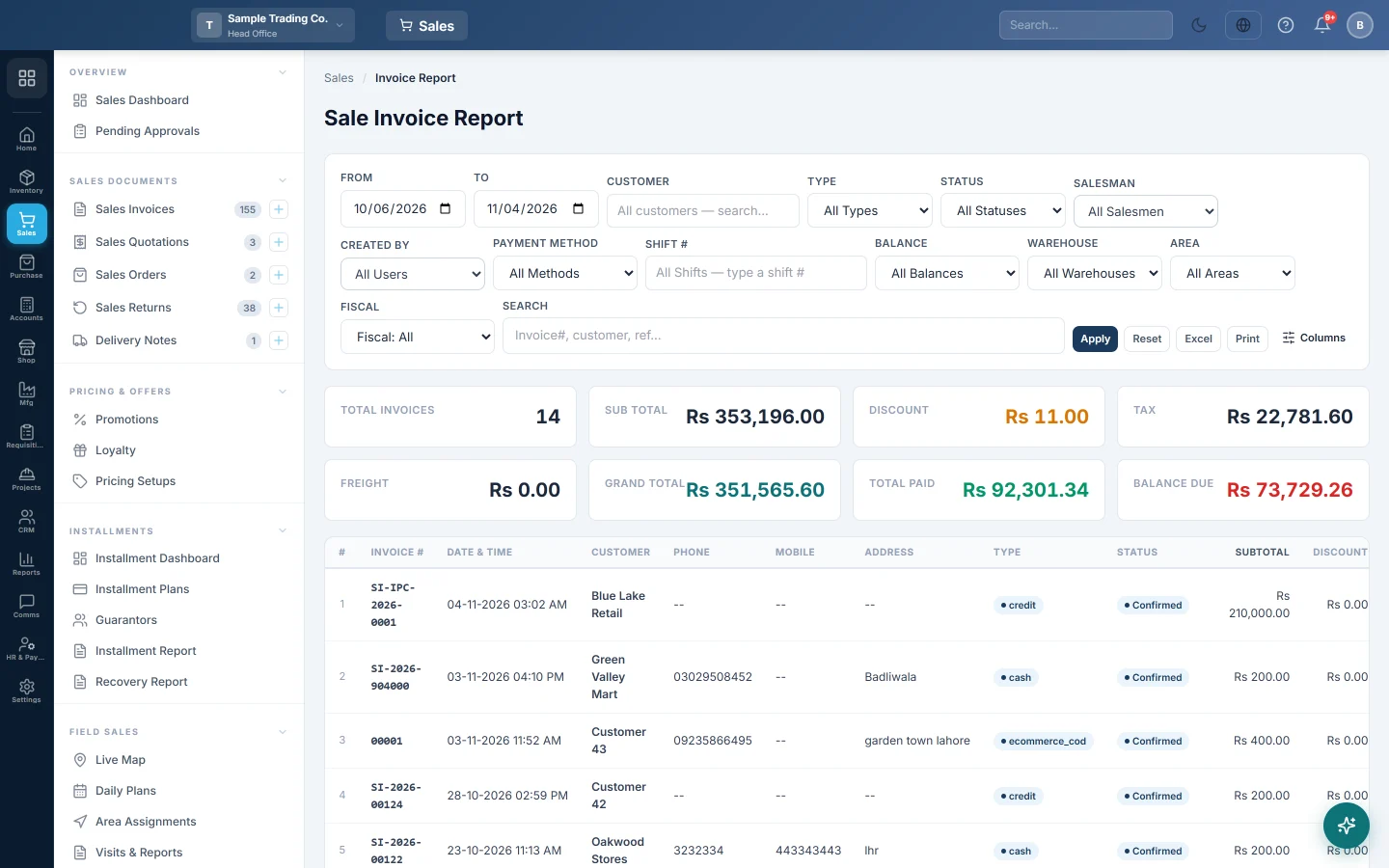
The Sale Invoice Report lists your sale invoices for a period, one row each, with the money on each invoice and how much of it has been collected.
Before you begin
- Your role needs View Sale Invoice Report. Your administrator sets this in Users & Roles.
- Only confirmed, part-paid and paid invoices appear unless you pick another status. Invoices are entered on Sales Invoices.
- When you work in the head office branch, the report covers every branch. In any other branch it shows that branch only. Switch branch in the top bar.
Where to find it
Open Sales → Reports → Sale Invoice Report.
Run the report
The report opens for your company's default date range and loads by itself. The default is set under Settings → Company → Default Report Date Range.
- Set From and To.
- Pick a Customer, or leave it on All customers — search….
- Narrow it if you need to: Type (Cash, Credit, Installment, Ecommerce (All)), Status, Salesman, Created By, Payment Method, Shift # or Balance.
- Type an invoice number, customer name or reference in Search to find one invoice.
- Click Apply. Reset puts every filter back.
Warehouse and Area show when your company has more than one warehouse or has areas set up. Restaurants also see Sale Type (Dine In, Take Away, Delivery, Drive Through). When a tax authority such as FBR or PRA is switched on, a Fiscal filter and column show whether each invoice was filed.
Read the figures
The cards add up every invoice that matches the filters, not just the page you see:
| Card | What it shows |
|---|---|
| Total Invoices | How many invoices match. |
| Sub Total | The value of the invoice lines. |
| Discount | Discounts given on these invoices. |
| Tax | Sales tax charged. |
| Freight | Shipping or delivery charges added to the invoices. |
| Grand Total | Sub Total − Discount + Tax + Freight. |
| Total Paid | What has been received against these invoices. |
| Balance Due | Grand Total − Total Paid: what customers still owe on them. |
Each row shows Invoice #, Date & Time, Customer, Type, Status, then Subtotal, Discount, Tax, Total, Down Pay., Other Pay., Total Paid and Balance. Down Pay. is what was paid when the invoice was saved. Other Pay. is everything received after that. A sale with no customer shows as Walk-in Customer.
The Page Totals row at the bottom adds up only the rows on the current page.
Choose the columns
- Click Columns.
- Tick the columns you want: Phone, Mobile, Address, Salesman, Created By, Payment Method, Shift # or Area.
Your choice is remembered in this browser. Excel and Print use the same columns.
Export or print
- Set the page size at the bottom, for example 200 / page, so every invoice you need is on one page.
- Click Excel or Print.
Common questions
Why are my draft invoices missing? With All Statuses, the report shows confirmed, part-paid and paid invoices only. Pick Draft or Cancelled in Status to see those.
How do I list only unpaid invoices? Set Balance to Non-Zero Balance (outstanding). A part-paid invoice usually keeps the status Confirmed, so the Balance filter is the reliable way to find what is still owed.
Why does a cash sale show a salesman of "--"? The Salesman column shows who the sale was credited to. Till sales are often saved without one. Created By shows who entered it.
This total is different from the Sale Profit Report. This report shows invoice totals, with tax and freight. The Profitability Report shows the value of goods sold less returns and cost. Returns are not taken off here; see the Sale Return Report.
I need the products, not the invoices. Use Item-wise Sales.
Which invoices were sent to FBR or PRA? Use the Fiscal filter here, or Authority Submitted Invoices for the full filing detail.
Teşekkür ederiz. Hâlâ yardıma ihtiyacınız varsa info@eloerp.net adresine yazın.