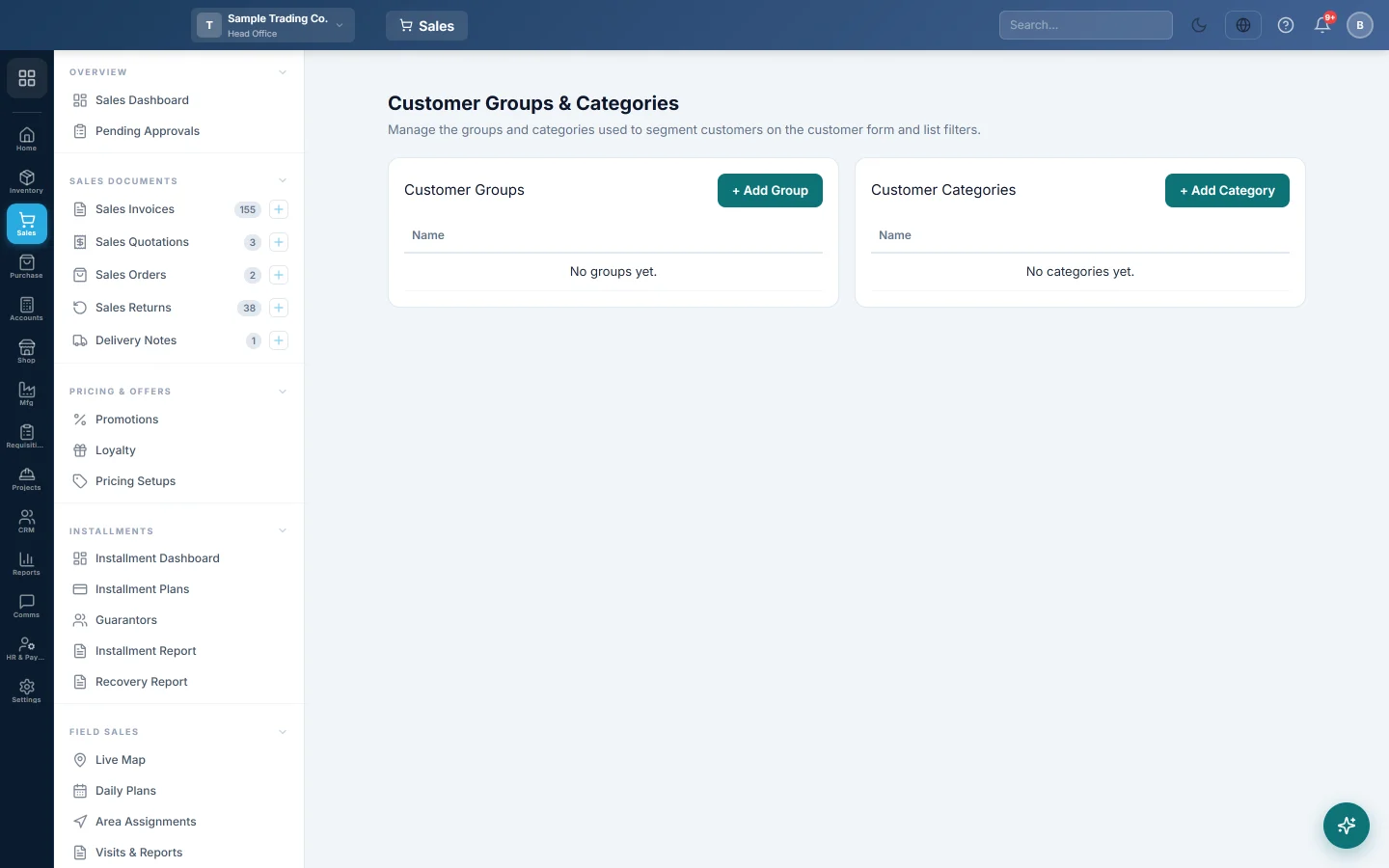
Customer Groups & Categories
Make the groups and categories you sort customers into, such as Wholesale, Retail, Corporate or VIP, for filtering the customer list and the receivables report.
Customer Groups and Customer Categories are two labels you can put on each customer to sort them, for example a group for Dealers and a category for Pharmacies. You choose them on the customer form, then filter the customer list and reports by them.
Before you begin
- Your role needs access to the Sales customer screens, see Users & Roles.
- Decide what each label means for you. A common split: the group is the kind of buyer (Retail, Wholesale, Corporate), the category is their trade (Pharmacy, Grocery, Hotel).
Where to find it
Open Sales → Customers → Customer Groups & Categories.
You can also add one from the customer form: click + next to Customer Category or Customer Group.
Add a group or category
- Click + Add Group or + Add Category.
- Type the Name.
- Click Save, or press Enter.
Rename or delete
- Click the pencil (Rename), change the name and click Save. Every customer with that label shows the new name.
- Click the bin (Delete) and confirm in Delete group? or Delete category?.
A group or category that customers still use cannot be deleted. Move those customers to another one first.
Where they are used
- Customers: set on each customer in All Customers, and filtered with All Groups and All Categories on the list.
- Receivables: Account Receivable (AR) can filter by group or category, and group its rows and totals by either.
- Users: when you assign customers to a user in Users & Roles, you can filter the list by Category.
Common questions
What is the difference between a group and a category? EloERP treats them the same way. They are two separate labels so you can sort customers two ways at once.
Does a group change prices? No. Prices come from the customer's Default Pricing Setup and their own customer prices, see Price Lists.
Delete says customers are assigned. Edit those customers, choose another group or category, then delete.
Can a customer be in two groups? No. Each customer has one group and one category.
Спасибо. Если помощь всё ещё нужна, напишите на info@eloerp.net.