Send a customer their statement link
Send a customer a private link to their live statement on WhatsApp, which they open without signing in, and switch off a link you sent before.
A statement link opens one customer's live statement in their phone's browser, with no sign-in. It always shows today's balance, unlike a printed or PDF statement that is out of date the next day.
Before you begin
- Your company has the customer portal and the Statement card is switched on in Customer Portal. Until then the Send statement link button is not shown, or it explains what is off.
- The customer has a ledger account. See All Customers.
- Your role can see this customer.
Where to find it
The Send statement link button is on two screens:
- the customer's statement: Sales → Customers → Customer Ledgers, or Accounting → Ledgers → Customer Ledgers, then click the customer;
- the customer's profile: Sales → Customers → All Customers, then click the customer's name.
Send the link
- Open the customer's statement or profile.
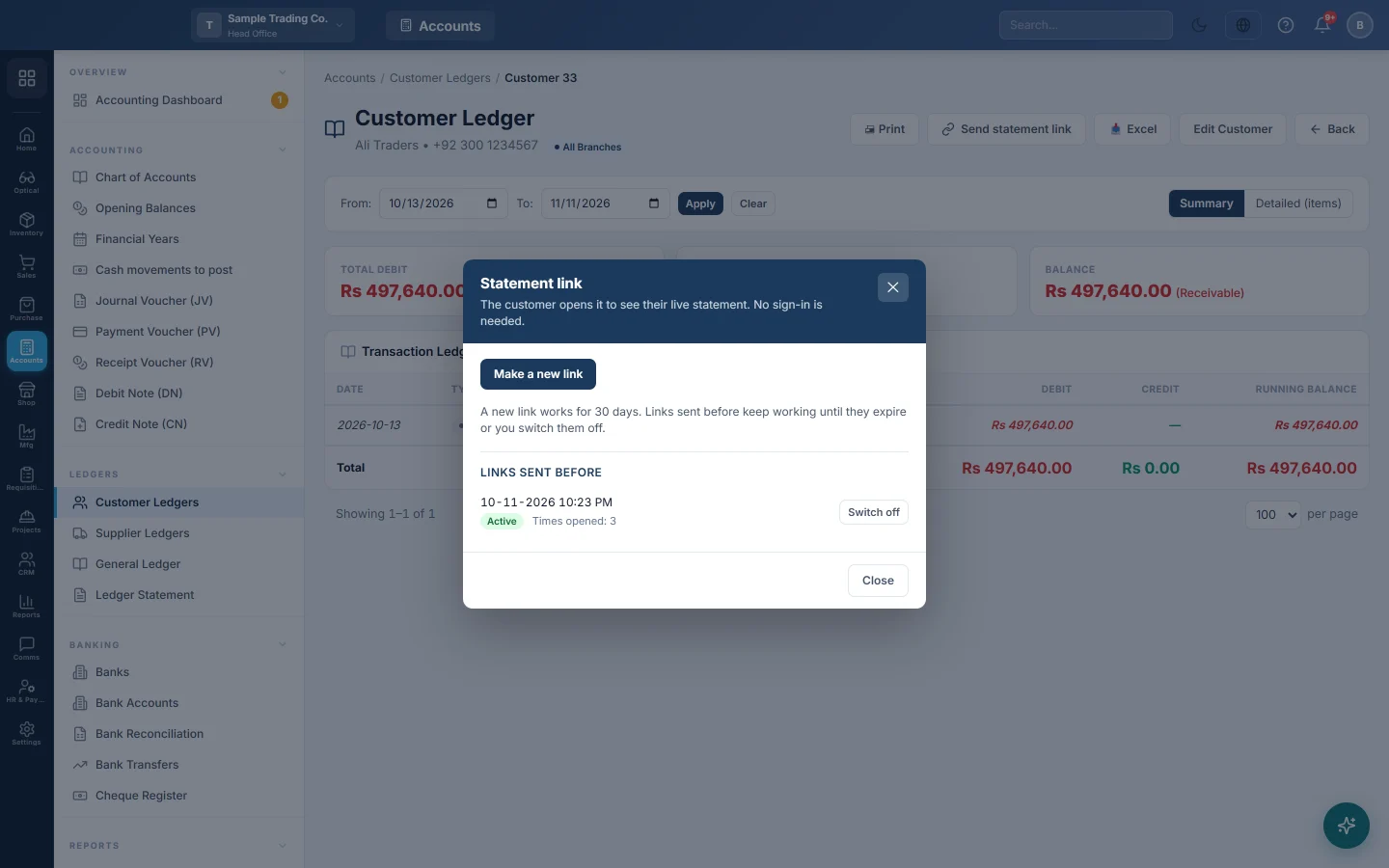
- Click Send statement link. EloERP makes a new link and shows it in the Statement link window.
- Click Open WhatsApp. WhatsApp opens on the customer's mobile number with the message ready: Your account statement from Ali Traders: and the link.
- Press send in WhatsApp.
To send it another way, click Copy link and paste it into an SMS or email.
If the customer has no mobile number saved, WhatsApp opens without a chat chosen. Pick the chat yourself.
How long a link works
- A link works for 30 days. The window shows This link works until and the date.
- It stops at once if the portal or the Statement card is switched off.
- The link is shown only once, in this window. EloERP does not keep the address, so it cannot show it again. Make a new link when you need one.
The customer opening the link sees the same statement as in "My Account", and can pay from it when payments are on. See What your customer sees in the portal.
Switch off a link you sent
- Click Send statement link on the customer. This also makes a new link; you do not have to send it.
- Under Links sent before, find the link by the date and time it was made. Each shows Active, Expired or Switched off, and Times opened or Not opened yet.
- Click Switch off on the link. Anyone who opens it now sees This link has expired, with a request to ask you for a new one.
Common questions
The button says statements are switched off. Tick Statement in Settings → Configuration → Customer Portal and click Save.
The customer says the link has expired. It is more than 30 days old. Send a new one.
Can I put the link in an automatic reminder? Yes. Write @Statement_Link in the message. See Statement and portal links in messages.
Does the customer need to sign in? No. The link is enough. The page offers Sign in to see everything for customers who want their other cards too.
Is a new link made every time I click? Yes. Older links keep working until they expire or you switch them off.
Спасибо. Если помощь всё ещё нужна, напишите на info@eloerp.net.