Daily Plans
Build each salesman's route for a day: generate the stops from their areas, add or remove shops, put them in order or let EloERP order them by distance, and publish the route to their phone.
A daily plan is one salesman's list of shops to visit on one day, in order. You build it here and publish it, and it appears on the salesman's phone as their route.
Before you begin
- Each salesman needs Allow mobile app login ticked on their user, see Users & Roles. Only those users appear here.
- Set which areas each salesman covers on which days in Area Assignments. Customers need an Area on their record, see All Customers.
- Customers need a map location for the route to be drawn and ordered. Salesmen can pin a shop from the app.
- Your role needs the Manage Field Sales Route Plans permission to change plans. View Field Sales Route Plans only lets you look.
Where to find it
Open Sales → Field Sales → Daily Plans.
Make a plan
- Pick the day in the date box at the top right. It opens on tomorrow.
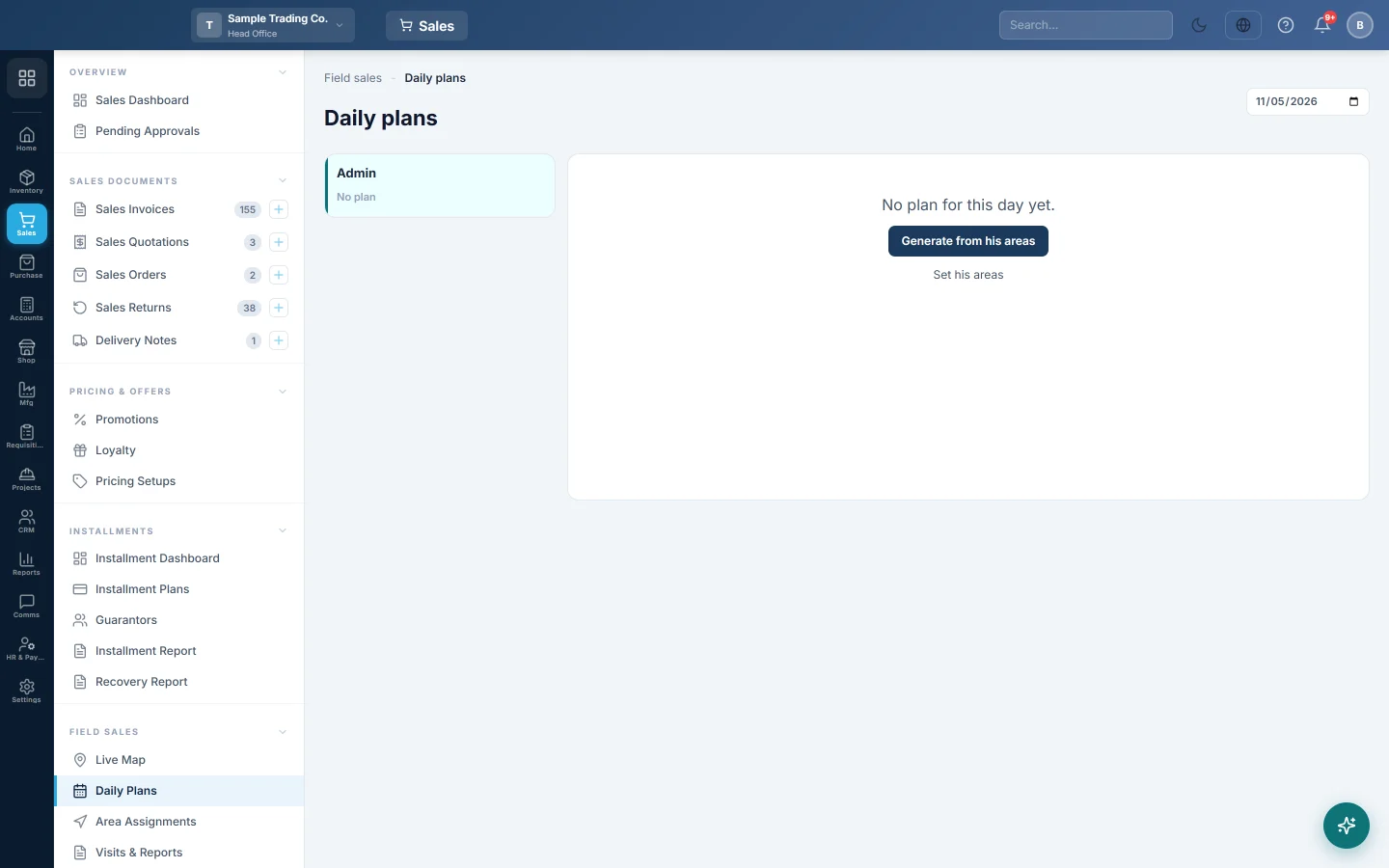
- Click the salesman on the left. Each name shows the plan's status and number of stops, or No plan.
- Click Generate from his areas. EloERP adds every active customer in the areas he covers on that weekday, one stop each.
- If the message says he covers no area that day, click Set his areas, or add stops by hand.
Change the stops
- Add a stop: search in Add a customer…, pick the customer and click Add stop. A customer already on the route is not added twice.
- Remove a stop: click ✕ on its row.
- Change the order: drag a row, or use ↑ and ↓.
- Order by distance: click Optimise route. EloERP orders the stops from the branch's location and shows the distance before and after. Stops with no location go last.
The map beside the list draws the stops in order, numbered.
Publish the route
- Check the stops and their order.
- Click Publish to phone. The status changes from Draft to Published and the route goes to the salesman's phone.
You can still change a published plan. Each change raises the Revision number, and the phone shows what changed. Once the phone records the first visit of the day, the status reads In progress.
Common questions
Generate added no stops. The salesman covers no area on that weekday, or his areas have no active customers. Check Area Assignments.
A stop is marked carried over. It was left unvisited or skipped on the previous day's route, and your company carries those stops to the next day.
Can I make a plan for someone not in the list? No. Tick Allow mobile app login for them in Users & Roles first.
Can a salesman sell to a shop that is not on his route? Yes. The visit is recorded as unplanned and shows in Visits & Reports.
When customer assignment is on, who is added? Only the customers assigned to that salesman, within his areas. A salesman with no customers assigned gets every customer in the area.
谢谢。 如果仍需帮助,请发邮件至 info@eloerp.net。