Recovery Report
One row per installment, by due date or receipt date: what was due, what was collected, what is still owed and how many days late, for recovery staff and month-end checks.
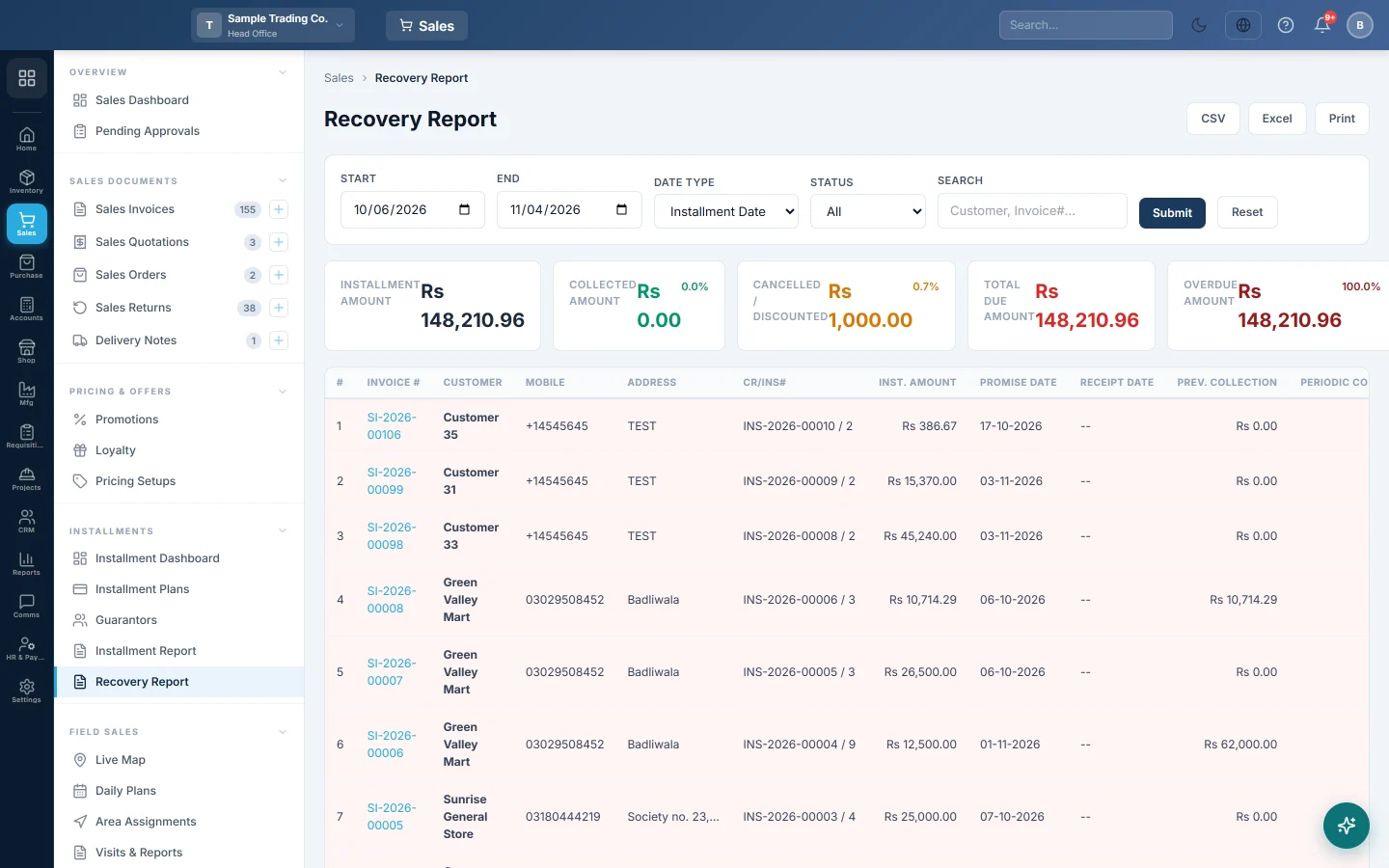
The Recovery Report lists every installment of every plan, one row each, with its due date (Promise Date), what was collected and what is still owed. Use it to plan the week's recovery visits or to check a month's collections.
Before you begin
- The Installment feature must be on for your branch, see Features & Add-ons.
- Your role needs the View Recovery Report permission, see Users & Roles.
Where to find it
Open Sales → Installments → Recovery Report. The Installment Dashboard also has a Recovery Report button.
Run the report
- Set Start and End.
- Choose the Date Type:
- Installment Date: installments due in the period. Use this for "what should come in".
- Receipt Date: installments collected in the period. Use this for "what did come in".
- Pick a Status: Paid, UnPaid or Overdue, or All.
- Type a customer name or invoice number in Search if you need one customer.
- Click Submit. Reset goes back to the default dates.
Read the columns
| Column | Meaning |
|---|---|
| Cr/Ins# | The installment plan number. |
| Inst. Amount | The scheduled amount of this installment. |
| Promise Date | The date this installment was due. |
| Receipt Date | The date it was collected, blank if not yet. |
| Prev. Collection | Cash collected on the plan's earlier installments. |
| Periodic Collection | Cash collected on this installment. |
| Cancel/Disc | The plan's discounts and cancelled amounts, spread evenly over its installments. |
| Inst. Balance | What is still due on this installment. |
| Invoice Balance | What is left on the whole plan. |
| Overdue Days / Overdue Amount | How late an unpaid installment is, and its amount. |
The cards at the top add up the rows: Installment Amount, Collected Amount, Cancelled / Discounted, Total Due Amount and Overdue Amount. Click an invoice number to open the sales invoice.
Print or export
CSV, Excel and Print each take the rows on screen, with the filters you used.
Common questions
What is the difference from the Installment Report? The Installment Report has one row per plan. This report has one row per installment.
Why does a part-paid installment show as Paid? The row shows Paid once any cash is collected on it, and its Inst. Balance shows 0. Click Pay on the plan in Installment Plans to see what is really still due on it.
Does it show other branches? No, only the branch you are working in. Switch branch in the top bar to see another.
Which collections count in Collected Amount? Installment cash only. The down payment taken on the invoice is not an installment, so it is not in this report.
Terima kasih. Jika masih butuh bantuan, kirim email ke info@eloerp.net.