Installment Dashboard
One page for the installment business: active plans, money still to collect, what is overdue, who is behind and what came in this month.
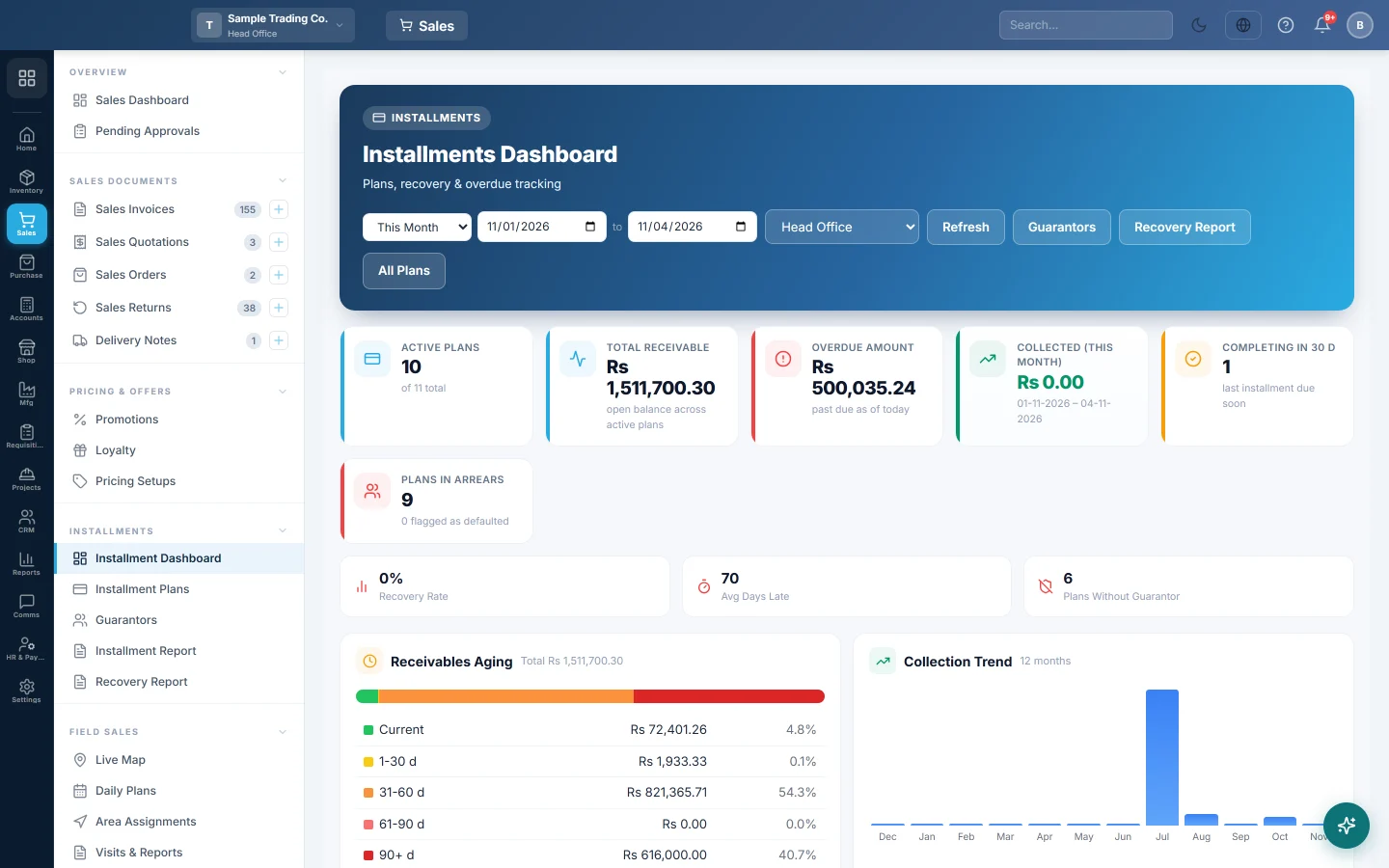
The Installment Dashboard shows the health of your installment sales at a glance: how much customers still owe on their plans, how much is overdue, who is furthest behind and how much you collected.
Before you begin
- The Installment feature must be on for your branch, see Features & Add-ons. Without it the Installments menu is hidden.
- Your role needs the View Installment Dashboard permission, see Users & Roles.
- The dashboard fills up once you sell on installments, see Installment Plans.
Where to find it
Open Sales → Installments → Installment Dashboard.
The buttons at the top right open Guarantors, the Recovery Report and All Plans (the plans list).
Choose the period and branch
- Pick a period in the date picker at the top. The default is this month.
- At head office, choose a branch, or All Branches for the whole company.
- Click Refresh to load the figures again.
Read the cards
| Card | What it shows |
|---|---|
| Active Plans | Plans still being paid, out of all plans. |
| Total Receivable | What customers still owe on active plans (plan total less down payment and installments collected). |
| Overdue Amount | Installments whose due date has passed and that are not yet fully paid. |
| Collected (This Month) | Installment cash received in the period. It reads Collected (Period) when you pick another range. |
| Completing in 30 d | Plans whose last installment falls in the next 30 days. |
| Plans In Arrears | Active plans with at least one overdue installment. |
| Recovery Rate | Cash collected in the period as a share of the installments due in the same period. |
| Avg Days Late | The average age of the oldest overdue installment, across plans in arrears. |
| Plans Without Guarantor | Active plans with no guarantor on record. |
Act on the lists
- Receivables Aging splits the receivable by how late each plan's oldest unpaid installment is: Current, 1-30 d, 31-60 d, 61-90 d and 90+ d.
- Top Defaulters lists the ten plans with the most overdue money. Click the printer icon to print that plan's installment chart for a recovery visit.
- Upcoming (7 days) shows each plan's next installment due in the coming week. A red row is due today.
- Recent Receipts lists the last ten installment receipts. Click a voucher number to open and print the receipt.
- Portfolio Mix and Plans by Tenure show plans by status and by number of installments.
- Branch Comparison appears at head office when you view All Branches and the company has more than one branch.
Common questions
Why does Total Receivable differ from the customer's ledger balance? The dashboard counts installment plans only. The customer's ledger also holds credit invoices, other receipts and opening balances. See Customer Ledgers.
A customer paid part of an installment. Is it still overdue? Yes. An installment counts as paid only when cash plus discount reaches its scheduled amount. The plan stays in arrears until then.
Why is "flagged as defaulted" always 0? It counts plans marked Defaulted, which no screen sets today. Use Plans In Arrears and Top Defaulters to find late payers.
Why do I see only my branch's plans? Plans belong to the branch where they were made. Head office can pick All Branches.
Terima kasih. Jika masih butuh bantuan, kirim email ke info@eloerp.net.