Installment Plans
Sell on installments (qist): make the plan on the sales invoice, then collect each installment, give a discount, cancel an installment or the whole plan, and print the receipt and chart.
An installment plan splits what a customer owes on a sales invoice into weekly or monthly installments. The Installment Plans page lists every plan in your branch, and is where you collect each installment when the customer pays.
Before you begin
- The Installment feature must be on for your branch, see Features & Add-ons.
- The customer must have a ledger: switch on Create Ledger in Accounts on the customer, see All Customers. The Instalment tab on the invoice is greyed out for a customer without one, and for walk-in cash sales.
- To collect, your role needs the installment permissions, and your user needs at least one allowed payment method. See Users & Roles and Payment Methods.
- To name a recovery officer on a collection, that person needs a user with the Recovery Boy role type.
Where to find it
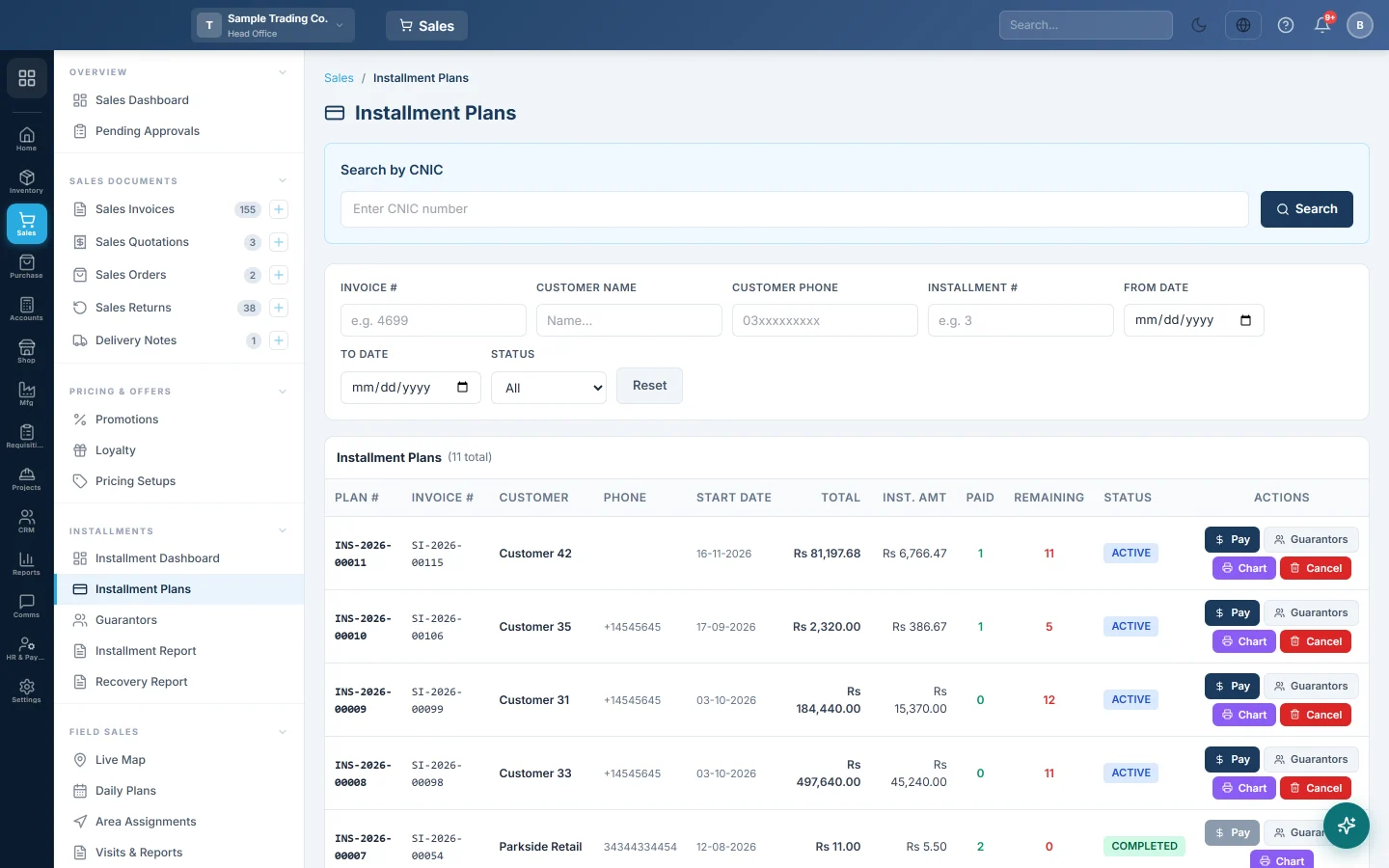
Open Sales → Installments → Installment Plans.
Make a plan on the sales invoice
A plan is always made from a sales invoice, not on this page.
- Start a new invoice in Sales → Sales Documents → Sales Invoices, see Sales Invoices.
- Pick the customer and add the items.
- Click the Instalment tab.
- Type the advance the customer pays today in Down Payment.
- Click Create Installment Plan at the top.
- Set # of Installments, Start Date (the first due date) and Frequency (Monthly or Weekly).
- If you charge a markup, choose an Interest Type (Fixed Amount or Percentage) and enter the Interest Value. A percentage is worked out on the balance after the down payment.
- Check the Payment Breakdown: the Balance to Finance and the Installment Amount of each payment.
- To set different amounts or dates, tick Customize each installment amount/date and edit the rows. Their total must match the balance.
- Add guarantors and any guaranteed cheques on the right, see Guarantors.
- Click Create Installment Plan, then Create to save the invoice.
Find a plan
- Type in Invoice #, Customer Name, Customer Phone or Installment #, or pick a Status. The list updates as you type.
- From Date and To Date filter on the plan's Start Date.
- Search by CNIC at the top finds plans by the national ID number of the customer or of a guarantor.
- Reset clears every filter.
The Paid and Remaining columns count installments, not money.
Collect an installment
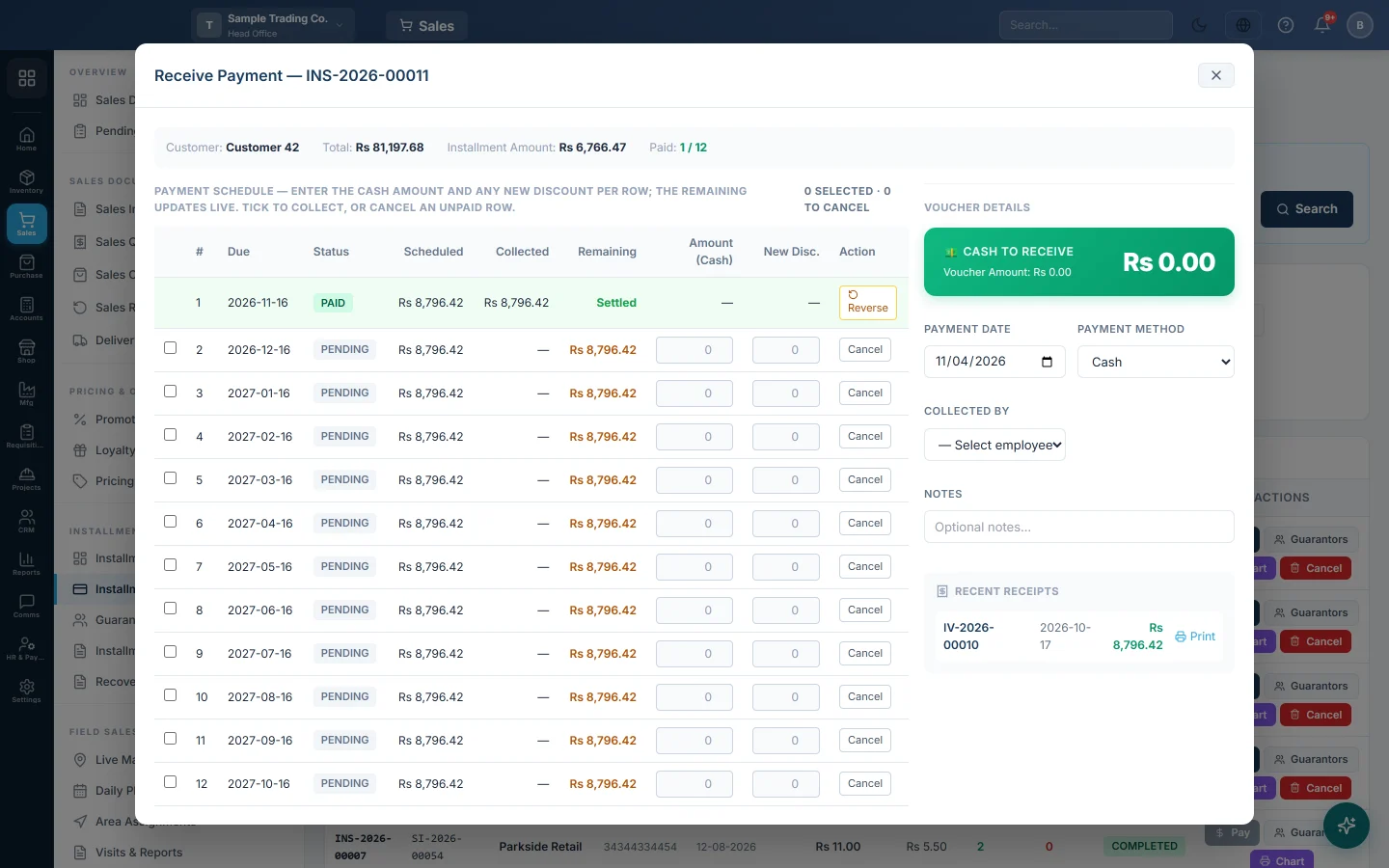
- Click Pay on the plan. The Receive Payment window opens with the payment schedule on the left.
- Tick the installment the customer is paying. Its Amount (Cash) fills with what is still due on it.
- Change Amount (Cash) if the customer pays less. A part payment leaves the row partial, with the rest still to collect.
- To forgive part of it, type the amount in New Disc.. The Remaining column updates as you type.
- Tick more rows to collect several installments on one receipt.
- Under Voucher Details, check the Payment Date and choose the Payment Method.
- Pick who took the money in Collected By, and the Recovery Boy if one recovered it.
- For a cheque or bank method, fill in Cheque No, Cheque Date and Bank Name. Fill in Cheque Amount only if the cheque is for a different amount.
- Check Cash to Receive in the green box, then click the Collect button, which shows the amount.
The Installment Receipt Voucher opens straight away. Click Print to give the customer a copy.
Undo a collection
If an installment was collected by mistake, or with the wrong amount:
- Click Pay on the plan.
- Click Reverse on the paid or partial row.
- Confirm, and type a reason if you want one.
The cash and the discount come off the invoice, the ledger and the cash report, and the installment is open again. A reversal voucher stays in the books for audit.
Cancel one installment or the whole plan
- One installment: in Receive Payment, click Cancel on an unpaid row. It turns to Cancelling. Then click the main button, for example Cancel 1 Installment.
- The whole plan: click Cancel on the plan in the list, or Cancel Entire Plan in Receive Payment when no row is ticked.
Print the installment chart
Click Chart on a plan to print its schedule: due dates, amounts, what was paid and the guarantors. Customers often keep it as their payment card.
What happens in the books
- The sale: the invoice posts as usual and the customer's ledger is debited with the invoice total. The Down Payment posts with it: cash or bank is debited and the customer's ledger is credited.
- Interest: when the plan has interest, a separate voucher debits the customer's ledger and credits Installment Interest Income.
- Each collection: an installment receipt voucher (IRV) debits the cash or bank account of the payment method and credits the customer's ledger. Under cheque management a cheque debits Cheques in Hand until it clears.
- Discount at collection: debited to Discount Allowed. The customer's ledger is credited with the cash plus the discount.
- Cancelled installments or plan: a write-off voucher debits Discount Allowed and credits the customer's ledger with the unpaid amount.
- Reverse: the customer's ledger is debited again, and cash and Discount Allowed are credited.
Each collection is also logged in the collector's open cash register, so it counts in their X Report and Z Report.
Common questions
Where is the button to add a new plan? There is none on this page. Make the plan on the sales invoice with the Instalment tab, as described above.
The Instalment tab is greyed out. The customer has no ledger, or the invoice is for a cash (walk-in) customer. Edit the customer and switch on Create Ledger in Accounts.
A customer paid two installments at once. Tick both rows in Receive Payment. One receipt covers both.
The customer paid more than one installment's amount. Tick the next row too and split the cash between the rows. Cash typed above a row's amount stays on that row, and the next installment still asks for its full amount.
I collected the wrong amount. Click Reverse on the row and collect it again. Do not cancel the plan.
The customer returned the goods. Make a sale return against the invoice. EloERP lowers what the plan still asks for and spreads it over the open installments. A full return cancels the open installments and undoes the interest.
Why is a plan missing from the list? Plans belong to the branch where the invoice was made. Switch branch in the top bar.
شكرًا لك. إذا كنت لا تزال بحاجة إلى مساعدة، راسلنا على info@eloerp.net.