Delivery Notes
Issue the goods for an invoice that was confirmed without moving stock, in one delivery or several, with the driver and vehicle on the note.
A delivery note issues the goods for a sale invoice that was confirmed without moving stock. Use it when the bill is made first and the goods leave later, or leave in several loads.
Before you begin
- The sale invoice was confirmed with ISSUE STOCK ON CONFIRM turned off. See Sales Invoices.
- The goods are in stock in the warehouse you deliver from.
- Your role needs the delivery note permissions. See Users & Roles.
Where to find it
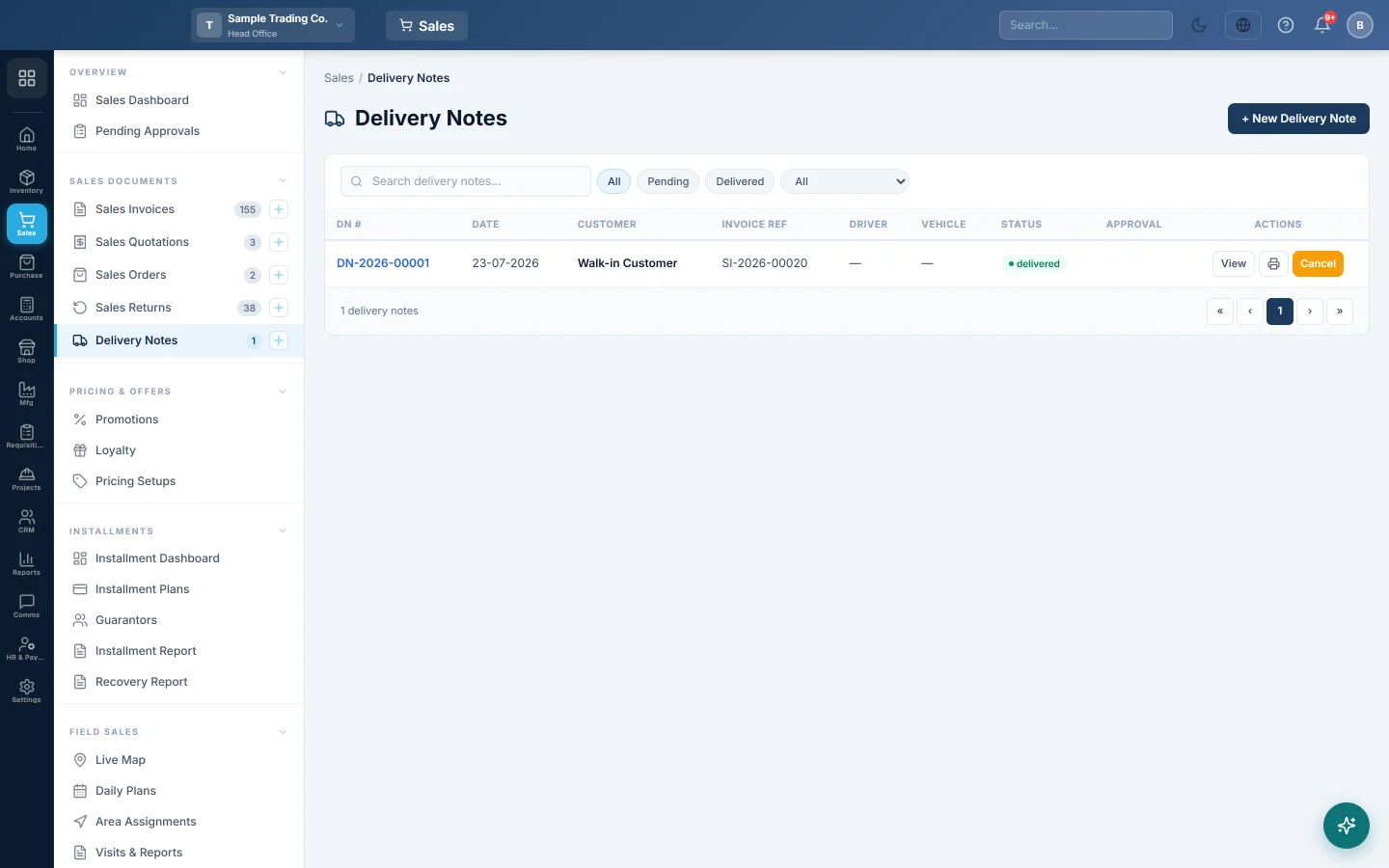
Open Sales → Sales Documents → Delivery Notes. You can also click 🚚 Delivery Note on a confirmed invoice that has not issued its stock.
Make a delivery note
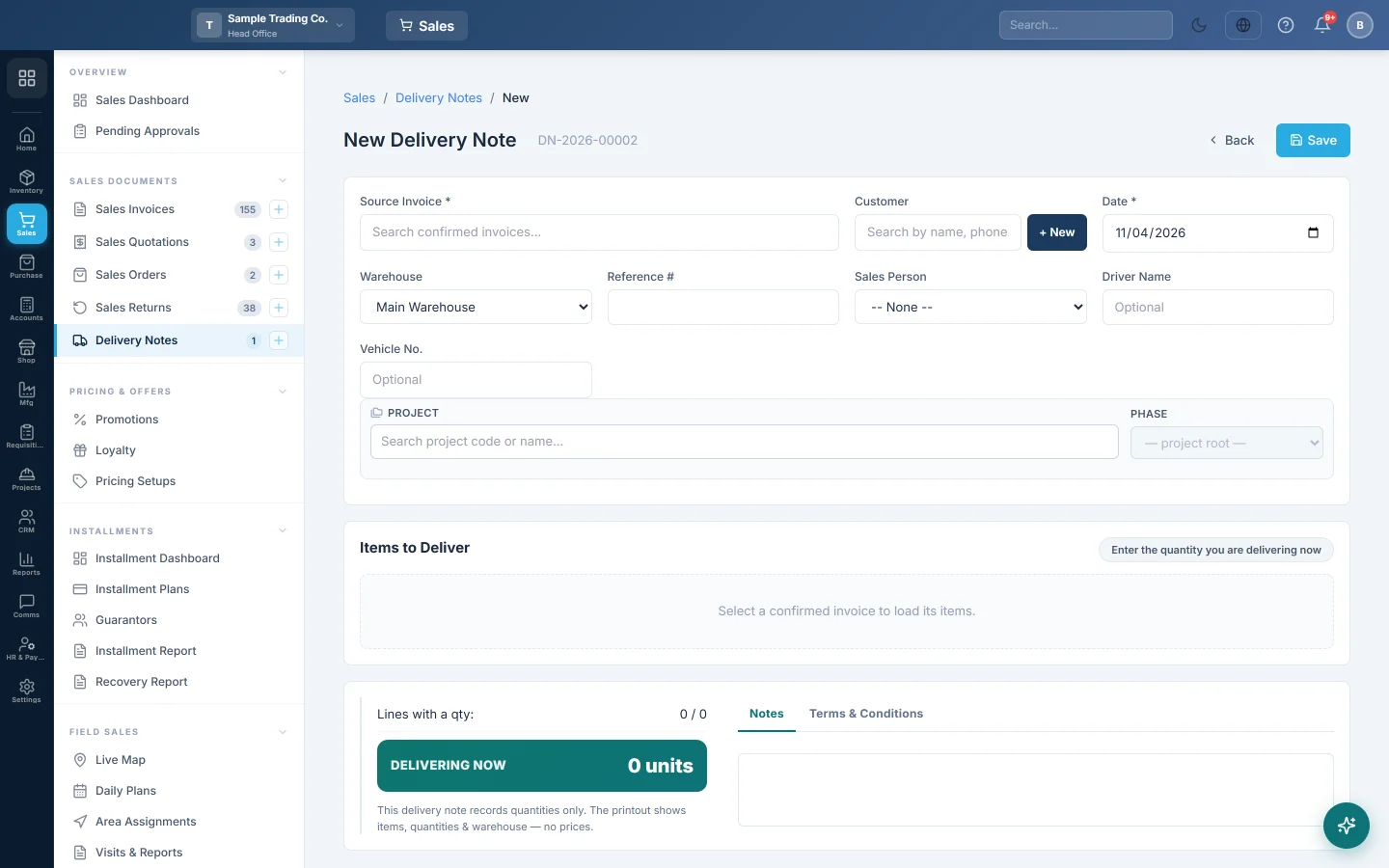
- Click + New Delivery Note.
- In Source Invoice, type the invoice number or the customer's name and pick the invoice. Only confirmed invoices are listed.
- Check the Date and the Warehouse the goods leave from.
- Optionally fill in the Driver Name and Vehicle No.
- Under Items to Deliver, type the quantity going in this load in This Delivery on each line. Delivered shows what earlier notes took, and Remaining what is still to go.
- Click Deliver max available to fill every line with what is in stock, or Clear quantities to start again.
- Click Save. The note is saved as Pending; stock has not moved yet.
Issue the goods
- Find the pending note in the list.
- Click Confirm & Issue, or open it and click Confirm & Issue Stock.
- Confirm the message. The stock leaves the warehouse and the note becomes Delivered.
If any line is short of stock, EloERP refuses and lists the products that are short. If the total is at or above the Delivery Note approval threshold in Sales Preferences, an approver clicks Approve first, on the note or on Pending Approvals.
Deliver in several loads
Make one delivery note per load against the same invoice. Each note offers only what is still Remaining. When nothing is left, the invoice shows as fully delivered.
Change, cancel or delete
- Change a pending note. Open it with Edit, change it and click Save Changes.
- Cancel a delivered note. Click Cancel in the list. The stock goes back into the warehouse and the cost entry is reversed.
- Delete a pending note. Click the bin button. Nothing was issued, so nothing is reversed.
While a delivered note is active, its invoice cannot be cancelled or deleted. Cancel the delivery note first.
What happens in the books
The invoice already posted the sale to the customer when it was confirmed. Confirming the delivery note posts only the cost of the goods it issues: Cost of Goods Sold is debited and Inventory is credited, at average cost. Cancelling the note reverses that entry.
Common questions
The items show nothing remaining. The invoice was confirmed with ISSUE STOCK ON CONFIRM on, so its stock already left, or earlier notes delivered everything. No delivery note is needed.
Can I deliver more than the invoice? No. Each line stops at the invoice quantity less what earlier notes delivered.
The goods came back after delivery. Make a sales return against the invoice. Cancel the delivery note only if the goods never left.
Where do I see notes not yet issued? Click Pending above the delivery note list. Those notes have not moved any stock yet.
Teşekkür ederiz. Hâlâ yardıma ihtiyacınız varsa info@eloerp.net adresine yazın.