Stock Transfers
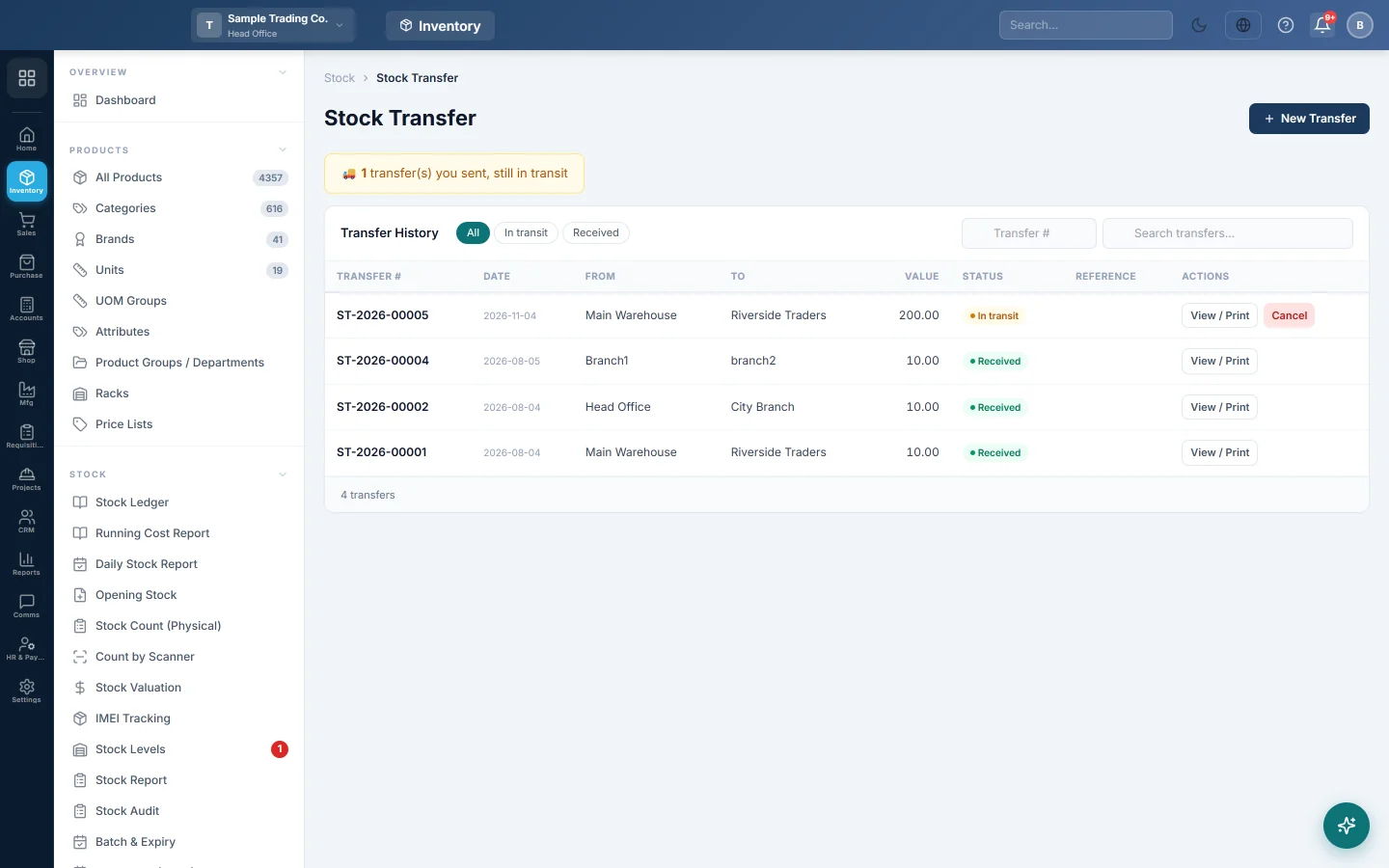
Move stock from one warehouse to another, or from one branch to another, and receive it at the other end.
A stock transfer moves goods from one place to another without a sale: from the main store to a shop counter, or from head office to a branch. Within one branch the stock moves at once; between branches it travels in transit until the other branch receives it.
Before you begin
- Both warehouses exist. See Warehouses.
- For branch-to-branch transfers, the branches exist and transfers between branches are allowed under Settings → Branch Topology (Stock transfer between branches: Not allowed, Head office only or Any branch). See Branches.
- You are working in the branch the stock leaves from. Switch branch in the top bar first.
- Your role needs the stock transfers permissions; receiving and cancelling are separate permissions. See Users & Roles.
Where to find it
Open Inventory → Stock → Stock Transfers.
Transfer between warehouses
- Click New Transfer.
- Keep Warehouse → Warehouse selected.
- Choose the From Warehouse. Only your branch's warehouses are listed.
- Choose the To Warehouse. All company warehouses are listed.
- Set the Transfer Date. Leave Reference # blank or type your own, such as a gate pass number.
- In the grid, scan the Barcode or search the Product. Available shows what the source warehouse holds.
- Enter the Transfer Qty. Unit Cost and Value show what the goods are worth.
- For batch products, the batches with the earliest expiry are sent first. Click Choose to pick batches yourself.
- Add more rows with + Add Row, write any Notes, then click Submit Transfer.
The transfer gets a number such as ST-2026-00001. If both warehouses are in your branch, it shows Received straight away.
Transfer to another branch
- Click New Transfer, then Branch → Branch.
- Choose the From Branch (your current branch) and the To Branch.
- If a branch has more than one warehouse, pick the Source Warehouse and Destination Warehouse. Otherwise leave Auto (branch default).
- Set the Transfer Date, add the products and quantities, then click Submit Transfer.
The stock leaves your warehouse at once and the transfer shows In transit. Picking a warehouse of another branch under Warehouse → Warehouse works the same way.
Receive a transfer
The receiving branch sees a banner such as 2 transfer(s) awaiting your receipt.
- Click the banner, or find the row marked Incoming.
- Click Receive.
- Check Receive now for each line. It starts at the full quantity still outstanding; lower it if goods arrived short or damaged.
- Add Notes if needed and click Confirm Receipt.
A full receipt shows Received. A short one shows Partial, and the rest can be received later.
Cancel a transfer in transit
- In the sending branch, find the transfer under In transit.
- Click Cancel.
- Type the reason and confirm. The stock not yet received goes back to the source warehouse and the transfer shows Cancelled.
Print a transfer
Click View / Print on any row, then 🖨️ Print. The page lists each item with its quantity, unit cost and value, and has signature boxes for Received by, Issued by and Store manager.
What happens in the books
- Stock: the Stock Ledger shows an outward row in the source warehouse and an inward row in the destination, under the transfer number. Goods move at the source's average cost, which blends into the destination's average cost.
- Same branch: no accounts entry; the Inventory value stays in the same branch.
- Between branches: when the goods leave, the sending branch credits Inventory and debits Inter-Branch Clearing. On receipt, the receiving branch debits Inventory and credits Inter-Branch Clearing. Company-wide the clearing legs cancel out.
- A cancelled transfer reverses the sending entry for the part not received.
Common questions
The transfer was refused for lack of stock. You cannot send more than Available, unless your company allows negative stock.
I cannot see the other branch's warehouse as a source. You can only send from your own branch. Switch to that branch in the top bar, then make the transfer.
Why is my transfer stuck In transit? The receiving branch has not clicked Receive yet. Ask them to receive it, or cancel it from your side.
Can I edit a transfer? No. Cancel an in-transit transfer and enter it again; for a received one, transfer the goods back.
Where do I see stock by warehouse after the transfer? Open Stock Levels.
Gracias. Si todavía necesita ayuda, escriba a info@eloerp.net.