Stock Report
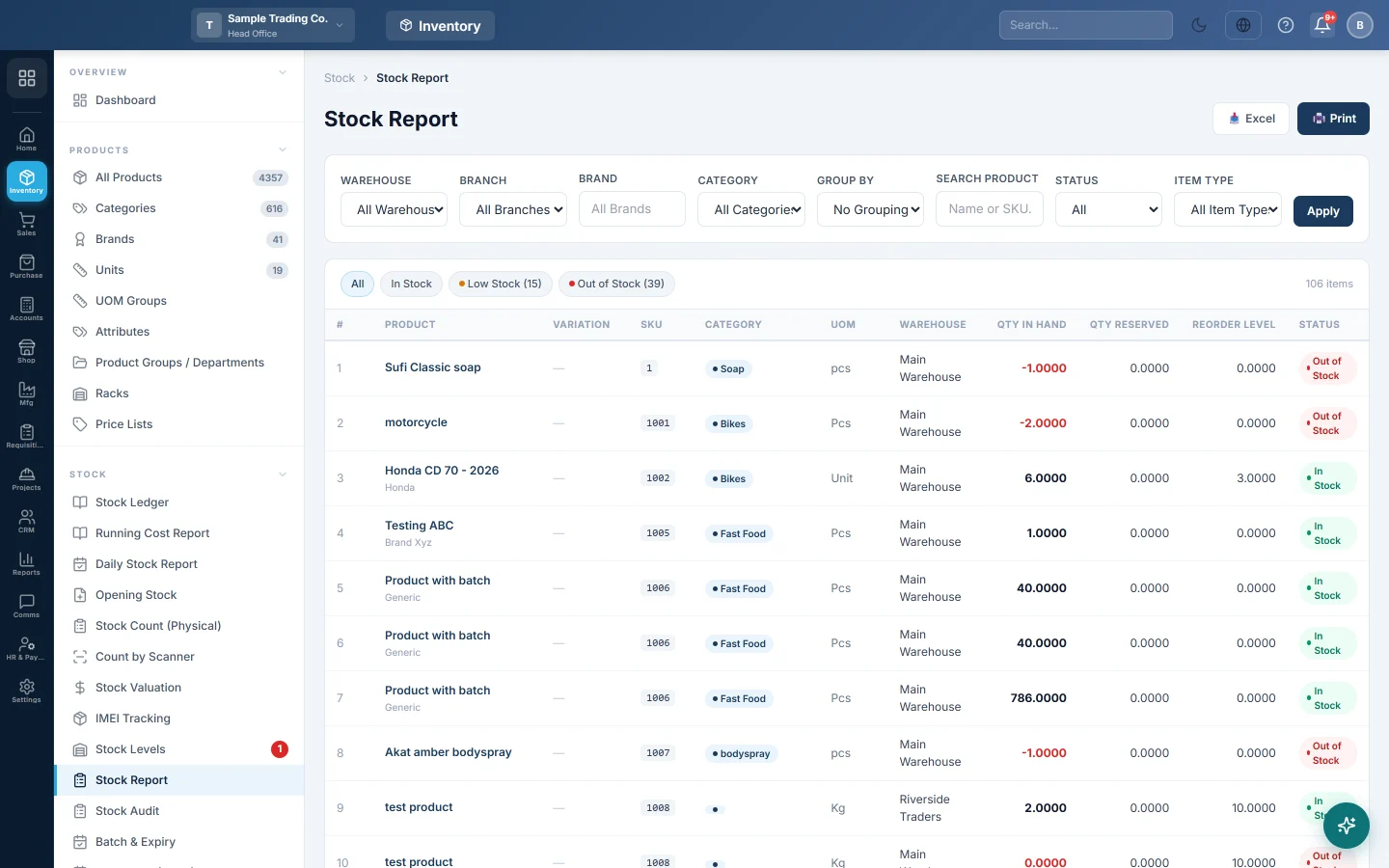
A quantity-only list of what you hold per product, variation and warehouse, with reserved quantity, reorder level and stock status, but no cost.
Stock Report lists the quantity you hold for every product, variation and warehouse, without cost or value. Use it for shelf checks and ordering, and for staff who do not need to see costs.
Before you begin
- Products must have stock from a purchase, opening stock or adjustment. See All Products.
- Set a Reorder Level on each product (or variation) so items can be marked Low Stock.
- Your role needs permission to view the stock report.
Where to find it
Open Inventory → Stock → Stock Report.
Read the report
Each line is one product (or variation) in one warehouse.
| Column | What it shows |
|---|---|
| Product | The product name and brand. Click the name to open the product in a new tab. |
| Variation | The size, colour or other variation. Unassigned means stock sits on a variant product without a variation. |
| SKU, Category, UOM | The item's code, category and unit. |
| Warehouse | Where the stock is. |
| Qty in Hand | What you hold now. Red is zero or below; amber is at or below the reorder level. |
| Qty Reserved | Quantity on confirmed or approved sale orders not yet delivered or invoiced. |
| Reorder Level | The higher of the warehouse level and the product (or variation) level. |
| Status | In Stock, Low Stock or Out of Stock. |
The Grand Total row adds up Qty in Hand and Qty Reserved for the lines on screen.
Filter and group
- Pick a Warehouse, Branch, Brand or Category. The report reloads at once.
- Type a name or SKU in Search Product.
- Choose a Status and click Apply.
- If you see Item Type, pick Saleable, Store-Consumable or Fixed-Asset items.
- Use the chips All, In Stock, Low Stock and Out of Stock to switch views quickly.
- Choose Category or Brand in Group By to get a heading and a total for each group.
Print or export
- Set the filters you want.
- Click Print or Excel. The output follows the grouping on screen.
Common questions
I need the stock value too. Use Stock Levels, which adds Unit Cost and Stock Value, or Stock Valuation.
Why is a service missing? Services and non-stock items never appear in stock reports.
Does Qty Reserved reduce Qty in Hand? No. Reserved stock is still on the shelf; it is promised to open sale orders.
The quantity looks wrong. What do I check? Open the Stock Ledger for that product and warehouse, or run Stock Audit to compare the two.
Terima kasih. Jika masih butuh bantuan, kirim email ke info@eloerp.net.