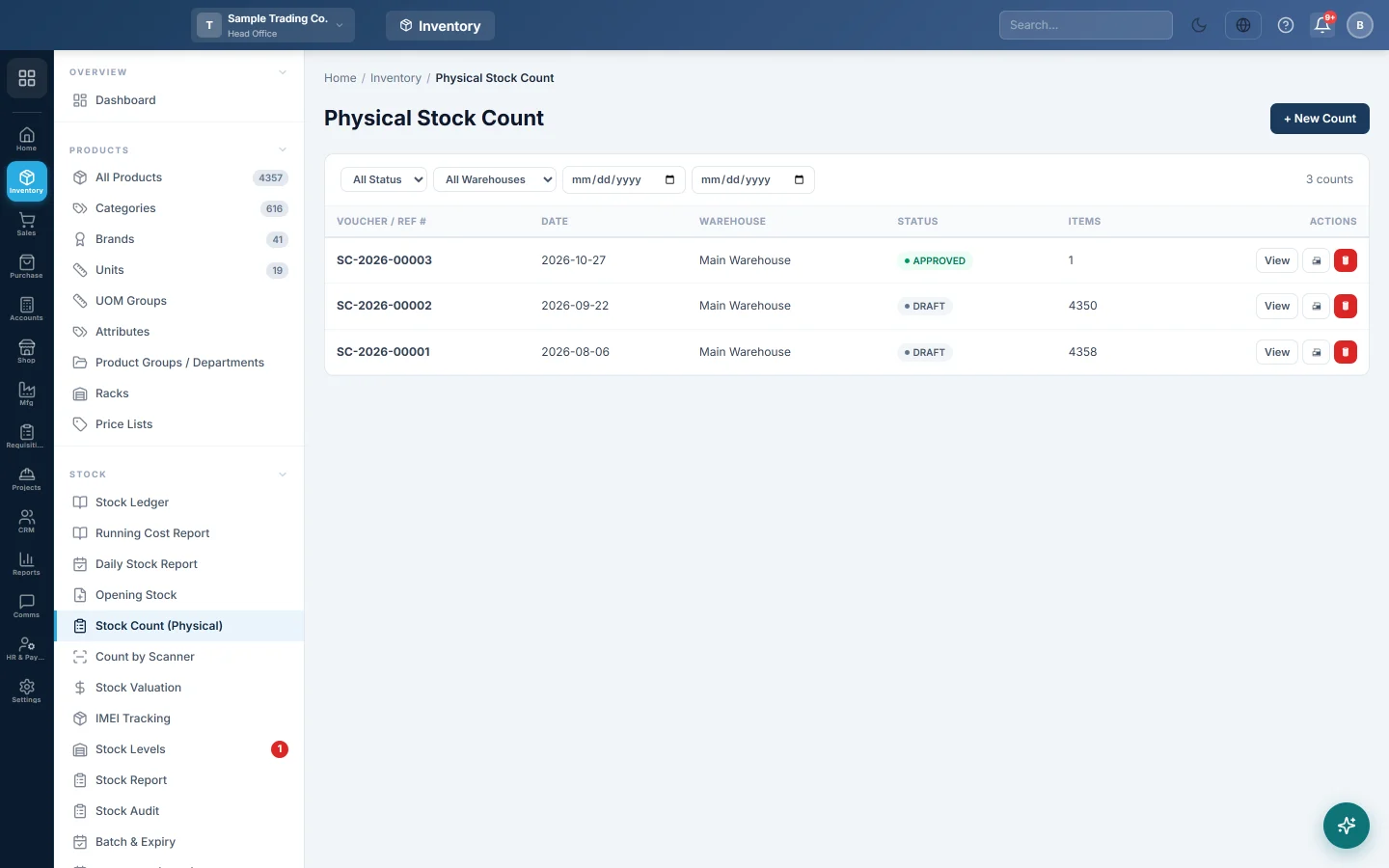
Stock Count (Physical)
Count what is really on the shelves of a warehouse, compare it with the system, and post the gains and losses to stock and the books in one approval.
A physical stock count compares what you count on the shelves with what EloERP thinks you have. When you approve the count, every difference is posted as a gain or a loss, so stock and the books match the shelf again.
Before you begin
- The warehouse exists and holds stock. See Warehouses.
- Your role needs View Stock Count to count, Approve Stock Count to post the result and Delete / Reverse Stock Count to delete one. See Users & Roles.
- Stop sales and receipts in the warehouse while you count, or count it at a quiet time. Sales made during the count still move the system quantity.
Where to find it
Open Inventory → Stock → Stock Count (Physical).
Start a count
- Click + New Count.
- Choose the Warehouse. Each warehouse shows how many units and products it holds, so pick the one you are counting.
- Choose the Product Type. Saleable (sold to customers) is right for a routine stock take; the other types are for store items and fixed assets.
- Set the Count Date. Leave Reference (optional) blank to get a number such as SC-2026-00001.
- Keep Pre-populate with current warehouse stock (recommended) ticked to load every item into the sheet.
- Tick Include batch-tracked items (count per batch) only if you are counting batches. Each batch then gets its own line with its expiry.
- Click Start Count. The count opens with status Draft.
Load more items
On the open count you can load a part of the stock, for example one aisle.
- Narrow the load with Category, Brand, Product Type or one Product.
- Leave Include items the system shows as zero (not batch items) ticked to find stock the system has missed.
- Click Load Items. The note under the button tells you how many lines have stock and how many are at zero.
To add a single product, scan or type it in Add Product (scan barcode or search). A product with variants adds one line per variant.
Enter the counted quantities
- Click 🖨 Print to print a count sheet for the people counting, if you count on paper.
- Type the shelf quantity in Counted Qty for each line. Difference and Status (Match, Gain or Loss) update as you type.
- Add a Reason for any large difference, such as damaged or found in back store.
- Found a batch the system does not know? Click + Add batch, enter the Batch no., expiry and counted quantity, then click Add.
- Click Save Items. The count moves to Counting.
Lines you leave empty stay Not counted and are left alone when you approve. To count with a phone or handheld scanner instead, see Count by Scanner.
Approve and post the count
- Check the Items Counted, Gains and Losses totals at the top.
- Click Approve & Post Adjustments and confirm.
- The count shows Approved · Cannot edit and returns to the list.
What happens in the books
- Stock: each counted line with a difference adds or removes that quantity in the warehouse. The Stock Ledger shows a row under the count's reference, valued at the item's average cost.
- For a batch line, the difference is measured against what the batch holds at the moment you approve.
- Accounts: one voucher with the count's reference is posted for the net value of all differences.
- A net gain debits Inventory and credits Inventory Adjustment. A net loss debits Inventory Adjustment and credits Inventory. Inventory Adjustment sits under cost of goods sold, so losses raise your costs.
Common questions
Can I edit a count after approval? No. Delete it (which reverses everything it posted) and start a new count.
Why does the sheet show hundreds of lines at zero? The warehouse may not be the one you are counting, or Include items the system shows as zero is ticked. Untick it and load again to see only lines with stock.
Do uncounted lines get set to zero? No. Only lines with a value in Counted Qty are posted. Enter 0 for an item that is really out of stock.
Several people are counting. Can they share one count? Yes. Use Count by Scanner on several phones; their scans add up on the same sheet.
Why can't I approve? Only a count in Counting status can be approved. Save at least one counted quantity first, and check you have the Approve Stock Count permission.
Terima kasih. Jika masih butuh bantuan, kirim email ke info@eloerp.net.