IMEI Tracking
Look up any phone or device by its IMEI, see whether it is in stock or sold, and register IMEIs for units already on the shelf.
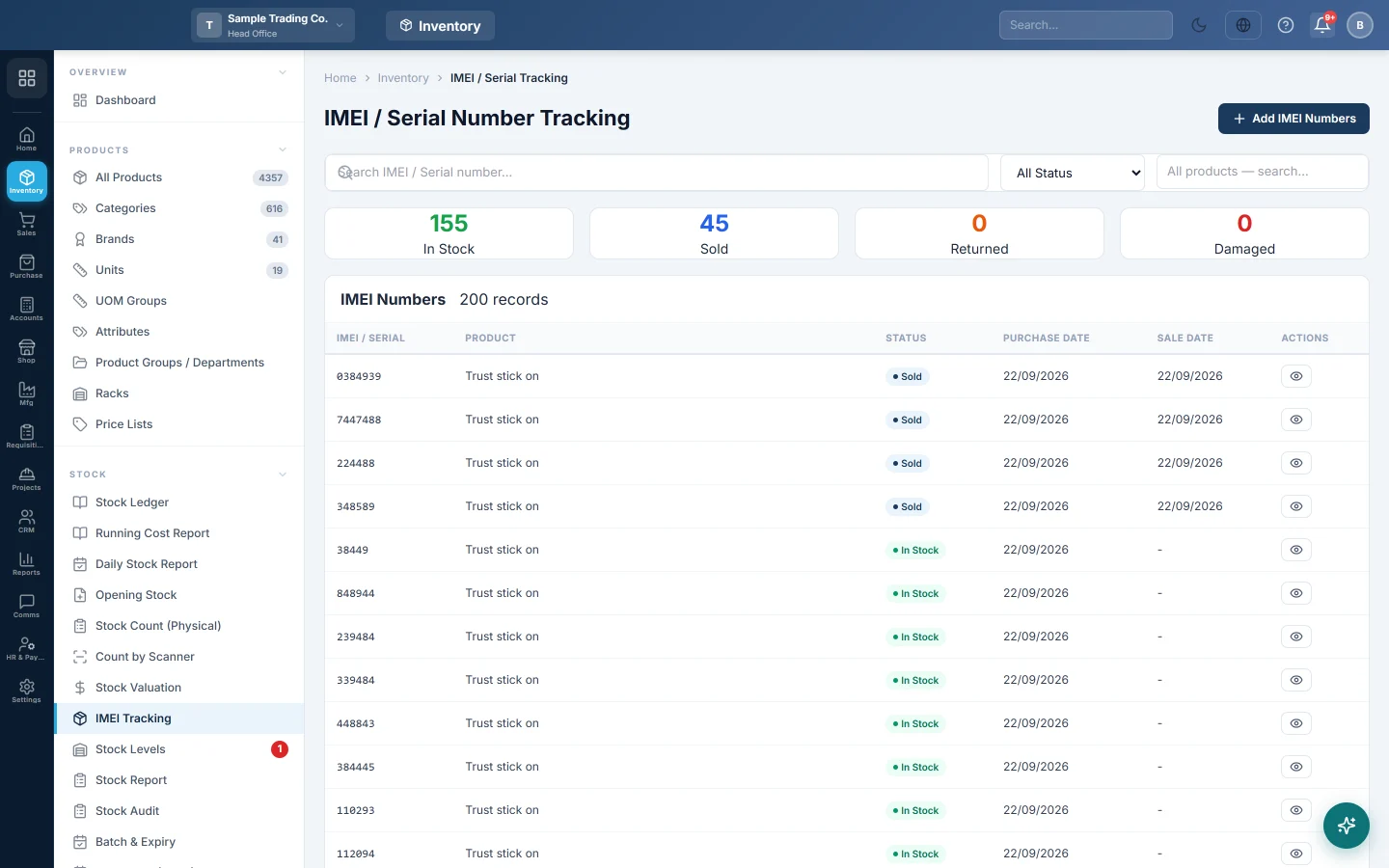
IMEI Tracking lists every unit that carries an IMEI, with its product, status and purchase and sale dates. Use it to look up a handset a customer brings back, to check whether a phone is still in stock, or to register IMEIs for phones already on the shelf.
Before you begin
- Turn on IMEI Number System under Settings → Configuration → Features & Add-ons. See Features & Add-ons. The menu item stays hidden until you do.
- Tick Enable IMEI on each phone or device product. See All Products.
- Enter IMEIs when the stock arrives: on the purchase invoice or GRN line, click ⛓ Serials and enter one IMEI per unit. Those units appear here on their own.
Where to find it
Open Inventory → Stock → IMEI Tracking. The page heading reads IMEI / Serial Number Tracking.
Read the list
The list shows units bought, sold and returned on purchase invoices, GRNs, sales and returns, and units added by hand on this page. Units that carry only a serial, engine or chassis number are not shown here; see Serial / IMEI Stock.
| Column | What it shows |
|---|---|
| IMEI / Serial | The IMEI of the unit. |
| Product | The product it belongs to. |
| Status | In Stock or Sold. A unit sold and then returned by the customer is In Stock again. |
| Purchase Date, Sale Date | When it came in and when it was sold. |
| Actions | The eye button opens IMEI Details with the product, warehouse and dates. The bin button deletes a unit added by hand. |
The cards above the list count In Stock, Sold, Returned and Damaged among the units listed below them.
Look up an IMEI
- Type all or part of the IMEI in Search IMEI / Serial number....
- Press Enter. EloERP searches all your units and shows the matches.
- To see only some units, choose a status in All Status or pick a product in All products — search…. The list reloads at once.
- Click the eye button on a line to see its product, warehouse and dates.
Clear the search box to bring the full list back.
Add IMEI numbers by hand
Use this for phones already in stock that came in without IMEIs, for example opening stock.
- Click Add IMEI Numbers.
- Search for the product in Product.
- Choose the Warehouse the phones are in.
- Type or paste the IMEIs in IMEI Numbers (one per line). The count below the box shows how many will be added.
- Check the Purchase Date. It starts as today.
- Click the Add … IMEI(s) button, for example Add 5 IMEI(s).
An IMEI that is already on file, on any product or branch, is skipped.
Delete an IMEI
- Click the bin button on the unit's line. It shows only on units added by hand that are not sold.
- Confirm.
A unit that came in on a purchase invoice or GRN cannot be deleted here, because it is tied to that document's stock. Return or edit that document instead.
Common questions
A phone I bought is not listed. The IMEIs were not entered with ⛓ Serials on the purchase line. Lines without IMEIs add quantity but no units. Enter them now with Add IMEI Numbers.
Where do I see who bought a phone? Use Serial Trace (Police), which shows the customer and the sale document.
Why is there no bin button on a unit? The unit is sold, or it came in on a purchase or GRN. Undo it on that document.
I pasted 20 IMEIs but fewer were added. The missing ones were already on file. Search for each to see which product it sits on.
Why do the Returned and Damaged cards show 0? A phone returned by a customer goes back to In Stock, so those cards stay at 0 today.
Спасибо. Если помощь всё ещё нужна, напишите на info@eloerp.net.