Count by Scanner
Count a warehouse on a phone or handheld scanner, scan by scan, with several people adding to the same count sheet.
Count by Scanner is the phone-sized way to fill in a physical stock count. You scan each item on the shelf and the count sheet adds it up; the counts are then reviewed and approved on a desktop.
Before you begin
- A count sheet is open in Draft or Counting. Create it on a desktop under Stock Count (Physical).
- Your role needs the View Stock Count permission. See Users & Roles.
- Your products have barcodes. A scan also matches the SKU, a weighing-scale PLU or a variant's own barcode.
- A handheld scanner, or a phone paired with a Bluetooth scanner, that types the code and presses Enter. The scan field does not open the phone's own keyboard.
Where to find it
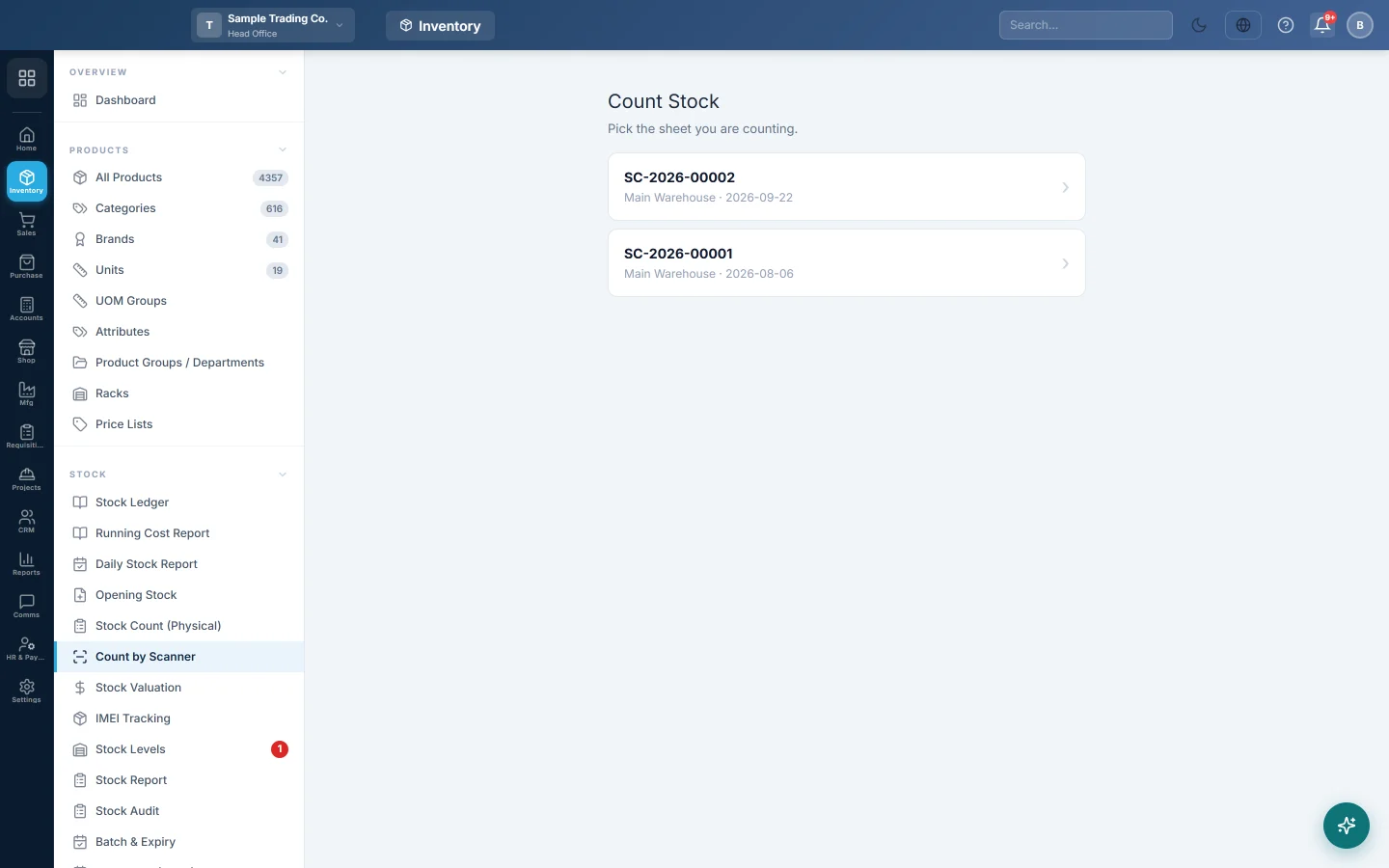
Open Inventory → Stock → Count by Scanner on the phone or handheld.
Count a shelf
- Under Count Stock, tap the count sheet you are working on. Each sheet shows its reference, warehouse and date.
- Scan the first item. The scan field is always ready, so you can keep scanning without tapping.
- Read the large panel: it shows the item name, the Counted total so far and how far it is from the system quantity.
- For a case of many units, tap Qty, key the number, tap ✓, then scan the item once.
- Keep scanning. The bar at the top shows how many lines of the sheet are counted.
- Tap ‹ to go back to the list of sheets when you finish.
Each scan adds to the count; it never replaces it. Two people scanning the same product on the same sheet add up correctly.
When the signal drops
The badge at the top right shows online, offline or the number of scans queued. Scans made without a connection are held on the phone and sent when the connection returns. Keep the page open until the queue is empty.
A scan the server refuses turns red with the reason, for example Nothing matches a code. Tap Retry after fixing the problem, or leave it.
Finish the count
Scanning only fills the sheet. To post the result:
- Open the same count on a desktop under Inventory → Stock → Stock Count (Physical).
- Review the counted lines and enter any reasons.
- Click Approve & Post Adjustments. See Stock Count (Physical) for what is posted.
Common questions
No sheets appear, or my new sheet is missing. Only open sheets are listed. Sheets in Counting are shown; Draft sheets appear only when no sheet is in Counting. Save one counted line on the desktop to move a new sheet to Counting.
The scan says the product is batch-tracked. A scan cannot tell which batch it found. Count batch products on the desktop sheet, loading them with Include batch-tracked items (count per batch).
I scanned an item that is not on the sheet. It is added to the sheet with its system quantity, so stock the sheet did not list is still counted.
Does a weighed label count as one item? No. A scale label that carries the weight counts that weight.
Obrigado. Se ainda precisar de ajuda, escreva para info@eloerp.net.