Stock Ledger
Every stock movement of one product, in date order, with the running balance; use it to see why a quantity is what it is.
The stock ledger is the history of one product: every purchase, sale, transfer, adjustment and opening entry that moved it, with the balance after each one. Open it when a stock figure looks wrong and you need to see where it came from.
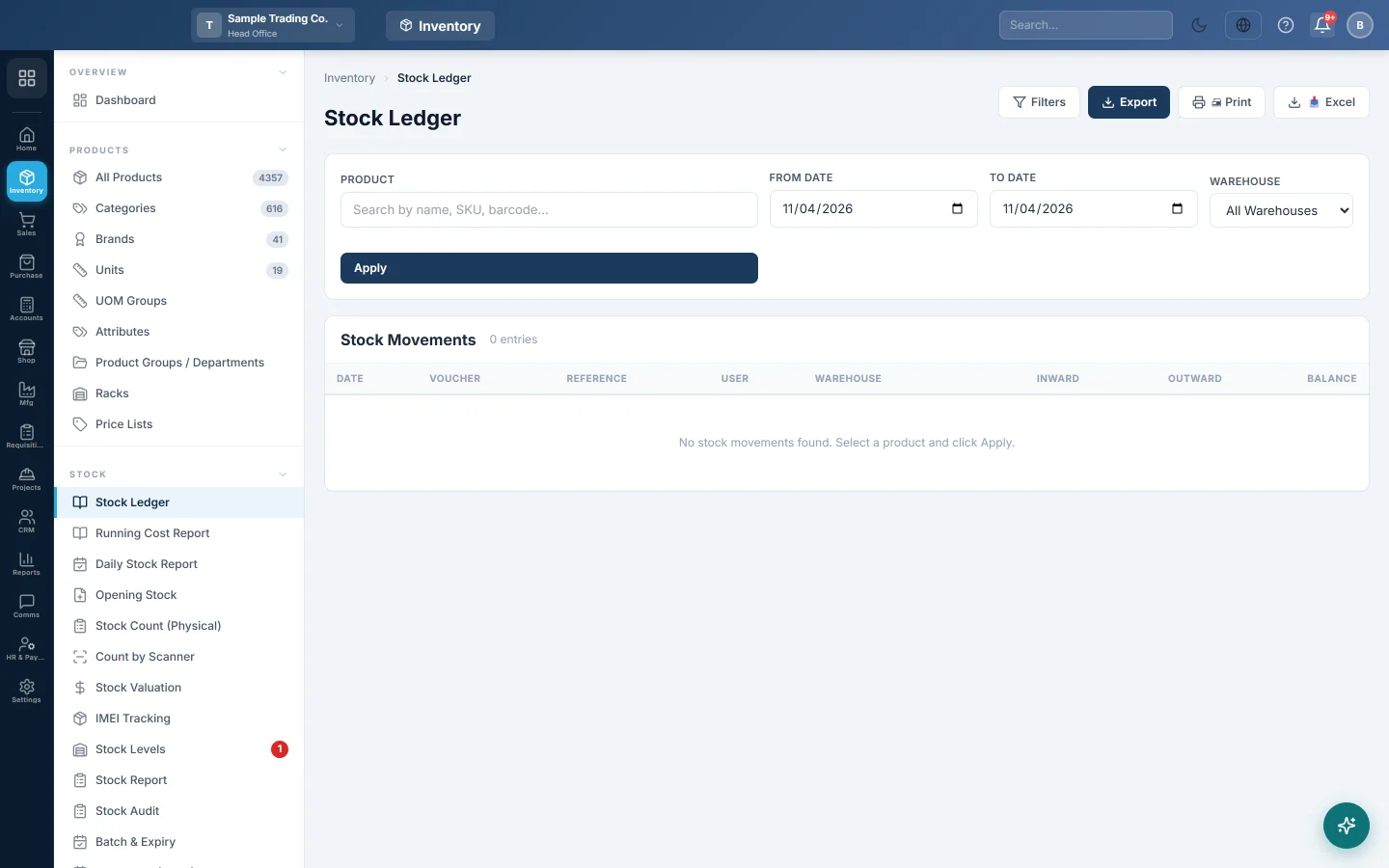
Before you begin
- The product must exist. See All Products.
- Your role needs the stock ledger permission. See Users & Roles.
Where to find it
Open Inventory → Stock → Stock Ledger.
View a product's ledger
- In Product, type at least two letters of the name, SKU or barcode.
- Pick the product from the list. The list shows the stock on hand next to each name. The ledger loads at once.
- Change From Date and To Date if you need a longer period. Both start on today's date.
- Optional: pick one Warehouse. All Warehouses shows every warehouse you are allowed to see.
- Click Apply.
Click Filters to hide or show the filter box.
Read the ledger
The four cards at the top cover the dates you chose:
| Card | Meaning |
|---|---|
| Opening Balance | Stock before the From Date. |
| Total Inward | Everything that came in during the period. |
| Total Outward | Everything that went out during the period. |
| Closing Balance | Opening + Inward − Outward. |
The table has one row per movement:
| Column | Meaning |
|---|---|
| Date | The date of the document. |
| Voucher | The kind of document and its number, for example Purchase, Transfer In or Adjustment. A variant name follows when the movement was for one variant. |
| Reference | The note or reference saved on the document. |
| User | Who entered it. |
| Warehouse | Where the stock moved. |
| Inward / Outward | The quantity in or out. |
| Balance | The running balance after this row. |
The first row, Opening Balance — Brought Forward, carries the stock from before the period. Green rows are stock in; red rows are stock out.
A long period is split into pages of 500 rows. Use First, Previous, Next and Last at the bottom. The cards always cover the whole period, not only the page.
Export or print
- Export saves a CSV file.
- Excel saves an .xlsx file.
- 🖨 Print prints the page.
Both exports include every row in the period, not only the page on screen.
Common questions
Why is the ledger empty? Both dates start on today. Choose an earlier From Date and click Apply.
The balance here differs from Stock Levels. The ledger counts only the warehouses in your filter and the movements up to the To Date. Set All Warehouses and today's date, then compare. If they still differ, check with Stock Audit.
Can I see the cost of each movement? Not here. The Running Cost Report shows the same movements with the average cost and stock value after each one.
Why can I not see another branch's warehouse? You only see the warehouses your branch and user may see. Head office users see the whole company.
How do I correct a wrong movement? Correct the source document, such as the purchase or the transfer. To fix a count difference, use Stock Adjustments.
Obrigado. Se ainda precisar de ajuda, escreva para info@eloerp.net.