Set up payment methods
Link cash, card, bank transfer and other ways of being paid to the right cash or bank account, and add your real bank accounts.
A payment method is a way your customers pay you or you pay others: cash, card, bank transfer, cheque or a mobile wallet. Each method points to one cash or bank account, so the money lands in the right place in your books.
Before you begin
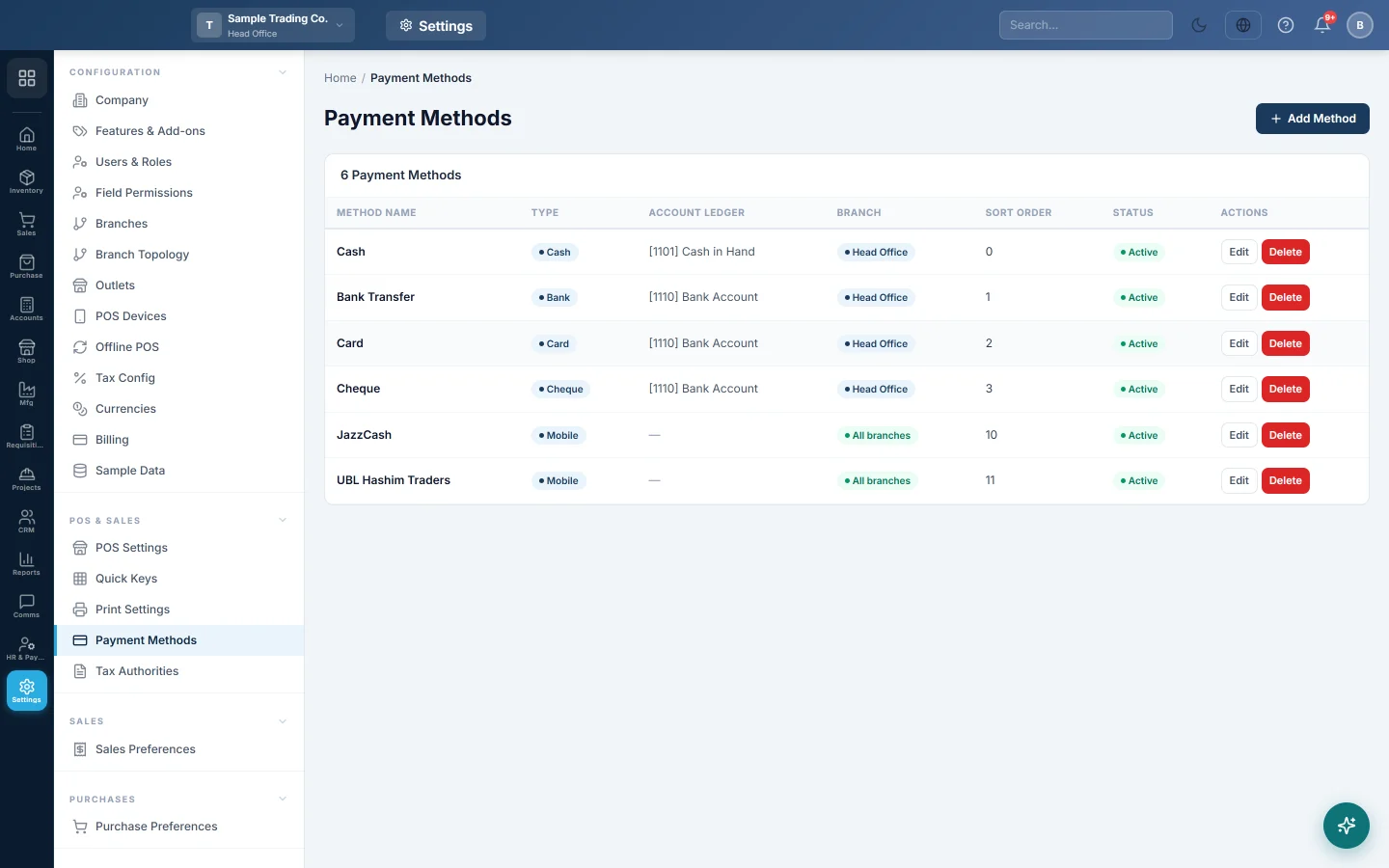
- Your company starts with four methods: Cash, Bank Transfer, Card and Cheque. Cash posts to Cash in Hand; the other three post to a general Bank Account ledger.
- Add your real bank accounts first (below), so you can point the bank and card methods to them.
- You need permission to open Settings → Payment Methods and Accounts → Banking.
Where to find it
- Payment methods: Settings → POS & Sales → Payment Methods.
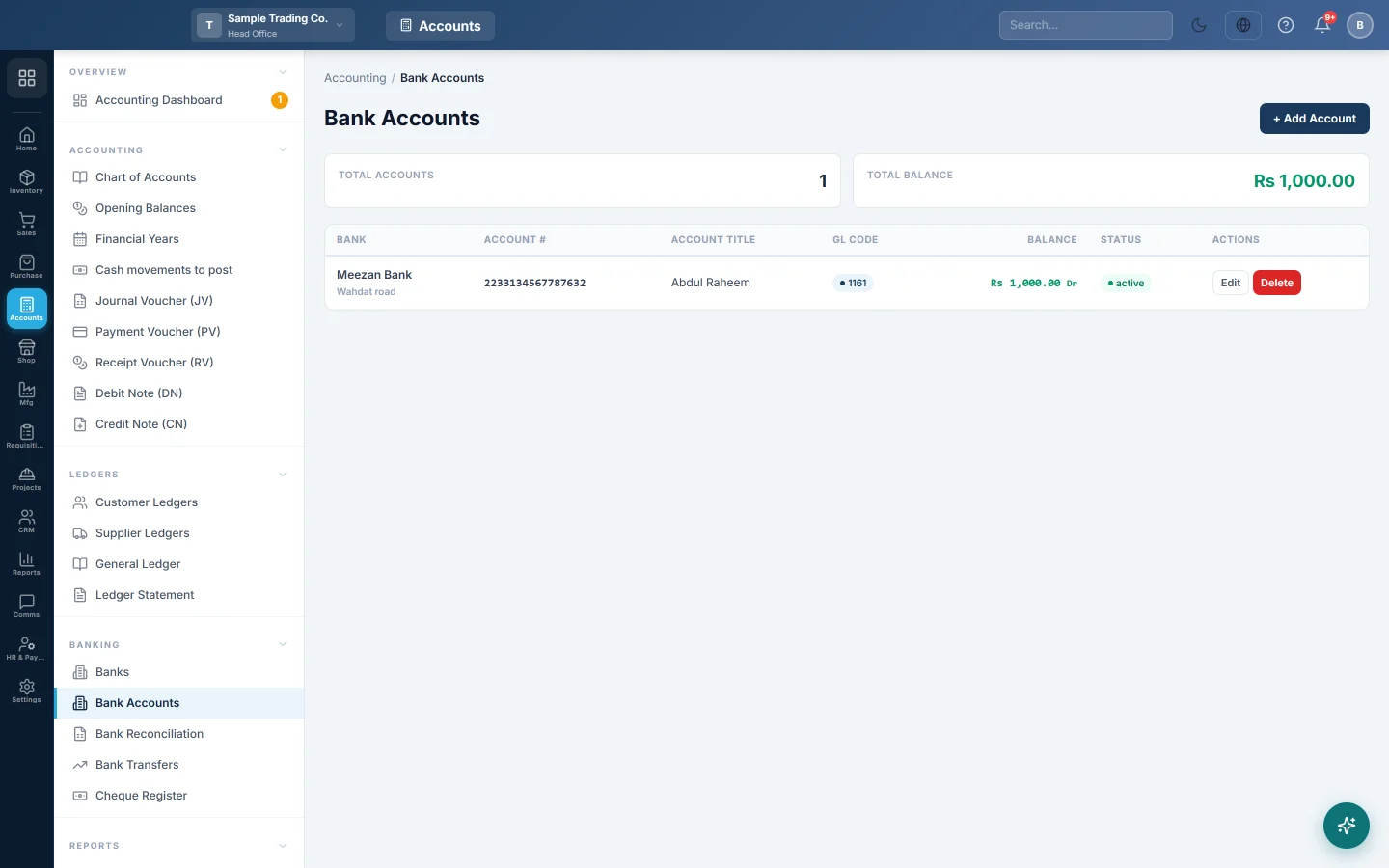
- Banks and bank accounts: Accounts → Banking → Banks and Accounts → Banking → Bank Accounts.
Add your bank accounts
A bank account in EloERP creates its own account in the chart of accounts, so each bank has its own balance.
- Open Accounts → Banking → Banks and click Add Bank.
- Enter the Bank Name and Branch Code, then save.
- Open Accounts → Banking → Bank Accounts and click Add Account.
- Pick the Bank, then enter the Account Number and Account Title.
- If the account already has money in it, enter the Opening Balance, the Balance Type (Debit for money in the account, Credit for an overdraft) and the Opening Date (as of).
- Click Save.
Point a method to the right account
- Open Settings → POS & Sales → Payment Methods.
- Click Edit on the method, for example Card.
- In Account Ledger (Cash/Bank), pick the bank account the card machine pays into.
- Click Save.
Do the same for Bank Transfer and Cheque.
Add a new method
- Click Add Method.
- Type the Method Name, for example Mobile Wallet.
- Choose the Type: Cash, Card, Bank Transfer, Cheque, Mobile Payment or Other.
- Pick the Account Ledger (Cash/Bank). Always pick one.
- In Branch, leave All branches (shared) for a method every branch uses, or pick one branch. Only the head office can choose; other branches add methods to their own branch.
- Set the Sort Order. Lower numbers appear first on the till and on payment screens.
- Leave Status on Active and click Save.
Print a pay-by-QR code on invoices
- Edit the method and tick Show QR on Invoice.
- Enter the QR Value (account number), for example your wallet number or IBAN.
- Upload a small Logo / Icon if you want one above the code.
- Click Save. The logo and QR code print on your invoices so customers can scan and pay.
Choose a cashier's methods
On each user you can set a Default Payment Method, which the till selects when the register opens, and the Allowed Payment Methods that user may take. Find them in Settings → Configuration → Users & Roles. See Users & Roles.
What happens in the books
When you take a payment by a method, its account ledger is debited and the customer is credited. When you pay a supplier, the supplier is debited and the method's account is credited.
Common questions
My new branch has no payment methods. The starting methods belong to the head office. From the head office, edit each method and set Branch to All branches (shared), or add methods for that branch.
Can I delete a method? Yes, with Delete. If it has been used, set Status to Inactive instead, so old payments keep their method.
Card payments should land in two different banks. Add two card methods, for example Card – Bank A and Card – Bank B, each with its own ledger.
Where do I record the bank's opening balance? On the bank account itself, as above. See Enter opening balances for the rest.
谢谢。 如果仍需帮助,请发邮件至 info@eloerp.net。