Email payslips
Send each paid employee their payslip as a PDF, see on every row whether it was Sent, Not sent or Failed, and send the whole run with Email payslips.
A payroll run can email each employee their payslip as a PDF. Every row of the run shows whether that person's slip has gone out, and Email payslips sends the slips of everyone paid in one go.
Before you begin
- Set up email first: Settings → Notification Channels, with an active email (SMTP) channel. See Notification Channels.
- Each employee needs a valid email address on their employee record. See Employees.
- A slip goes only to someone paid in full on a run that is finalized and posted to accounts. A draft run sends nothing.
Where to find it
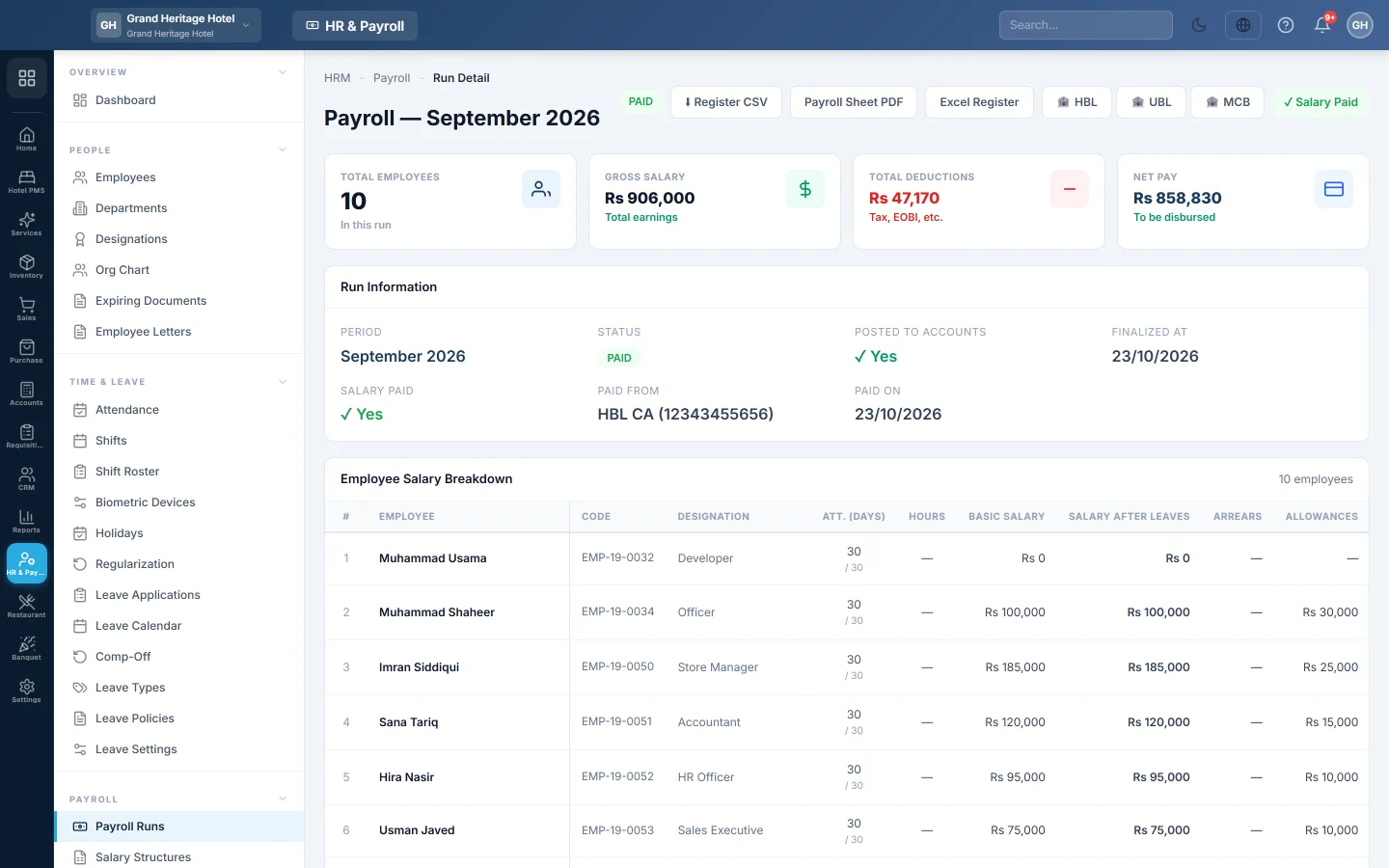
Open HR & Payroll → Payroll → Payroll Runs and click a month to open the run.
See who has their payslip
Once an employee is paid in full, their row shows a chip in the Actions column:
| Chip | Meaning |
|---|---|
| ✉ Sent | The slip was emailed. Point at the chip to see the address, the time, and how many times it was sent. |
| ✉ Not sent | Paid, but no slip has gone out yet. |
| ✉ Failed | The last try did not go through. Point at the chip to read why. |
Rows that are not fully paid show no chip, because there is nothing to send yet.
Email the slips for the whole run
- On the run, click ✉ Email payslips at the top. Its counter shows how many paid employees already have their slip, for example 12/15.
- Choose Not sent yet (paid employees with no slip, or whose last email failed) or All paid employees (sends again to everyone).
- Click Send 3 payslip(s). A bar shows the progress.
- Read the result: how many were emailed, and the name and reason for each one that could not be.
- Click Close. The chips on the rows are up to date.
Send a slip while paying
Both pay windows, Pay on a row and Pay Employees, have a Send payslip via email tick. It starts ticked when Email the pay slip when a payment is recorded is on in Statutory & Tax Slabs. Each employee paid in full then gets their slip straight away.
Send one slip again
- Click Pay Slip on the employee's row.
- Click Email Slip.
Common questions
Why does it say Failed? Point at the chip. The usual reasons are no valid email on the employee record, no active email channel, or the employee not yet paid in full. Fix it, then send again with Not sent yet.
Can I email a slip before paying? No. A slip is sent only after the employee is paid in full, because an emailed slip cannot be taken back.
An employee says they never got it, but the chip says Sent. Check the address shown on the chip, and ask them to look in their spam folder. Correct the email on their record and send again.
Can I see the slips in one file instead? Yes. Payslips (Batch) on HR & Payroll Reports gives all slips of a month in one PDF.
Do employees see their slips without email? Yes. Employees with a login see their own slips on My HR Portal.
谢谢。 如果仍需帮助,请发邮件至 info@eloerp.net。